Objects
In the Objects section, you can create, edit, or delete objects.
Object Overview
Navigating via the menu or the dashboard opens the object overview, which always displays a filtered list of objects.
Filter
The active filter criteria are shown above the object list:
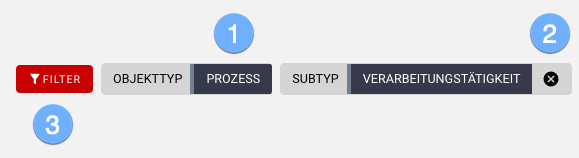
- As a minimum requirement, the object type is always needed!
- Removing optional filter criteria immediately expands the object list.
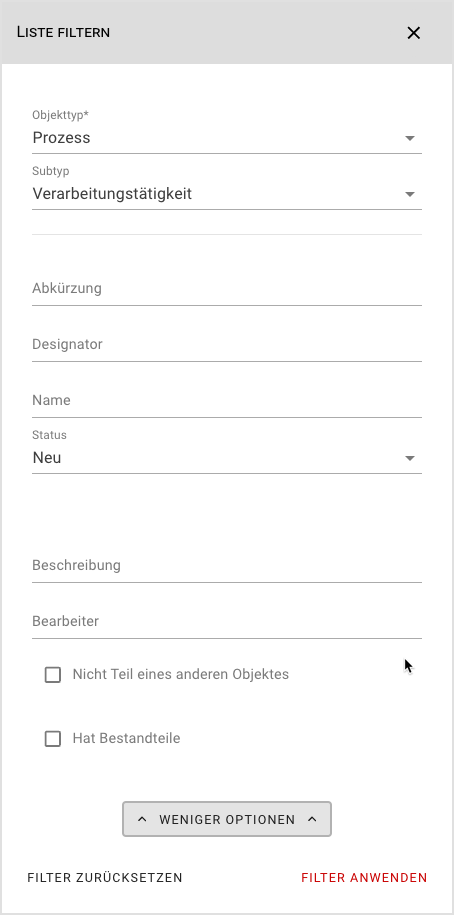
- To filter by additional criteria, open the filter dialog:
Search
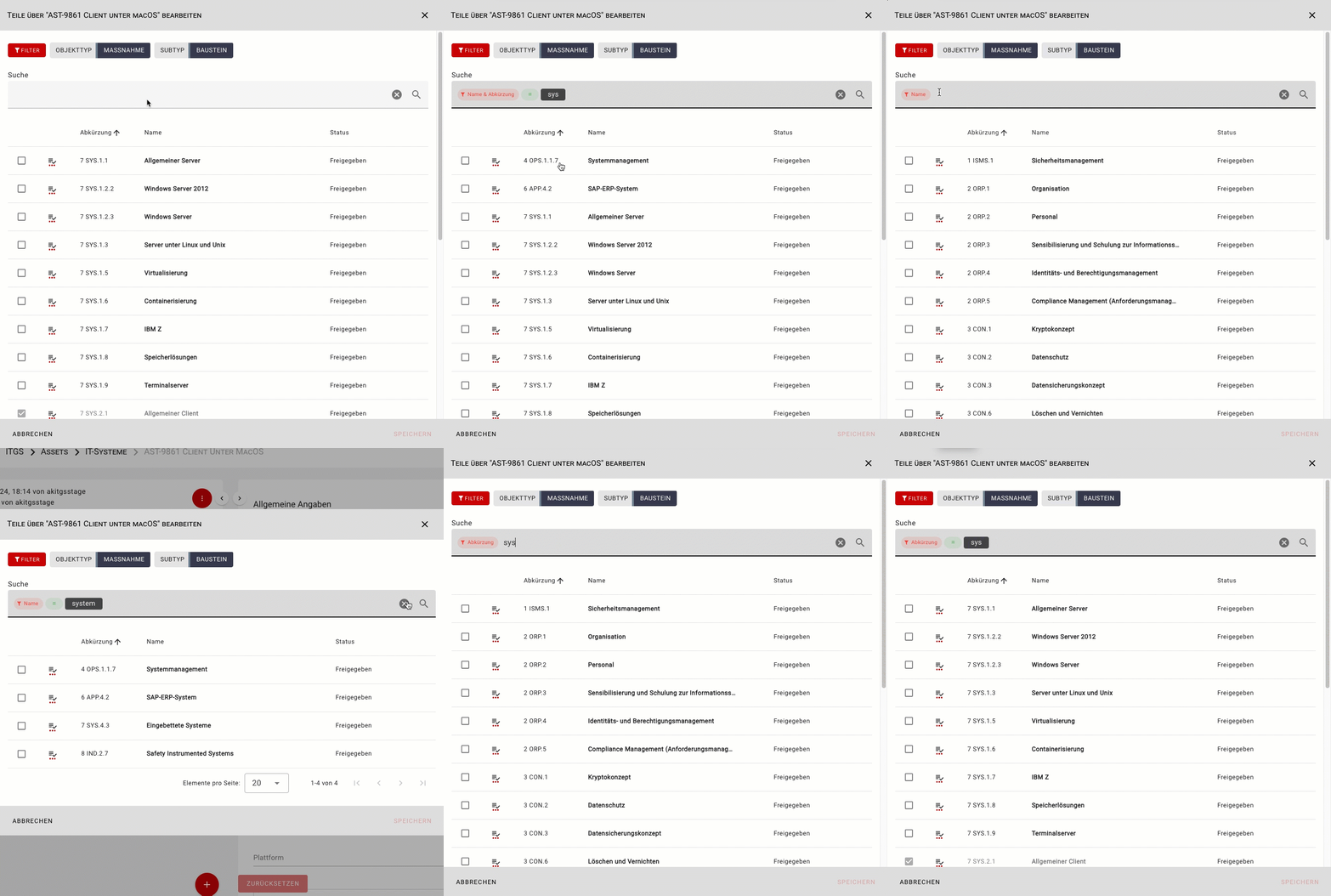
In addition to filtering, you can use the search to find specific objects.
By default, the entered text is searched in the abbreviation, name, and designator. Optionally, you can limit the search to just the abbreviation or name:
List
The object overview provides a quick orientation and navigation within the list:
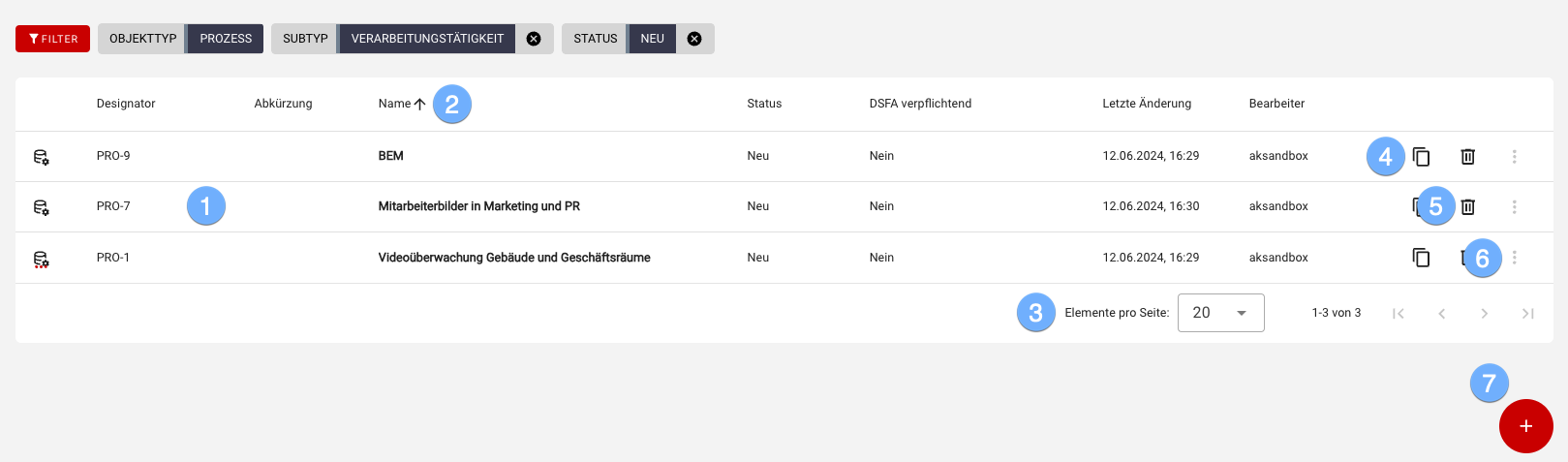
- Open an object for editing by clicking the respective row.
- Sort the object list by key columns, ascending or descending.
- Depending on the number of objects, navigate through pages or increase the number of items per page.
- Duplicate an object to create a copy for further editing.
- Delete unneeded objects after confirming a security prompt.
- If additional functions are available, they can be accessed here.
- Create a new object with object type and subtype according to the current filters.
Object View
After opening an object, more detailed information is shown in two columns:
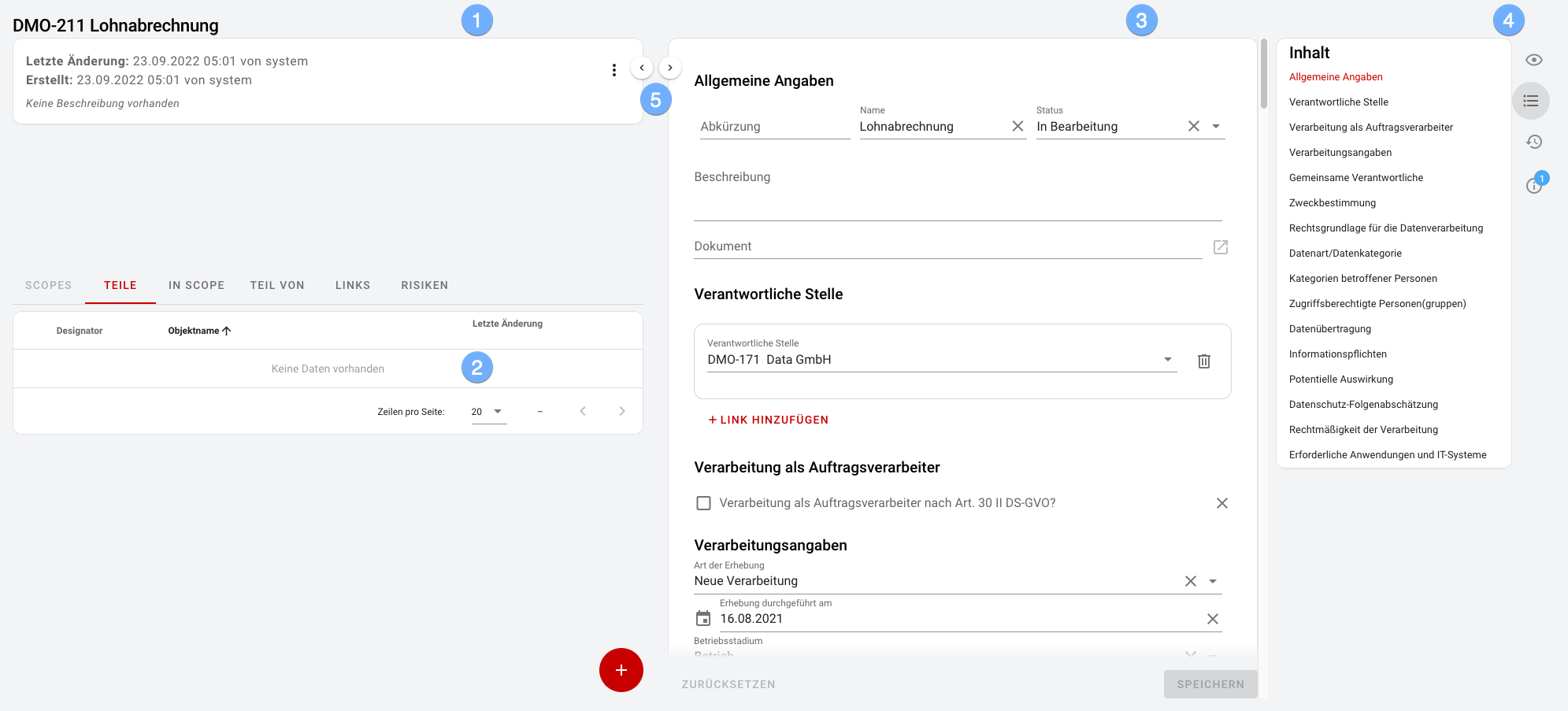
Left:
- The Object details
- A table of all objects in the Object context
Right:
- The Form with all detailed data
- The optional sidebar showing the View, Content, History, and Messages
INFO
- To optimize the workspace depending on your task, you can toggle the two columns via button or keyboard:
- PC: Left column Alt+1 / Right column Alt+2
- Mac: Left column Control+1 / Right column Control+2
Object Details
The object details provide a quick overview of the current object:

- Use the object menu to access object-specific actions, if available.
Object Context
The object context may include Scopes, Parts, Links, Risks, or Requirements/Target Objects, depending on object type and domain.
It's important to distinguish between Scope and Composite objects in the new object model:
Scopes can contain any Composite and Scope objects. Every Scope and Composite can exist in multiple Scopes.
Composite objects can only contain objects of the SAME object type (Parts). Unlike a group, a Composite object has the same properties as a single object of that type.
INFO
If certain elements are not available for an object, the respective tabs are grayed out, e.g.:
- Scopes CANNOT be part of a Composite, so the Part of tab will not appear there.
- A Composite CANNOT contain Scopes, so the Scopes tab will not be shown there.
The object context shows:
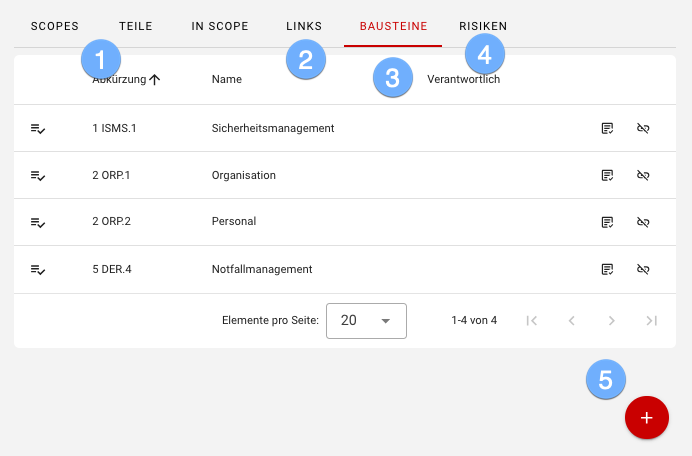
- With Scopes and/or Parts, an inside view, and with In Scope and/or Part of, an outside view.
- Linked objects as incoming or outgoing links.
- Building blocks/Requirements or Target objects, showing relationships between applied controls and relevant objects.
- Risks, if any, including threats and their mitigation.
- Depending on the active tab, elements can be added contextually.
Form
Forms allow structured data entry, distinguishing between:
- Aspects, which group related data
- Links, which connect to other objects, including link-specific data
Structured data entry is supported by intelligent evaluation:
- Depending on specific values, aspects or links may be shown or hidden.
- Complex decisions based on multiple values can be handled using decision trees — for example, the logic for requiring a data protection impact assessment in the GDPR domain.
Each subtype of an object type must be represented by at least one specific form. However, a subtype can also be represented in multiple forms — e.g., the subtype Processing Activity could be captured via a simple form for process owners and a detailed form for data protection officers.
In the sidebar of a form, additional information can be displayed by clicking the icons.
View
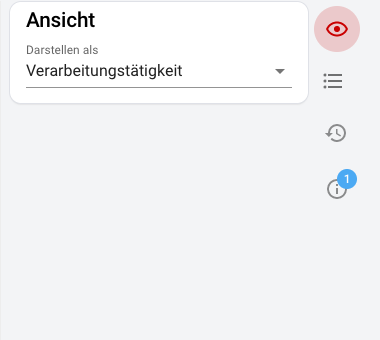
In the View sidebar, objects can be displayed in different forms depending on their subtype.
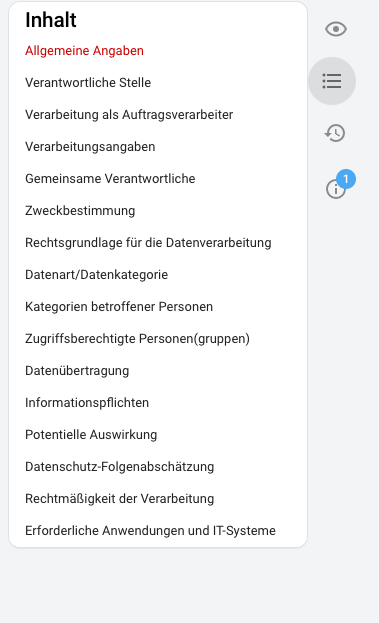
Content
Form content is shown in the Content sidebar in a structured manner. Clicking an item scrolls to that section.
History
verinice logs every field-level change to objects as a version, providing a complete audit trail.
The History sidebar shows all previous versions. Clicking a version displays it. The Restore button allows reverting to any previous version (undo).
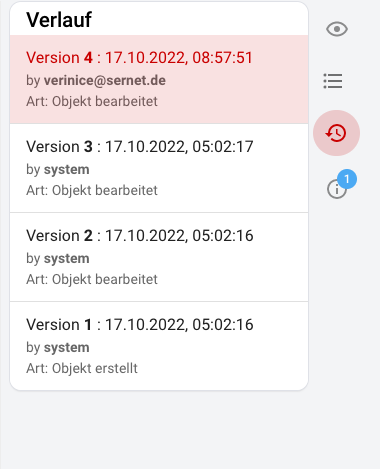
During storage, several sub-steps may be stored in different objects (e.g. in the object and in the associated risk). The sub-steps are counted separately in the versioning, which leads to apparent gaps in the display of the version numbers. This behavior is technically desired and does not result in any data loss! To avoid this confusion, version numbering will be dispensed with in the future; only the timestamp will be decisive.
Messages
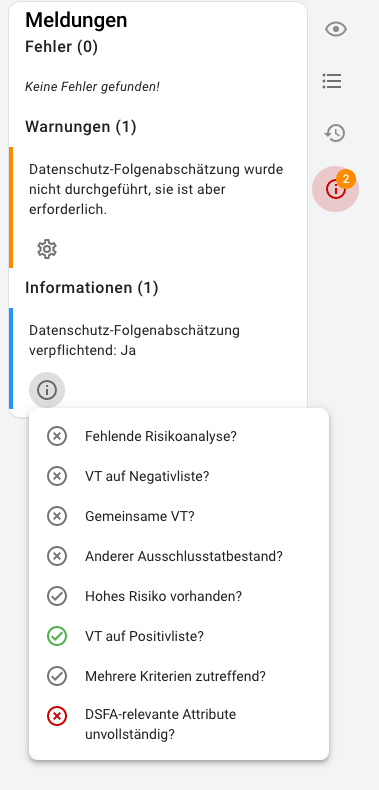
Errors, warnings, or informational messages about current form inputs are shown in the Messages sidebar.