Structural Analysis
With the structural analysis, you model the infrastructure of your institution as the foundation for creating an IT security concept according to the basic, standard, or core protection approach.
Institution
Record your institution by navigating via the dashboard or menu to the object type Scope with the subtype Institutions. Create a new institution using the red plus button Create Institution in the bottom right:
INFO
You can always create objects contextually using the plus button with the currently active object and subtype!
Click Save once you have entered all the desired data for the institution. Please note that the fields Name and Status (in all objects) are mandatory! Your institution will then be listed in the object overview.
Information Network
Next, navigate to the object type Scope and the subtype Information Networks and, similar to the institution, create your first Information Network:
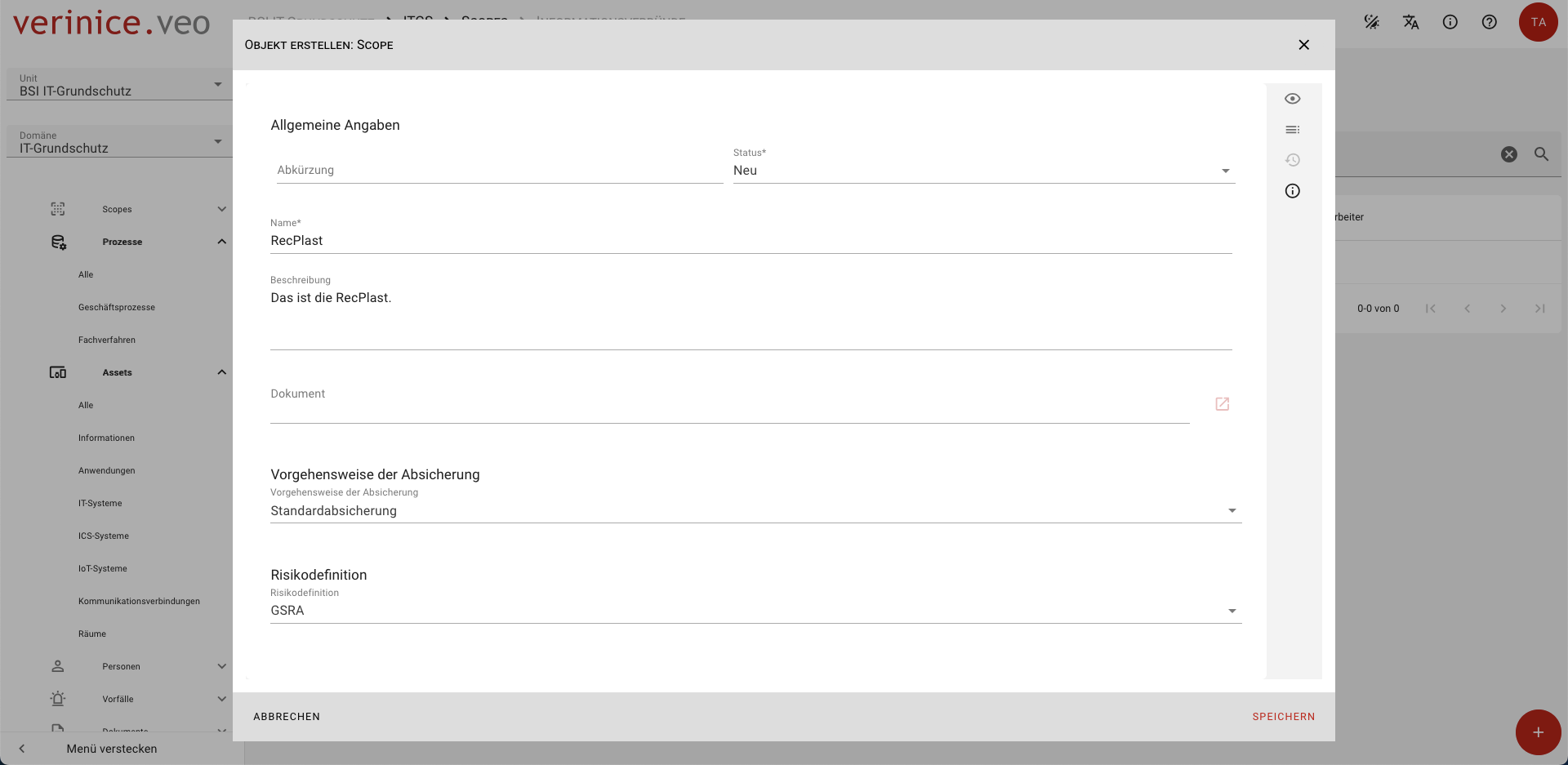
Enter all the required information in the form (e.g., abbreviation, name, description/scope, protection approach) and save the object.
Depending on your needs, you can create as many (sub)information networks as necessary.
Target Objects
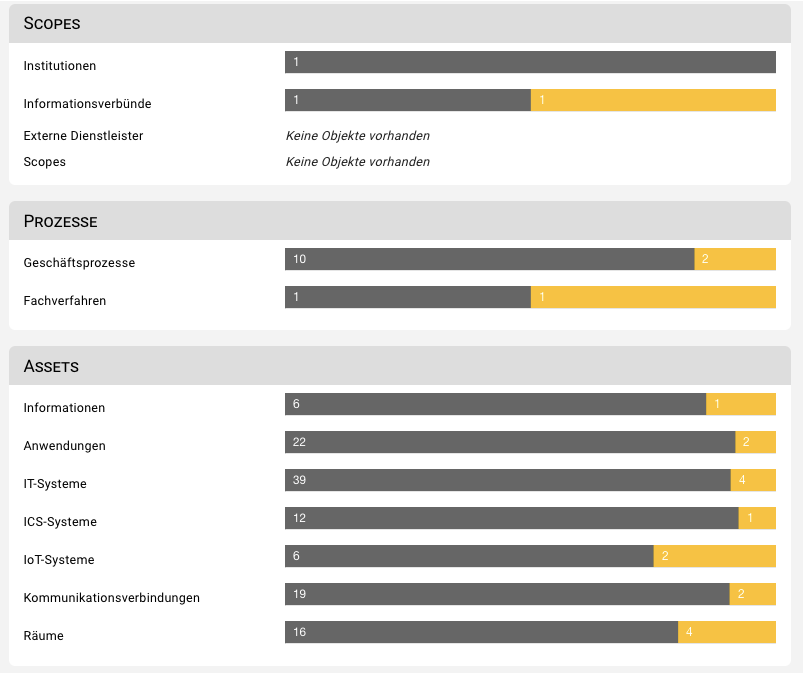
To develop an IT security concept, it's necessary to analyze and document the existing infrastructure. All target object types required for modeling the infrastructure are documented under Processes and Assets. Create new target objects, such as business processes or IT systems.
The result of the structural analysis is the complete mapping of the infrastructure:
Dependencies Between Target Objects
Links (dependencies/relations) between objects are a fundamental element that effectively supports the implementation of various tasks within an ISMS. In principle, any objects can be linked with one another. Several predefined link types exist by default, some of which are essential for specific functions.
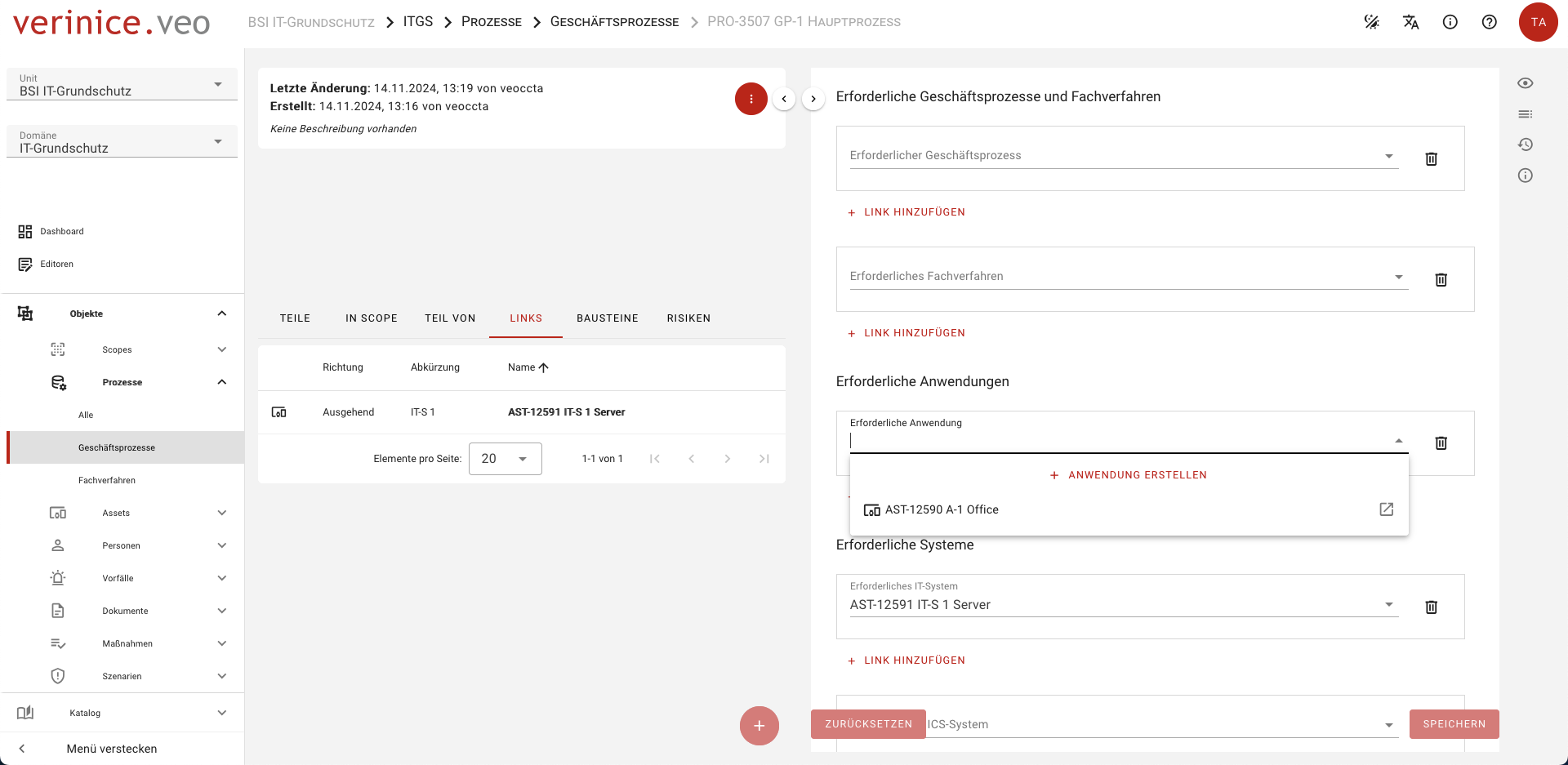
To create a link between two target objects, you need to add the required object within the form of another object.
Scroll down in the form to the section where required objects are listed and select the necessary object.
If the desired object has not yet been created, you can create a new one directly from within the form by clicking + Create "desired object".
In the object environment under Links, all incoming and outgoing connections are listed.
Naturally, you can navigate to the corresponding target object by clicking on it to continue editing.