Risk analysis and risk treatment
Risk definition
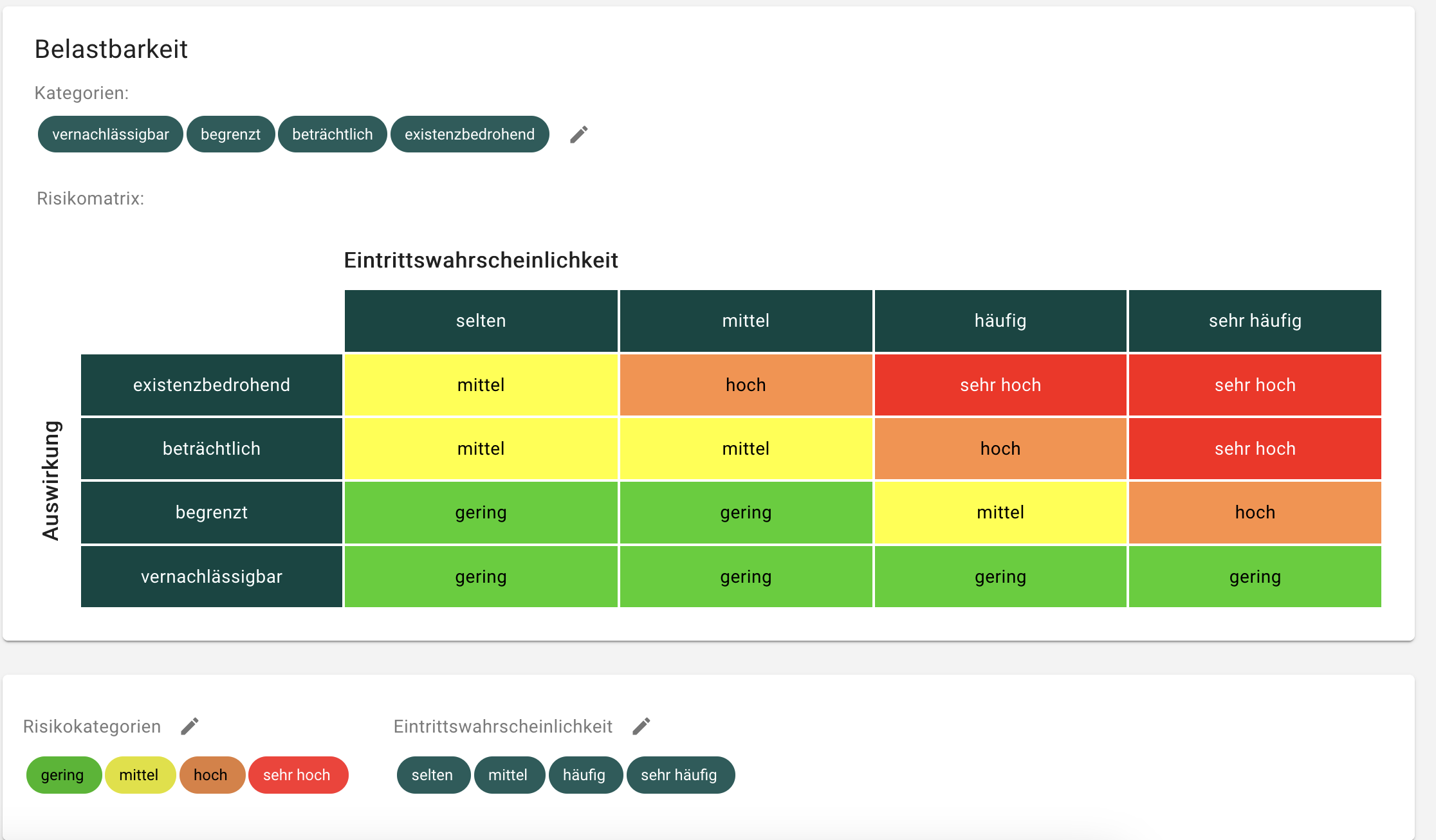
The parameters for the risk matrix are defined in the Risk definition section. To do this, navigate to Risk definitions in the menu and then DSRA. Here you can edit the categories by clicking on the pencil icon. The following parameters can be modified individually:
- Impact of damage: Name and definition of the categories
- Probability of occurrence: Name and definition of the categories
- Risk categories: Name, definition and color of the categories
Risk analysis
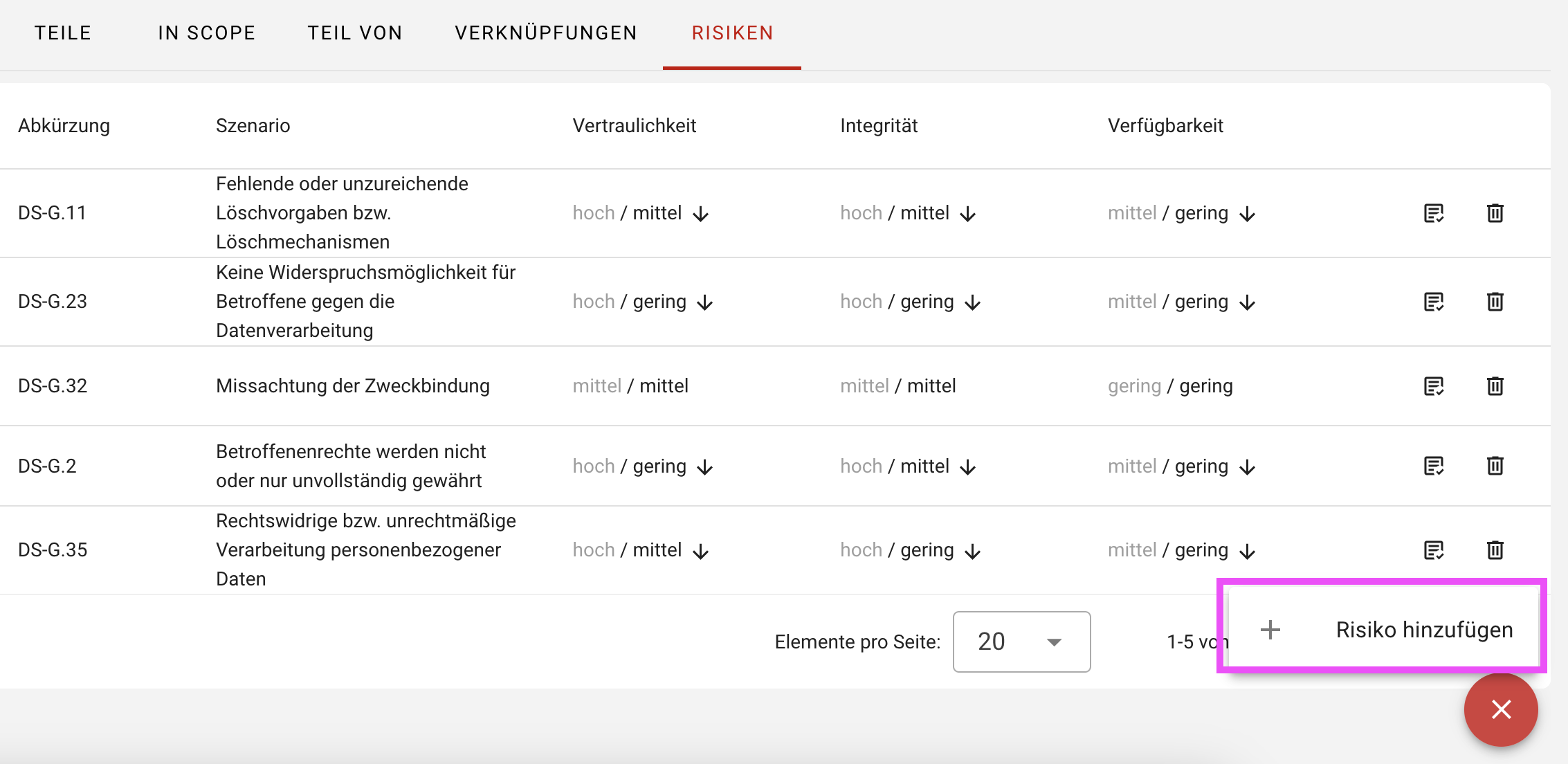
It is possible to carry out a risk analysis for all scope and process objects. To do this, please proceed as follows:
- Select the Risks tab for the object concerned, e.g. processing activity in the object environment.
- You can now add a Risk for your processing activity using the red Plus icon.
- Make a suitable selection from the data protection risks.
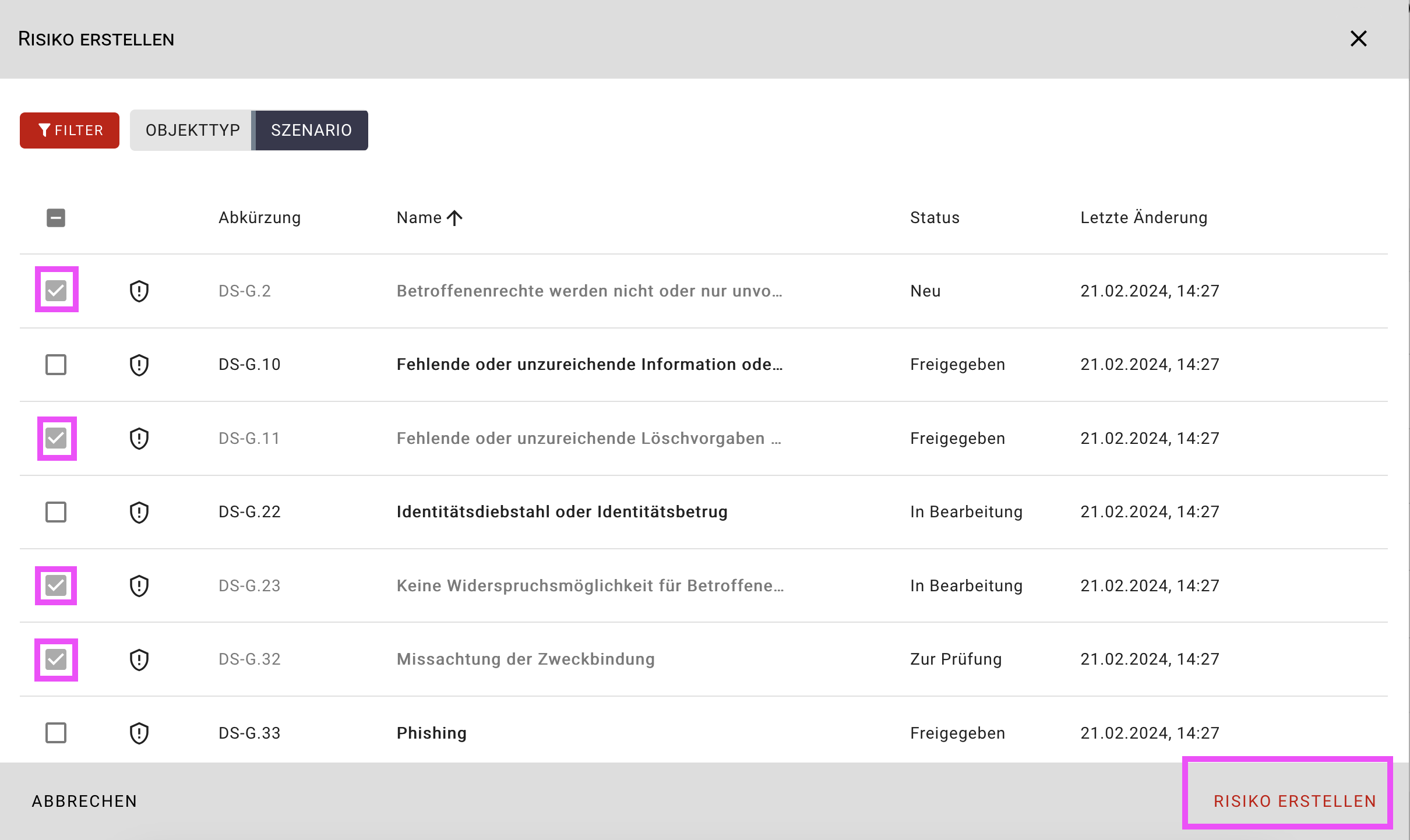
The list contains the threats manually applied to your unit from the catalog. You also have the option of creating your own individual hazards as objects using the Hazards form in order to use them for your risk analysis.
Risk assessment
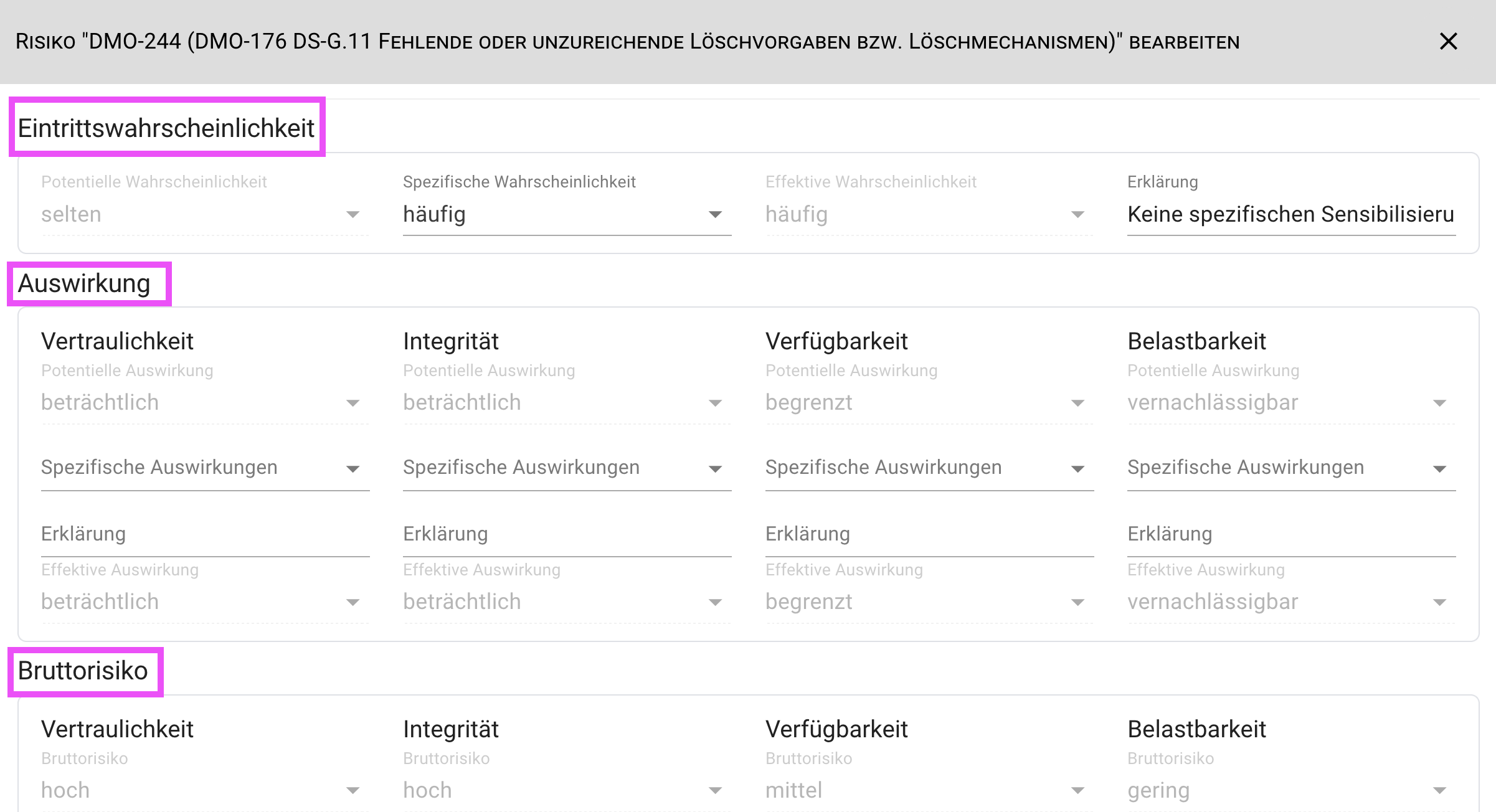
To edit the individual data protection risks, click on the corresponding risk. A specific risk assessment can be carried out in the risk dialog that opens. To do this, evaluate the following parameters:
- Probability of occurrence and, if applicable, an explanation.
- Damage impact** per protection target and an explanation if necessary.
After you have saved your entries, the gross risk is automatically calculated from these two values using the risk matrix.
Risk treatment
The familiar risk avoidance, risk reduction, risk transfer and risk acceptance options are available for risk treatment, each with a text field for explanations.
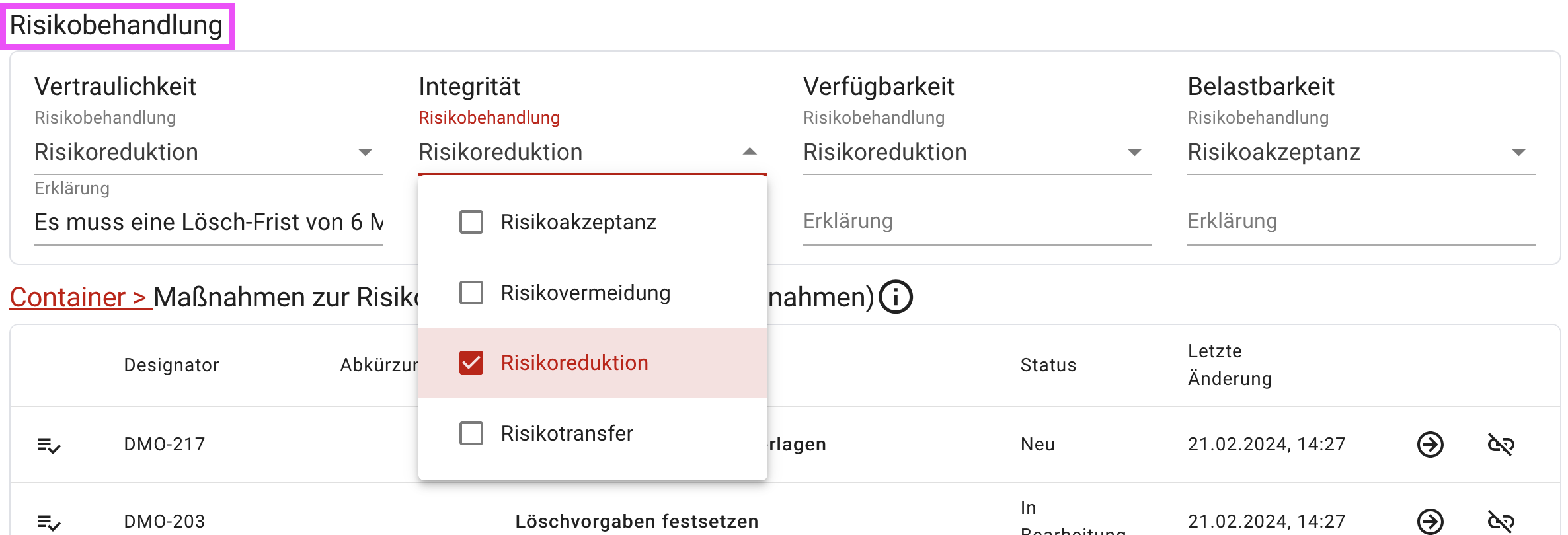
If the Risk reduction risk treatment option is selected, the risk can be reduced by adding mitigating measures. verinice offers you two options for storing mitigating measures:
Create mitigating measure
To create a new measure, click Add mitigating measure and then Create mitigating measure. A dialog opens to create the new measure. After you have saved your data for the measure, the new measure is displayed in the previous risk dialog in the Risk reduction measures area.
Link mitigating measure
You can also add mitigating measures by linking them to existing measures. To do this, click Add mitigating measures and then Link mitigating measure. In the dialog that opens, you can make a selection from measures already entered for mitigation. After Saving, the measures you have selected are listed in the Risk reduction measures area.
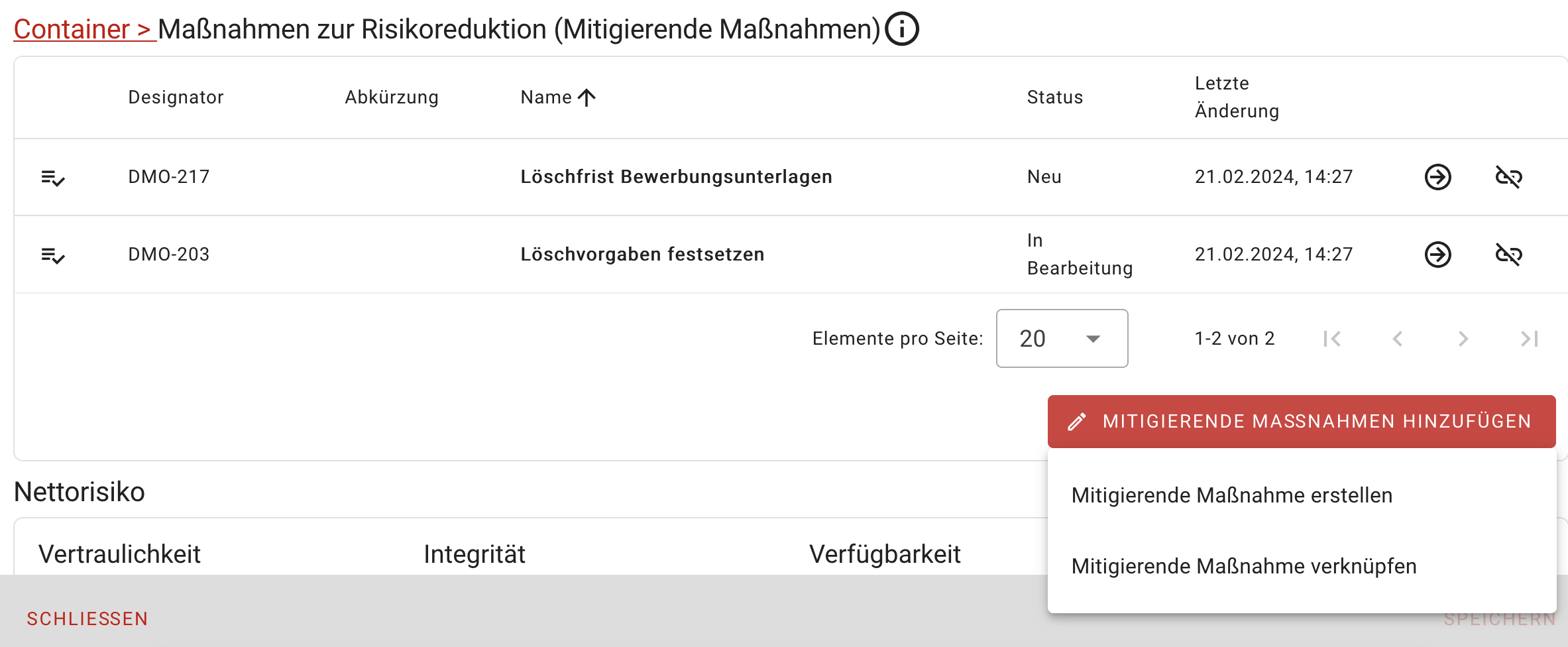
Finally, the net risk and, if applicable, an explanation must be set manually. Please remember to save and close the risk dialog.
Edit mitigating measures
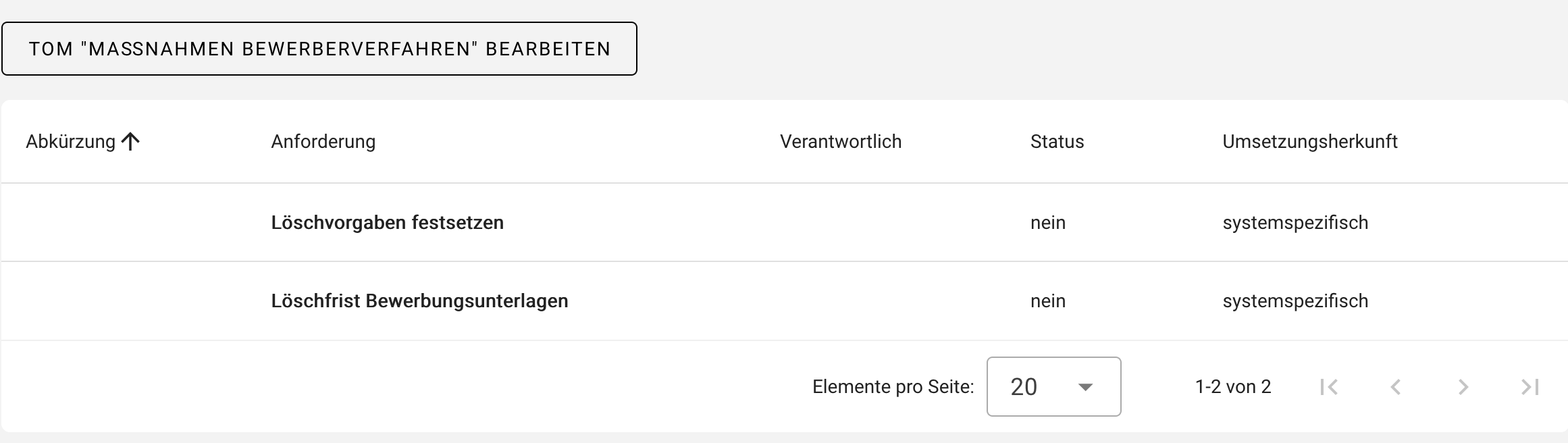
To be able to edit mitigating measures, navigate to the Risks tab in the object environment of the target object concerned. The risks identified in advance are displayed here. The Display implementation function takes you to an overview of all mitigating measures for the selected risk.
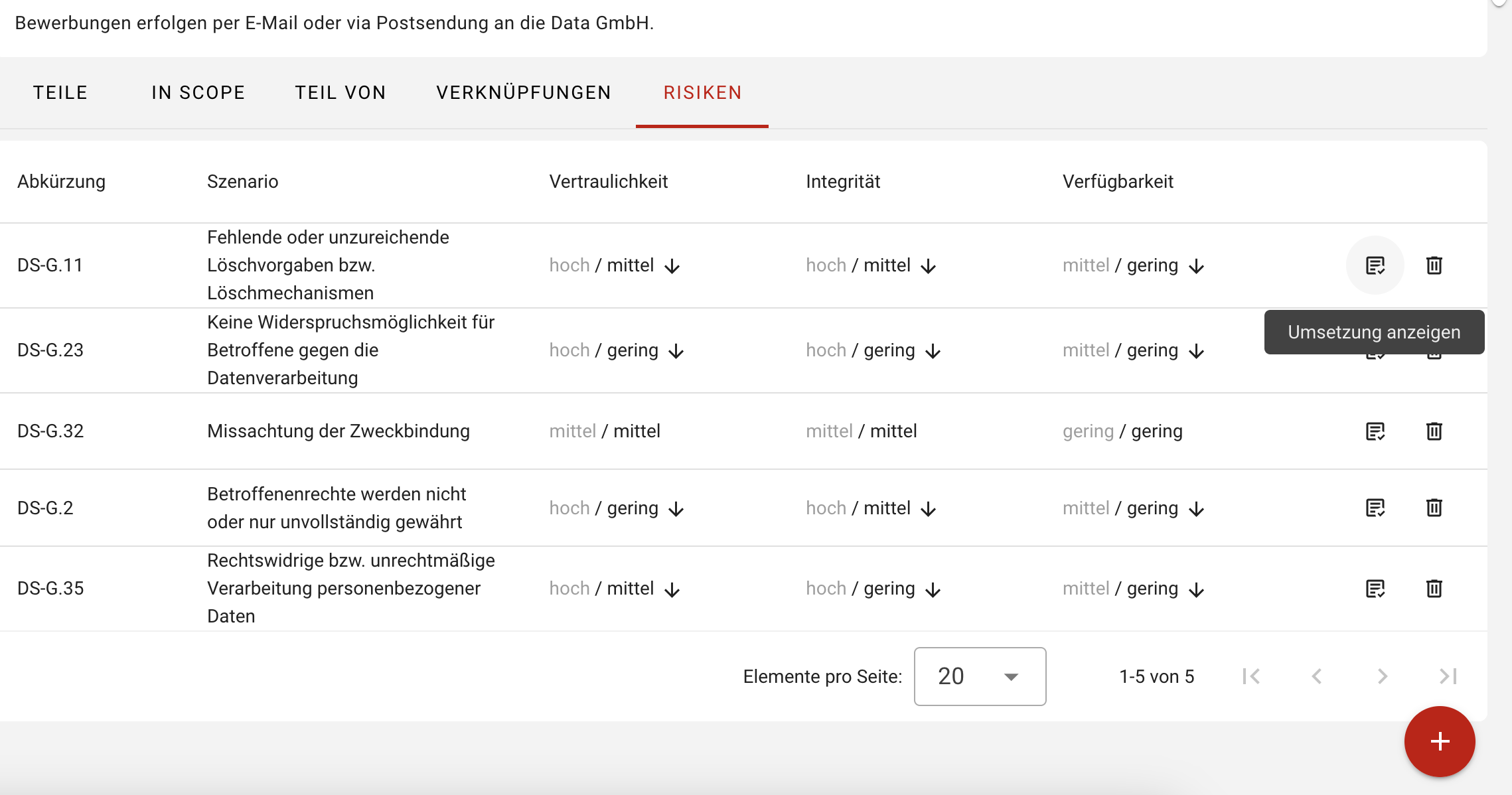
Here you can now edit each individual measure by clicking on the respective measure. The following information can be viewed or entered in the implementation dialog that opens:
- Information on target object and TOM
- Description of requirements
- Information on the implementation:
- Person responsible
- Implementation by (date)
- Implementation status (Unprocessed, Yes, Partially, No, Not required)
- Description of implementation
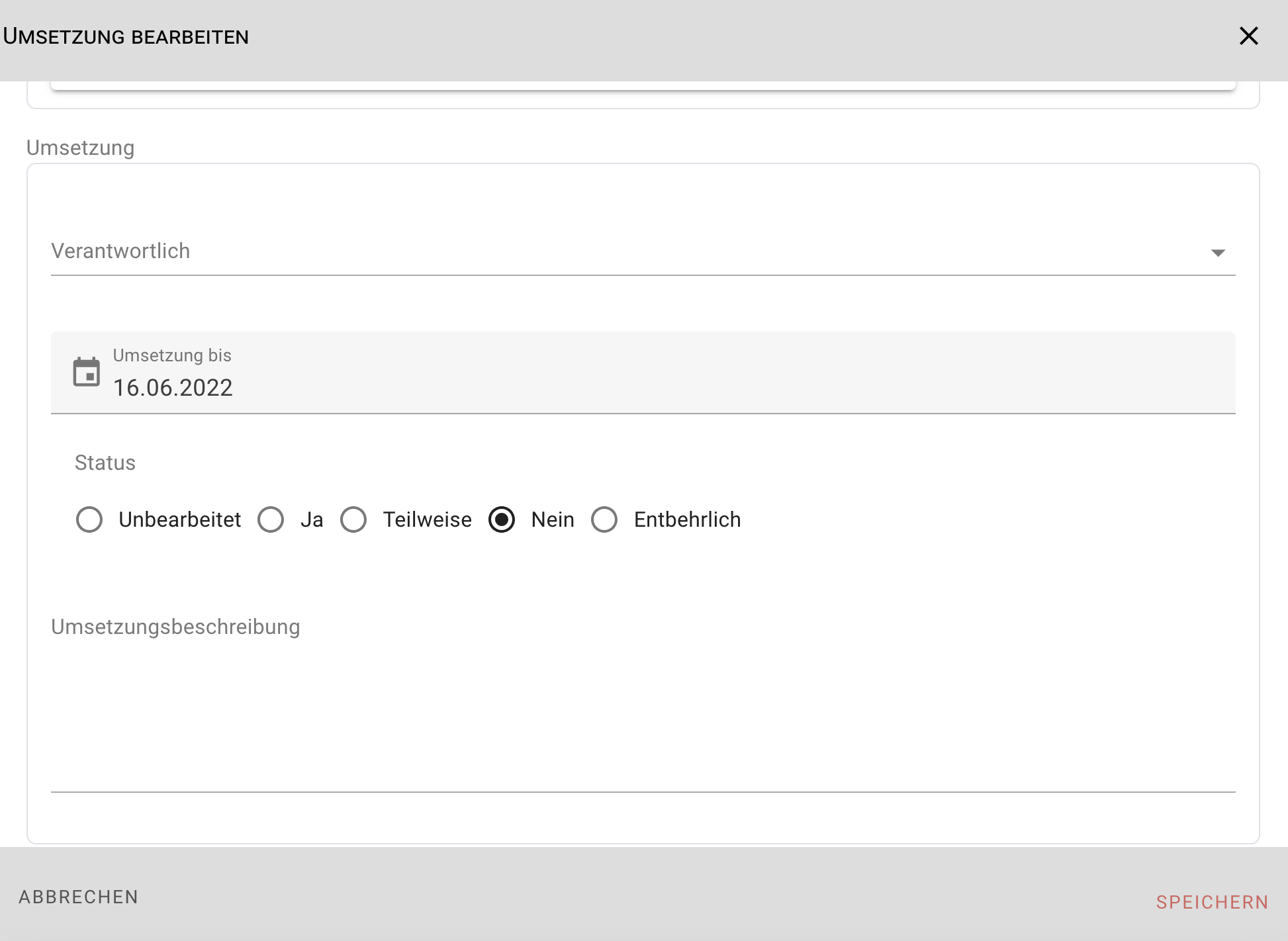
After you have entered the data, close the dialog with Save.