Implementing the NIS2 Directive
Registering the Organization
In verinice, the organization is a subtype of the target object Scope and can be documented using the Organization Form via the following two methods:
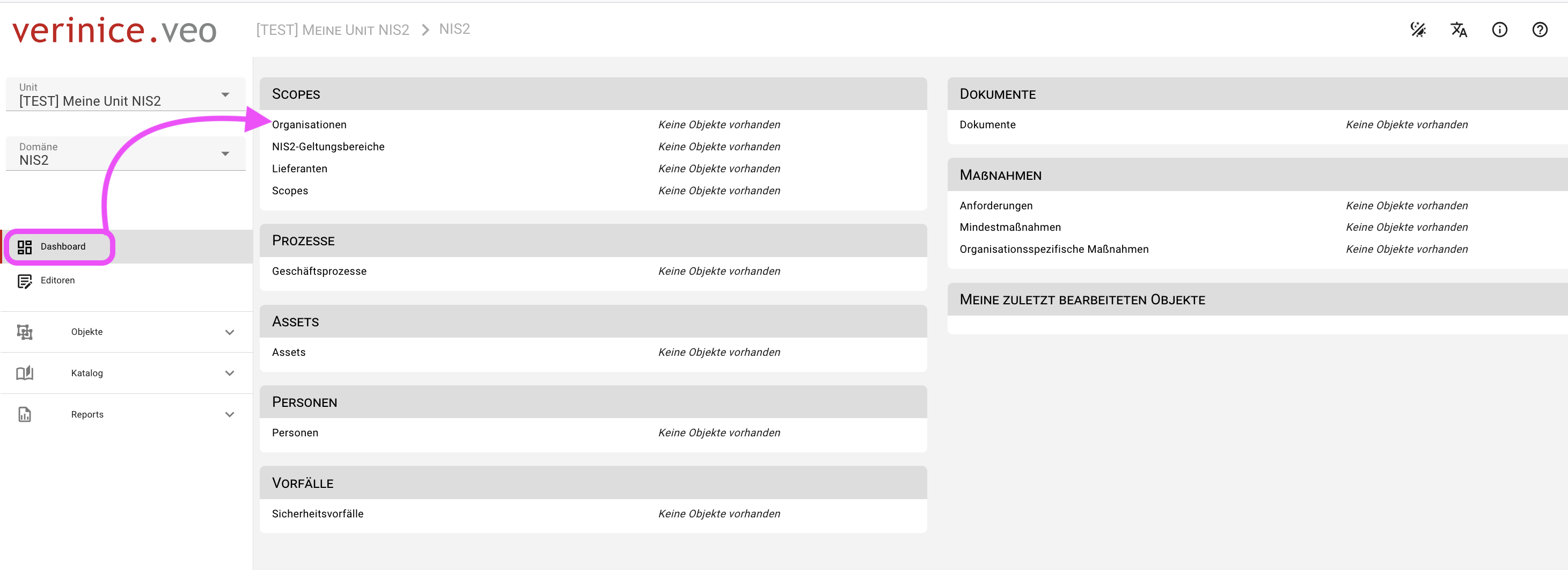
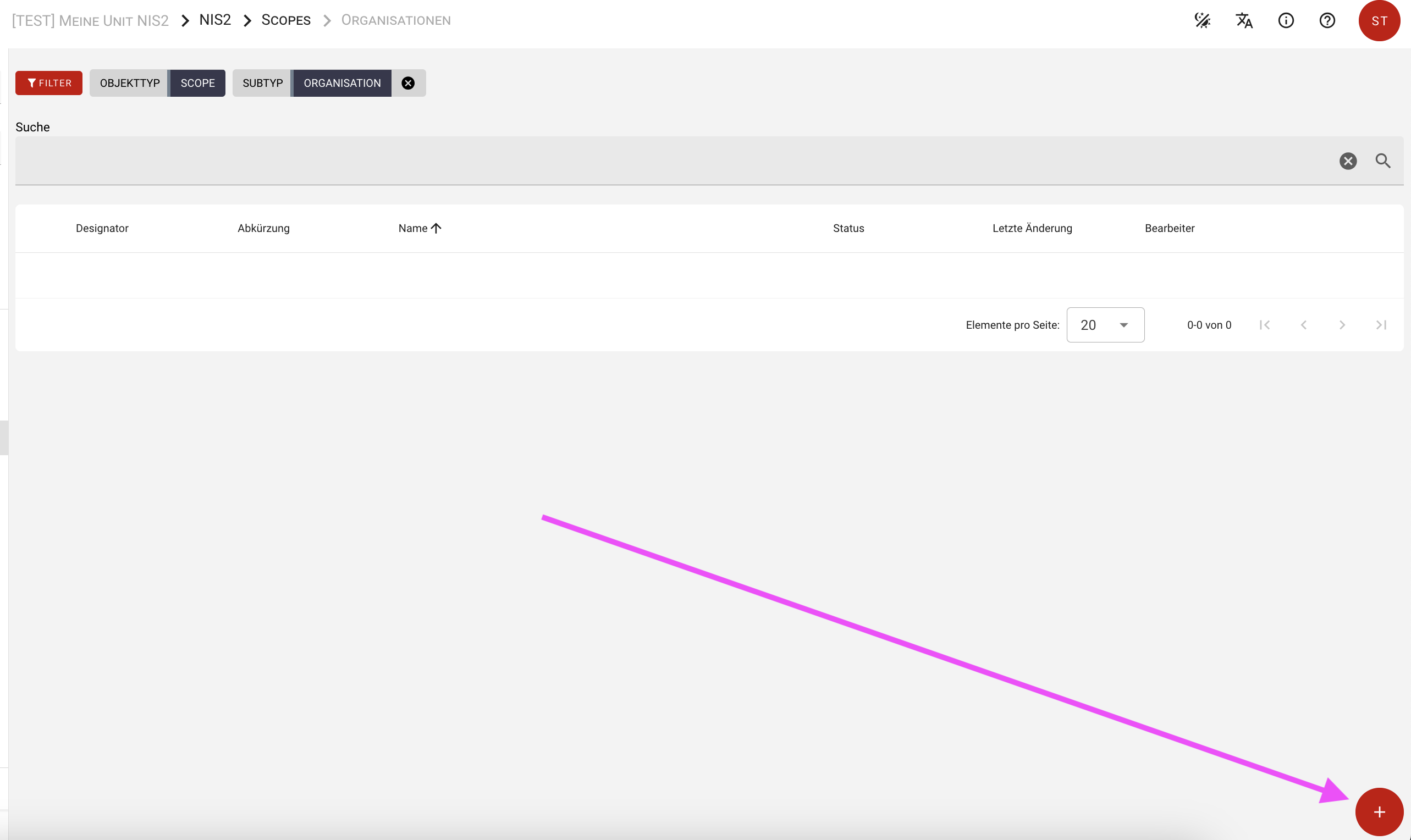
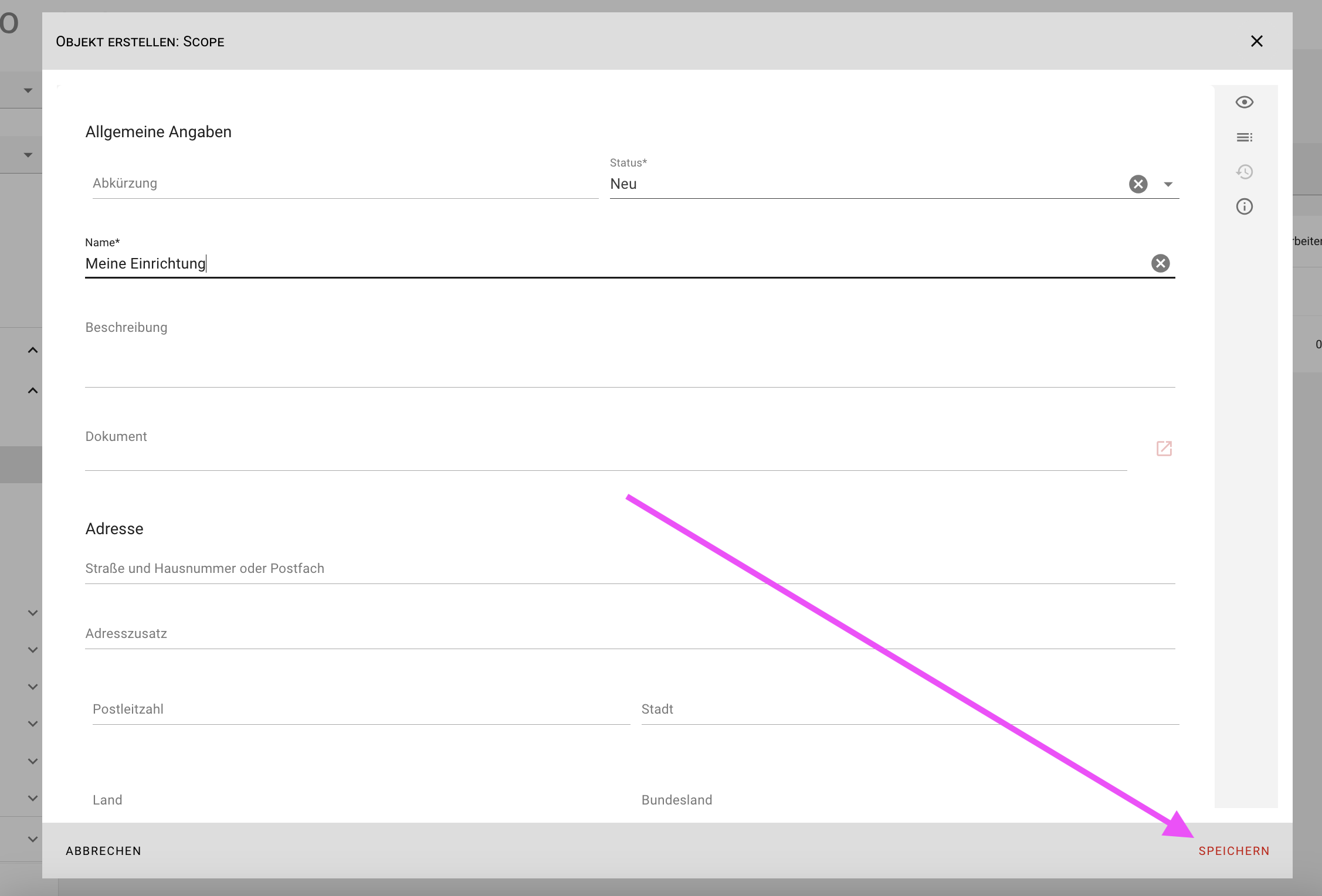
Register your organization by navigating to the Organization Form on the dashboard. In the so-called Object Overview, you can create a new organization using the red plus icon.
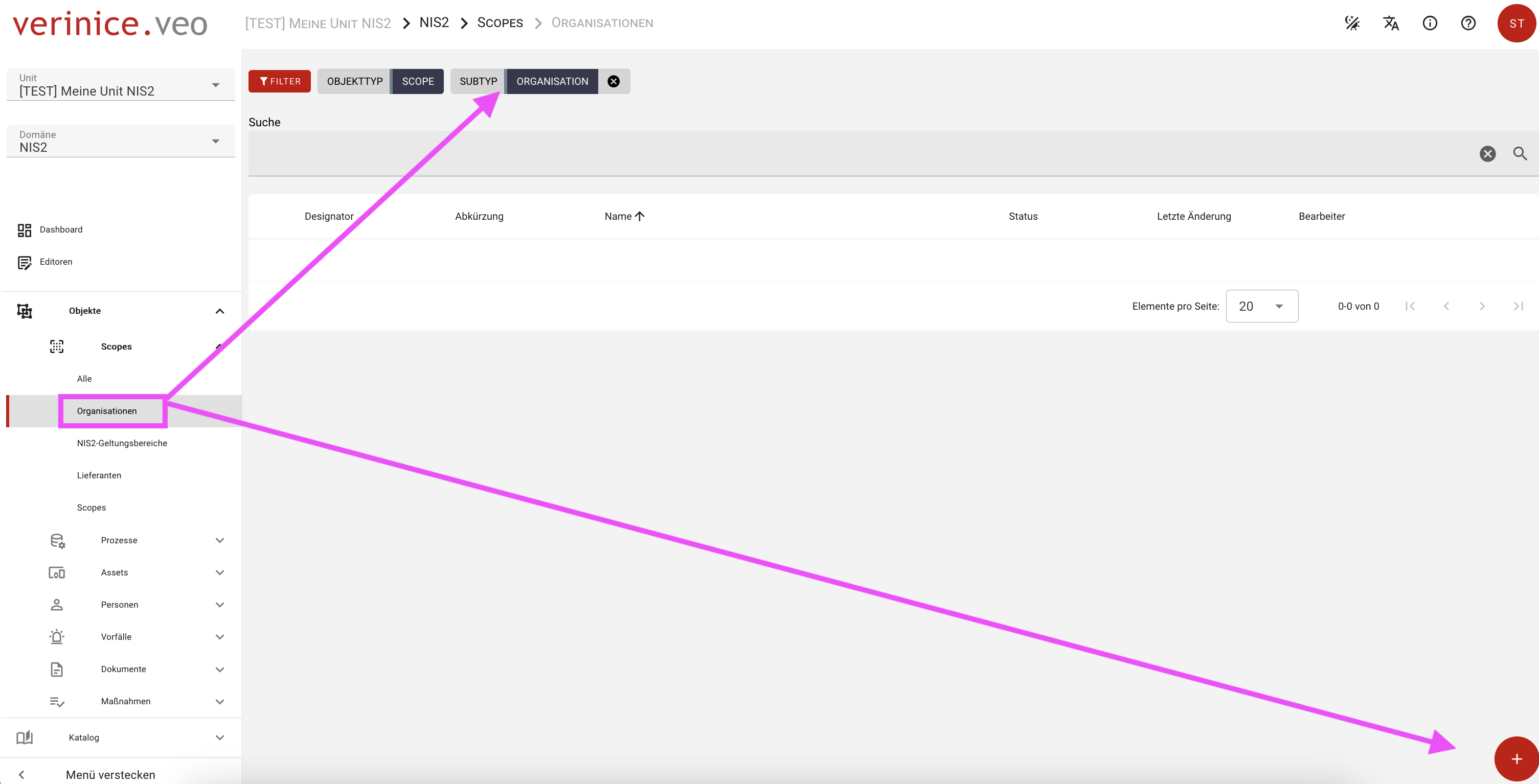
Alternatively, you can navigate to the Object Overview via the main menu Objects > Scopes > Organizations and create a new organization using the red plus icon.
In the dialog that opens, you can enter all relevant information for the Organization Form, at a minimum the name and status, and then save it.
Your institution will now appear in the object view as an organization.
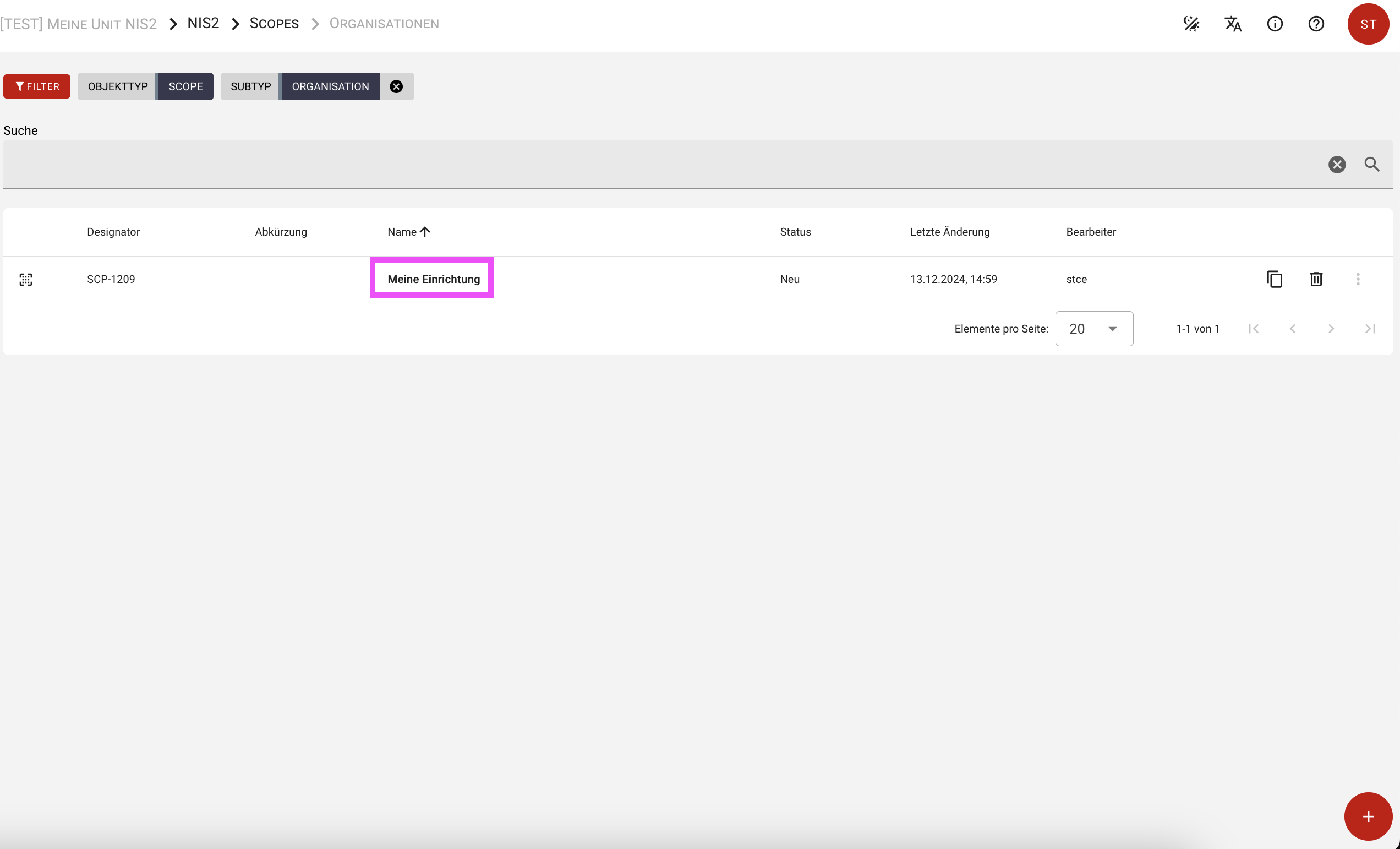
Click the object to open the newly created organization for further editing.
You now have two views available: the Detail View on the left and the Form View on the right.
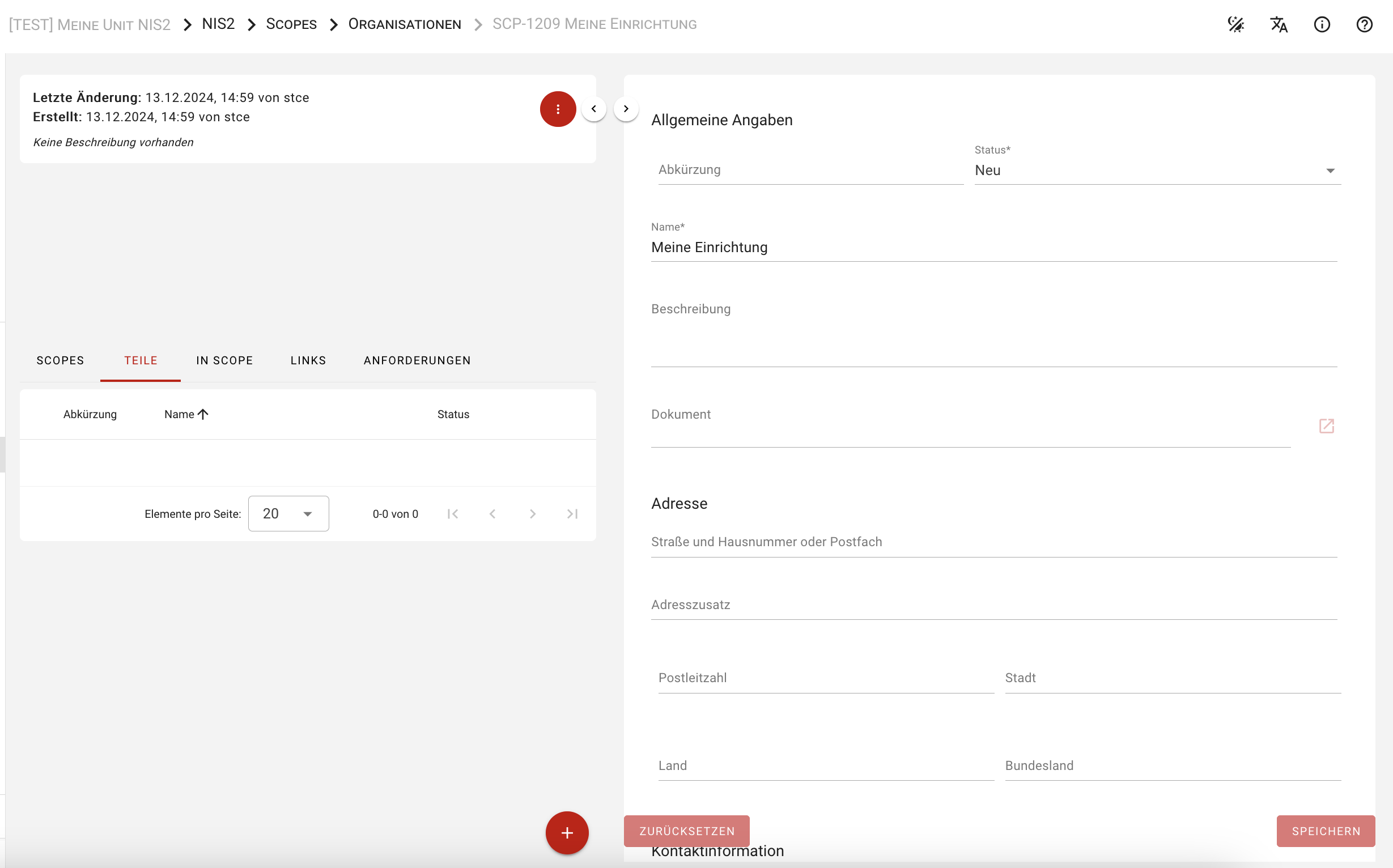
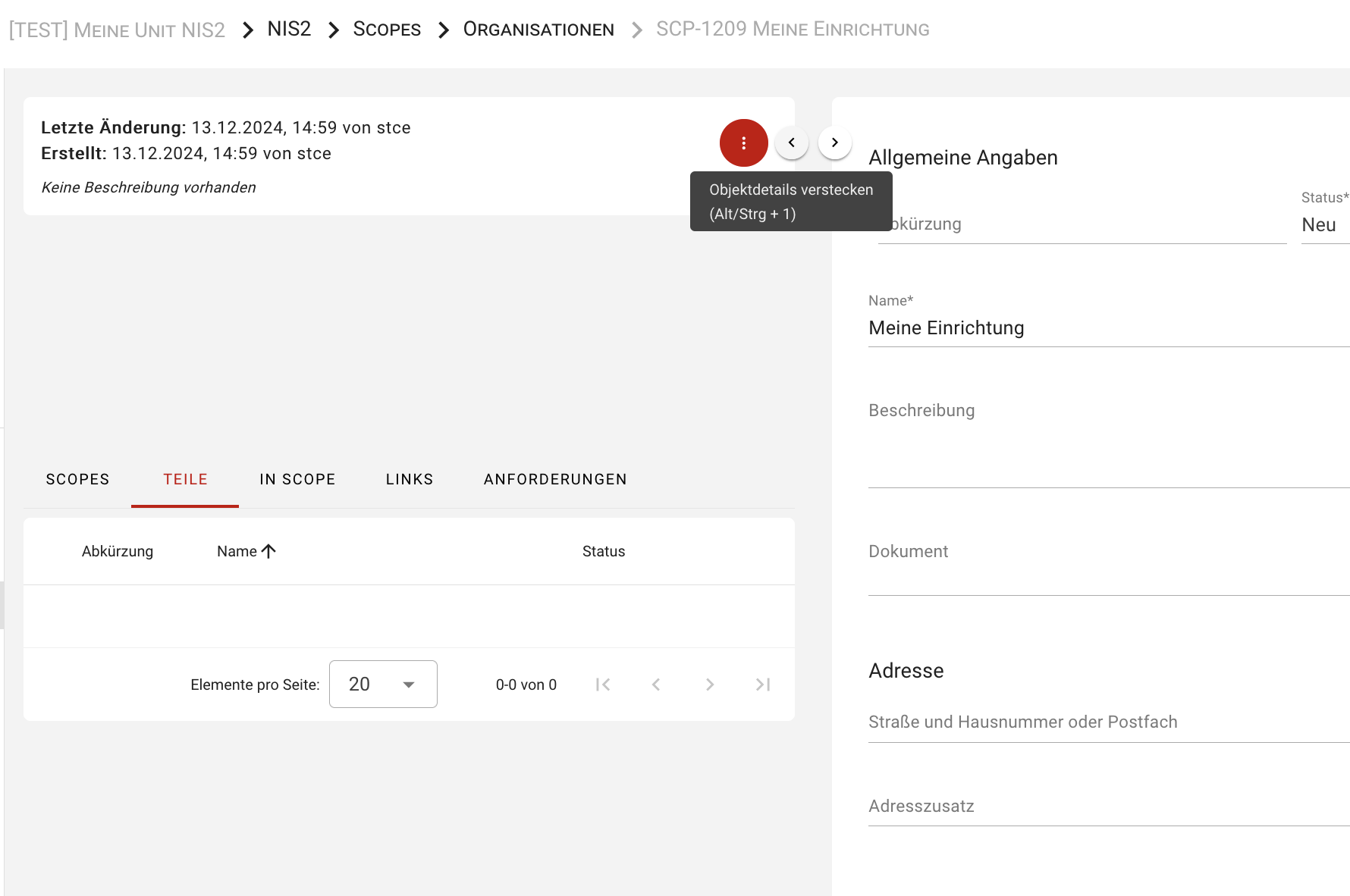
The information for the organization must be entered in the form view. For better readability, you can hide the detail view using Hide Object Details, and reverse this anytime via Show Object Details.
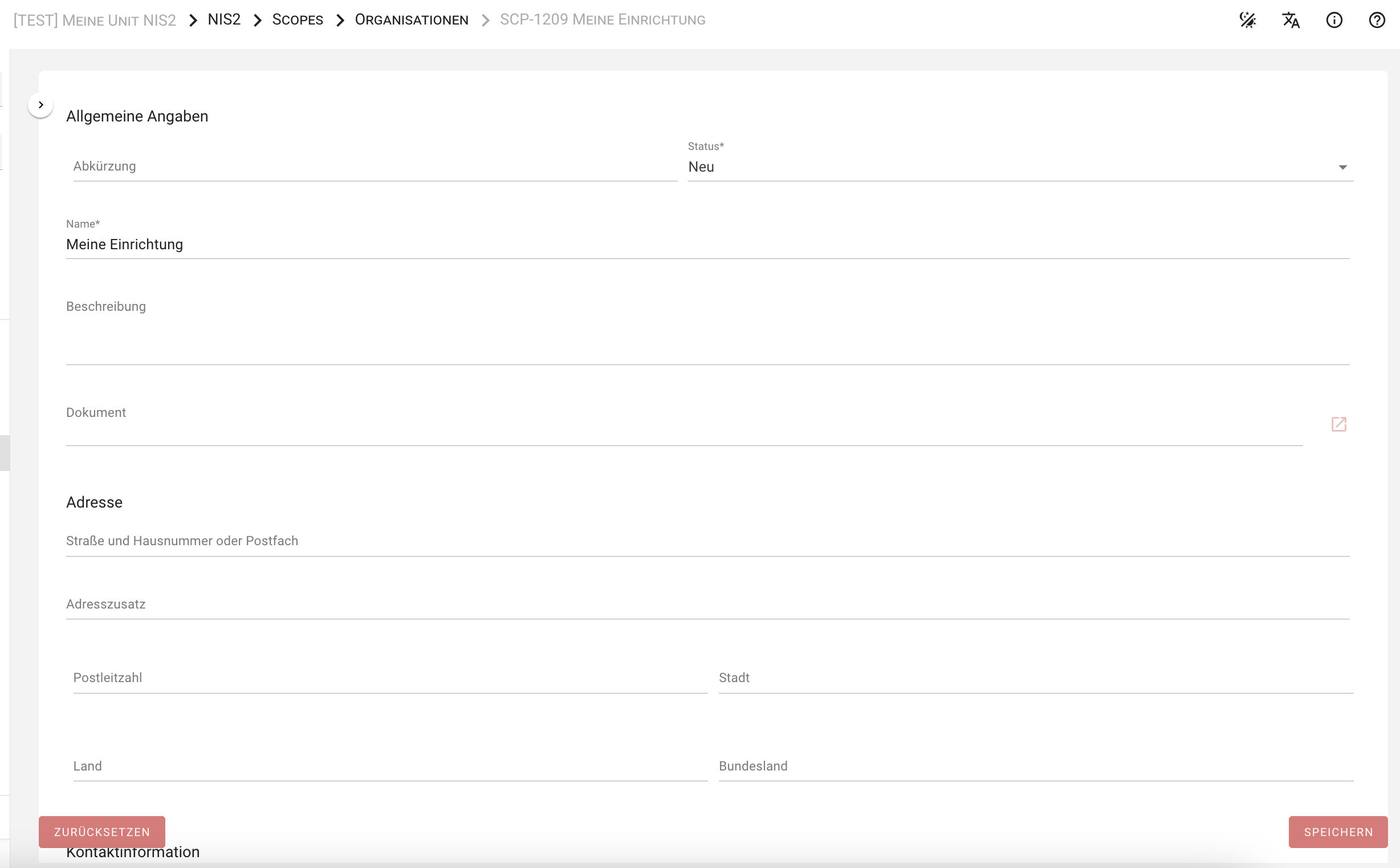
Detailed Information
In the General Information section, you can enter the organization description, abbreviation, status, and contact details.
If you want to designate an additional contact point for the supervisory authority, you can do this under NIS2 Contact Point for Supervisory Authority.
Sector-specific registration data and representation within the EU can be entered in the Sector-Specific Information section.
You can also document your competent authority, registration date, and any changes to registration here.
The report Registration Information for the Competent Authority provides a detailed summary of required registration details.
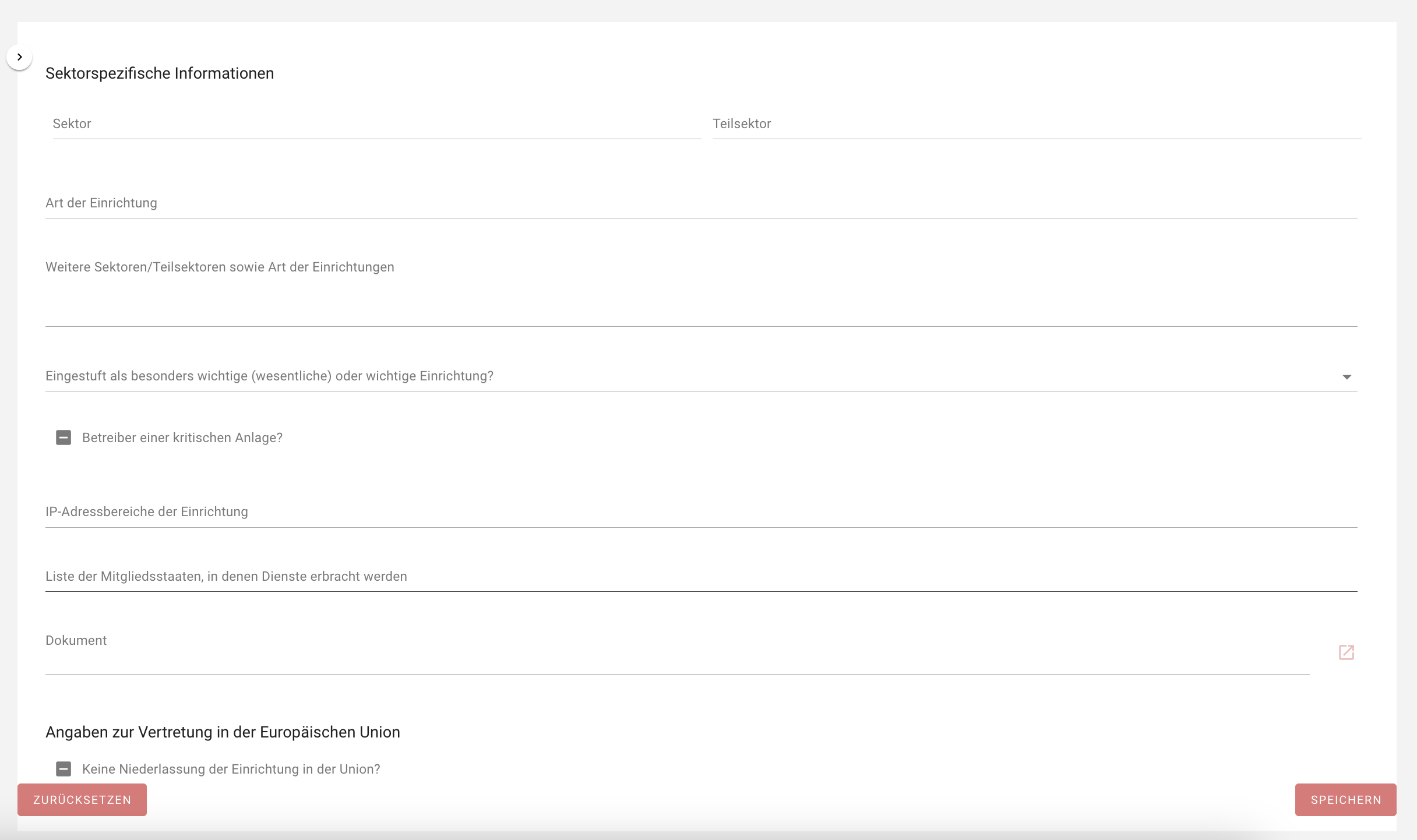
NIS2 Scope Definitions
If you need to define different scopes for your institution, you can do so via the NIS2 Scope form.
Security Incidents
In case of a major security incident, NIS2-regulated entities must implement a multi-stage reporting system. This includes early warnings, updates, and final reports within defined timeframes.
verinice supports you in recording and documenting security incidents. You can create a new incident via the Security Incident Form either from the dashboard or main menu.
Under Type of Report, you can choose the report type.
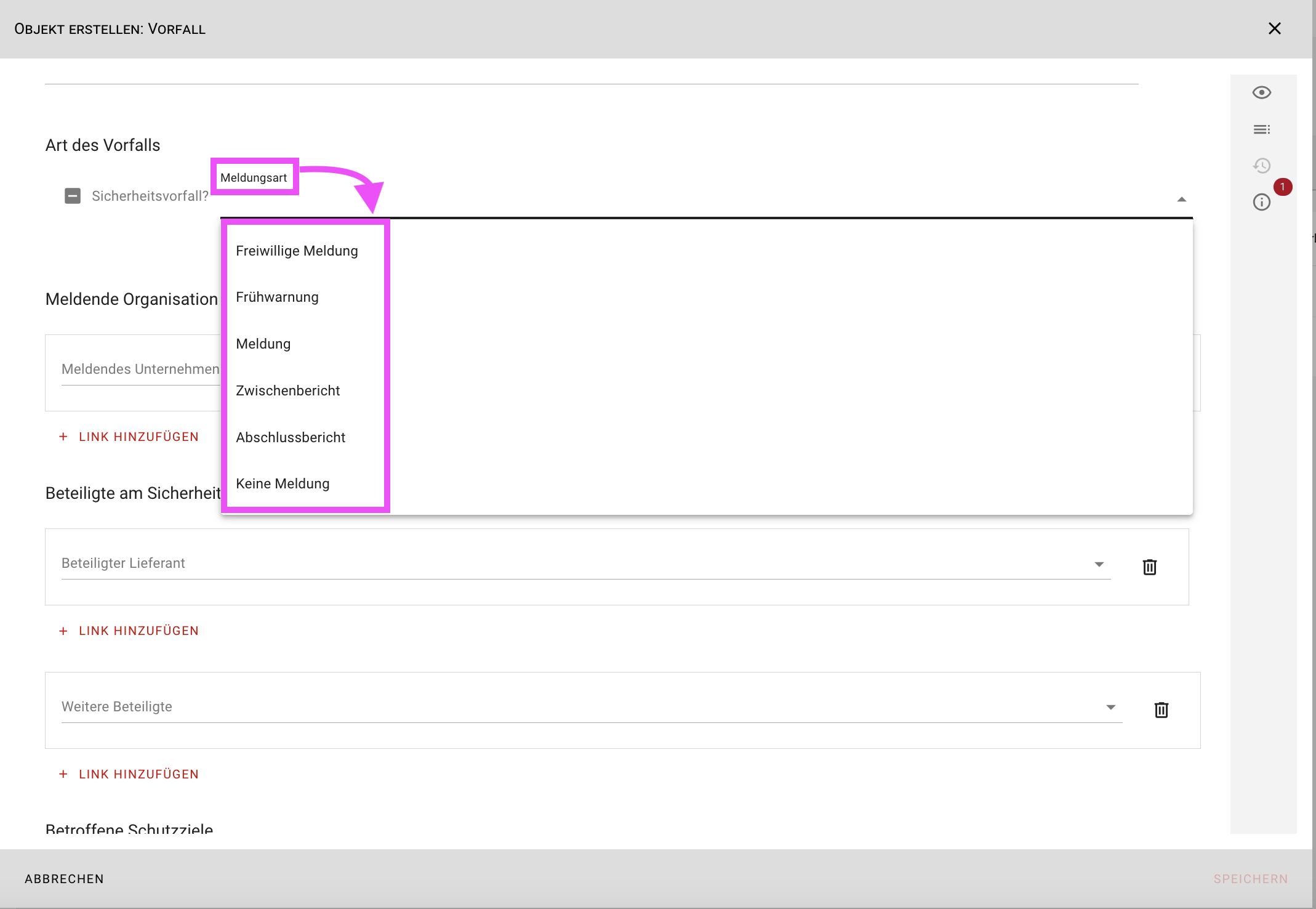
In addition to general information, legally required details can be entered in the designated sections.
Involved target objects, reports to authorities, recipients/public, deadlines, and mitigation measures are all part of the documentation and assessment.
All data can be exported via the Security Incident Report and used for official notifications.
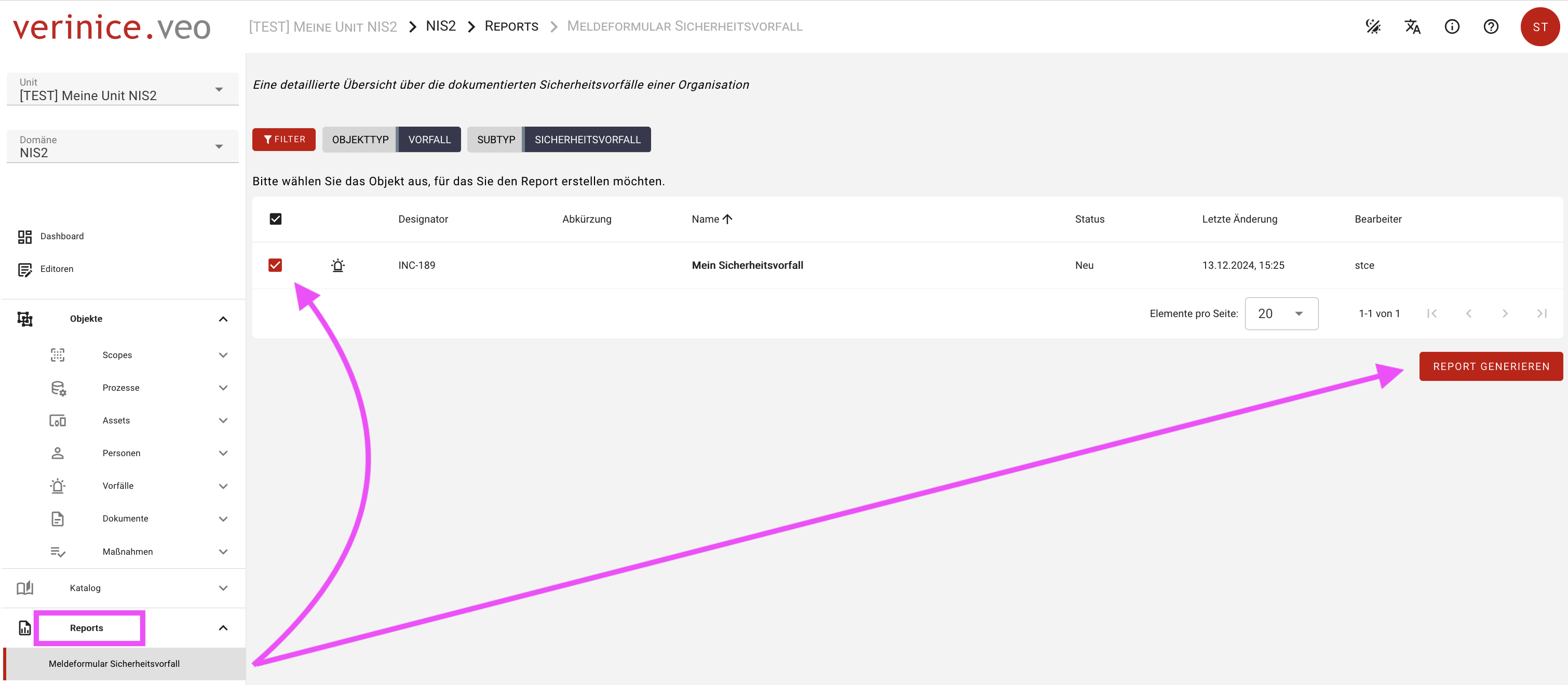
Target Objects
Essential and important entities are obligated to implement suitable and proportionate operational, technical, and organizational measures to mitigate risks to IT system security and minimize incident impact.
To do this, identify, organize, and sufficiently document your protection targets. This process is similar to structural analysis in IT Baseline Protection.
Relevant objects can be recorded via the forms Business Processes, Assets, and Suppliers.
The goal is to reflect your infrastructure through the object collection.
Dependencies
To ensure a meaningful analysis, it is necessary to describe the dependencies between target objects. verinice supports this via the Add Link function in forms.
In a target object form, scroll down to the relevant section and use Add Link to select or create the required object.
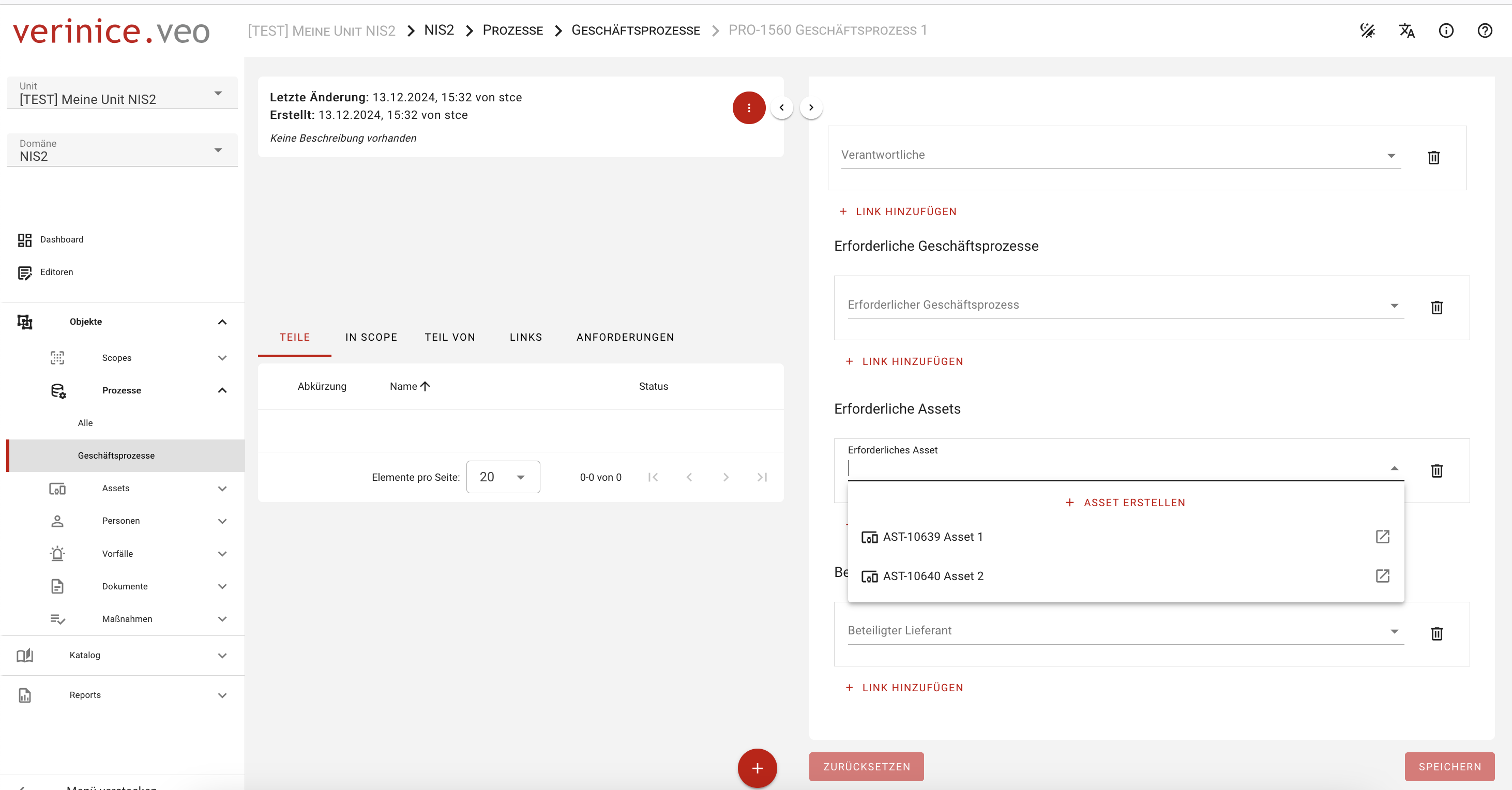
If the object doesn’t exist yet, you can create it directly via Add Link > Create Desired Object.
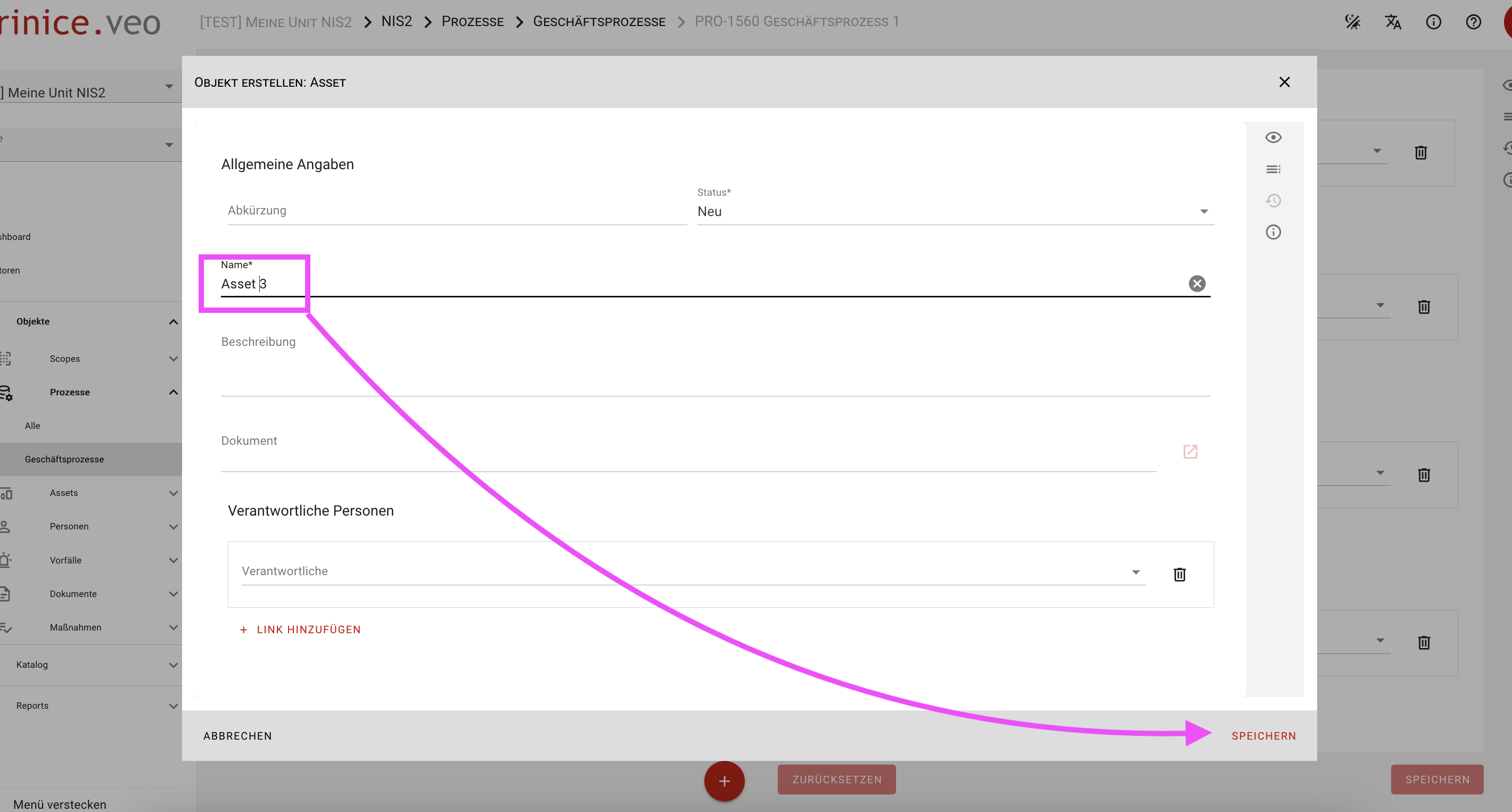
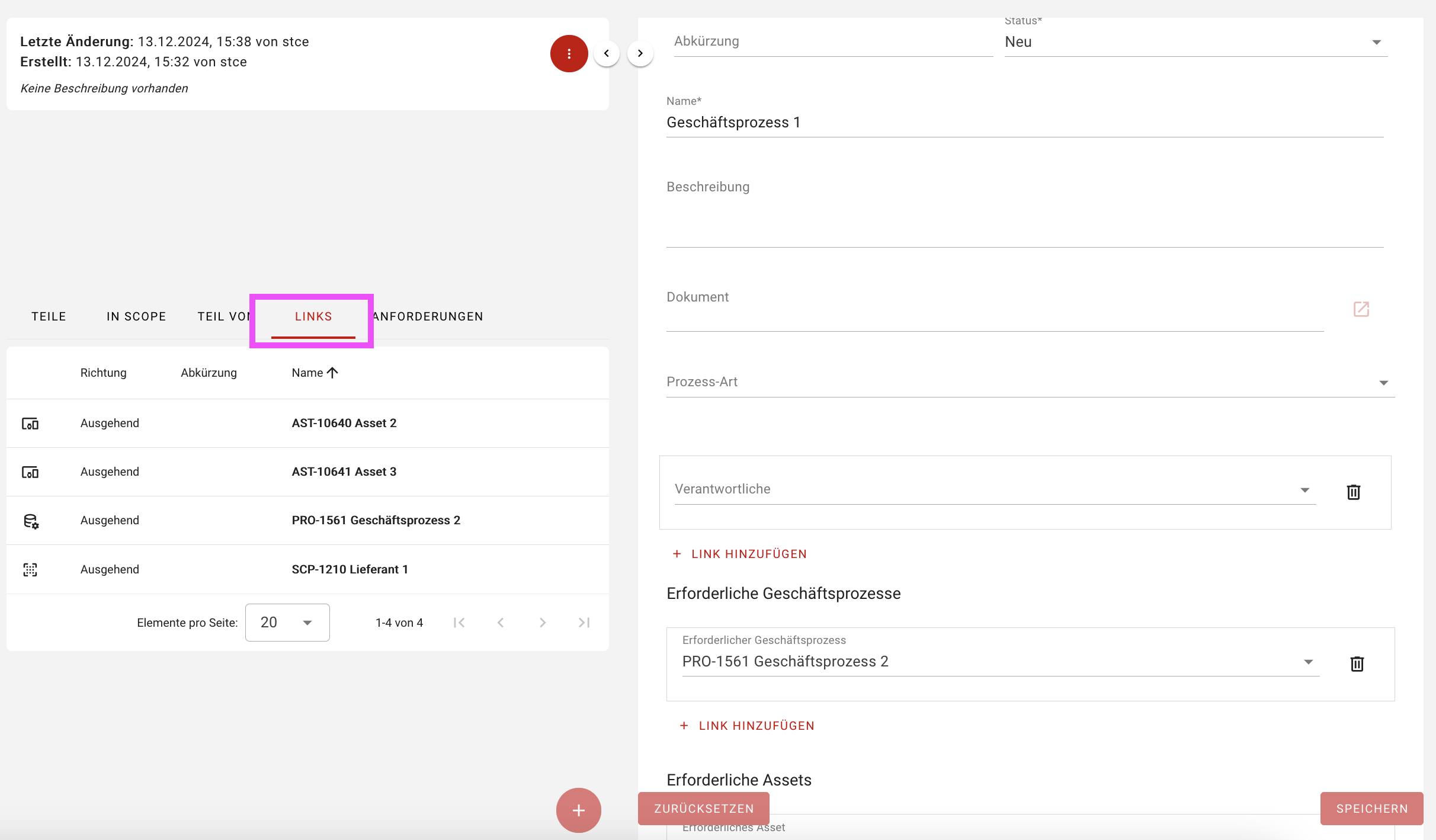
The Links section in the object environment displays all incoming and outgoing connections.
You can click to navigate directly to the linked target object.
Suppliers
If your organization uses suppliers, enter them via the Suppliers form.
In addition to contact information, contracts can be attached, and evaluations of technical and organizational measures can be recorded.
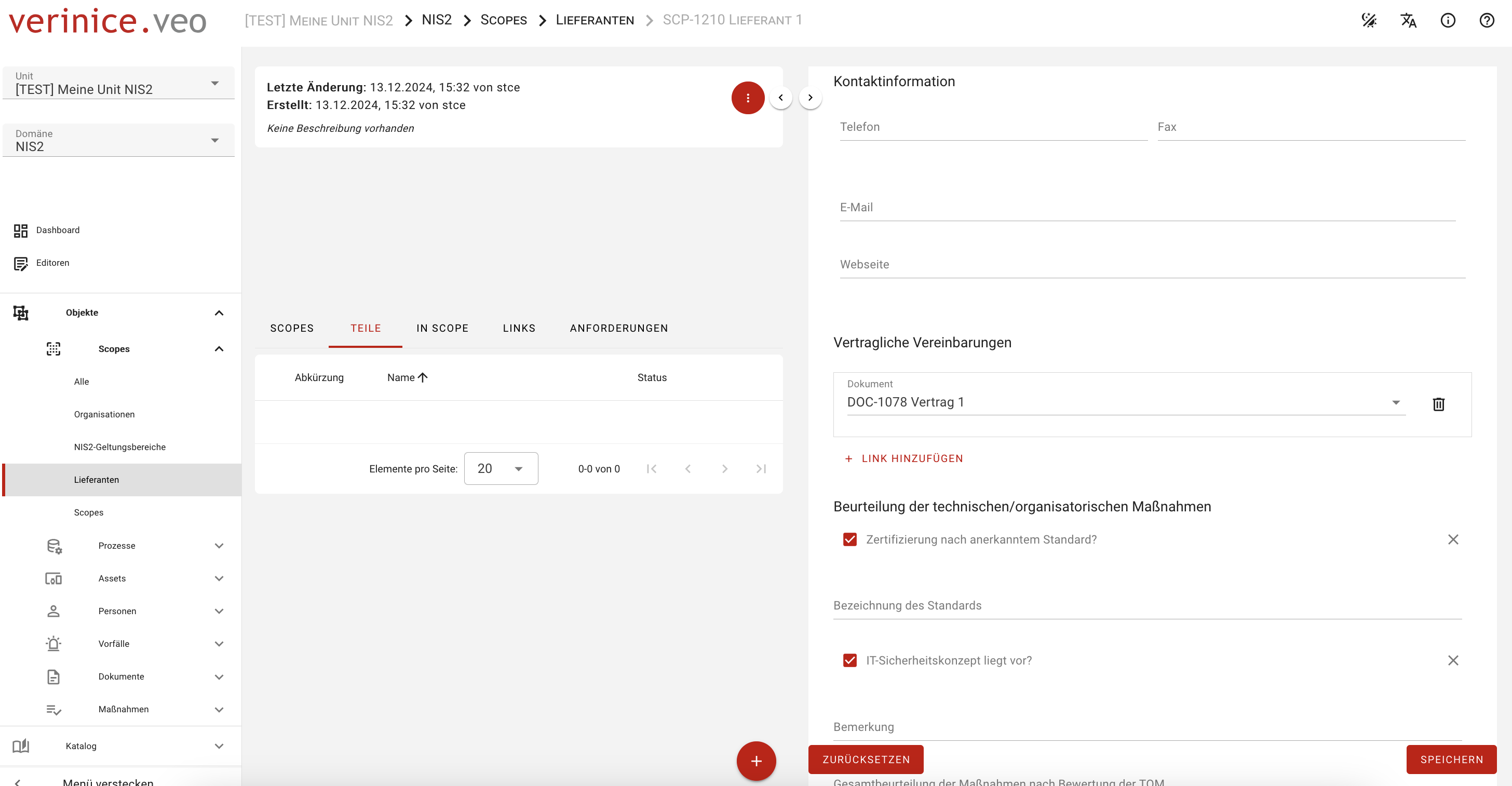
These supplier objects are available for assignment in Business Processes or can be created directly from the form via Add Link > Create Supplier.
Organization-Specific Measures
To record Organization-Specific Measures, proceed as follows:
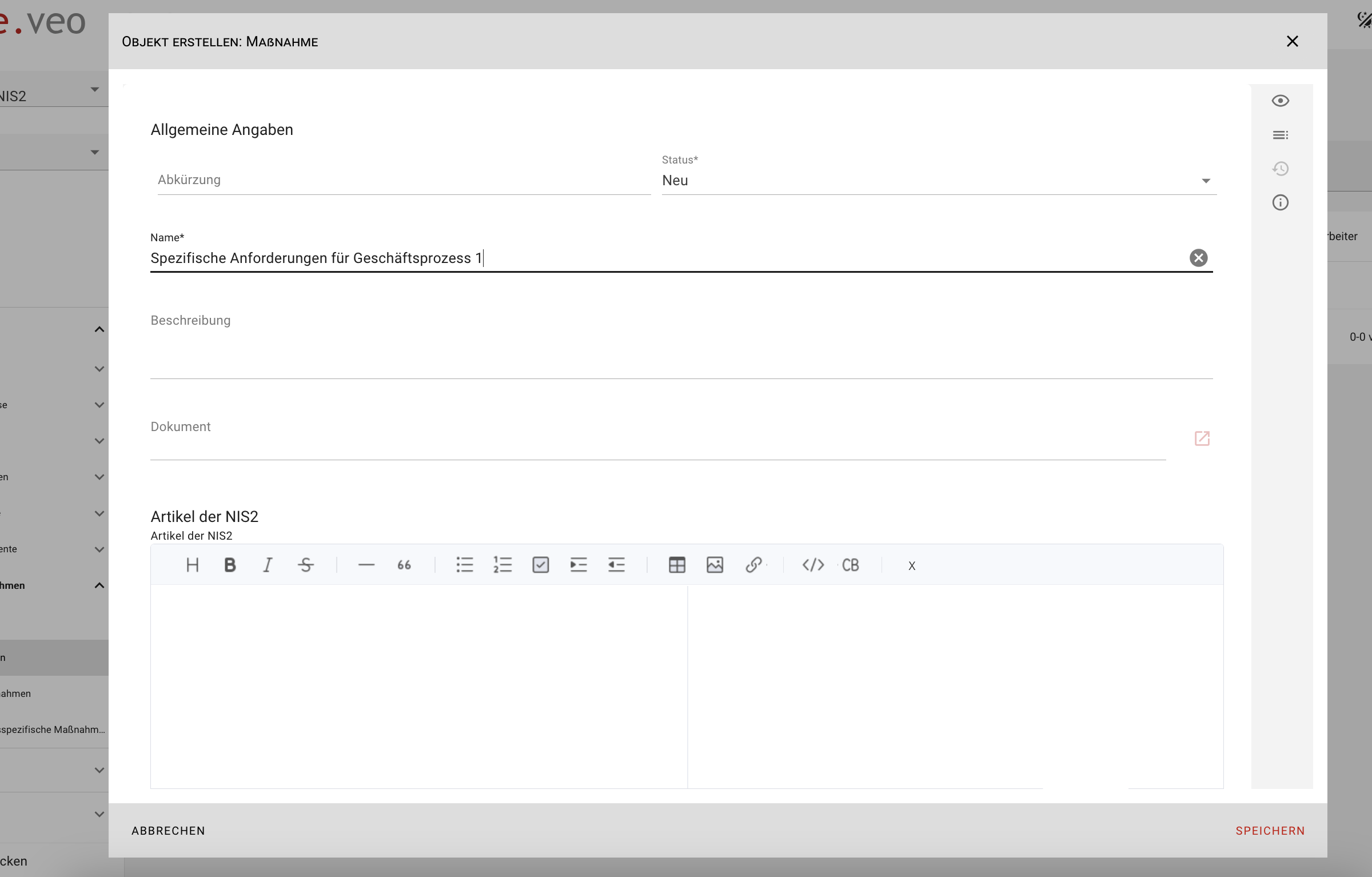
Create a new Requirement using the form for the relevant scope, process, or asset, and give it a clear name, e.g., "Specific Requirement for Business Process 1."
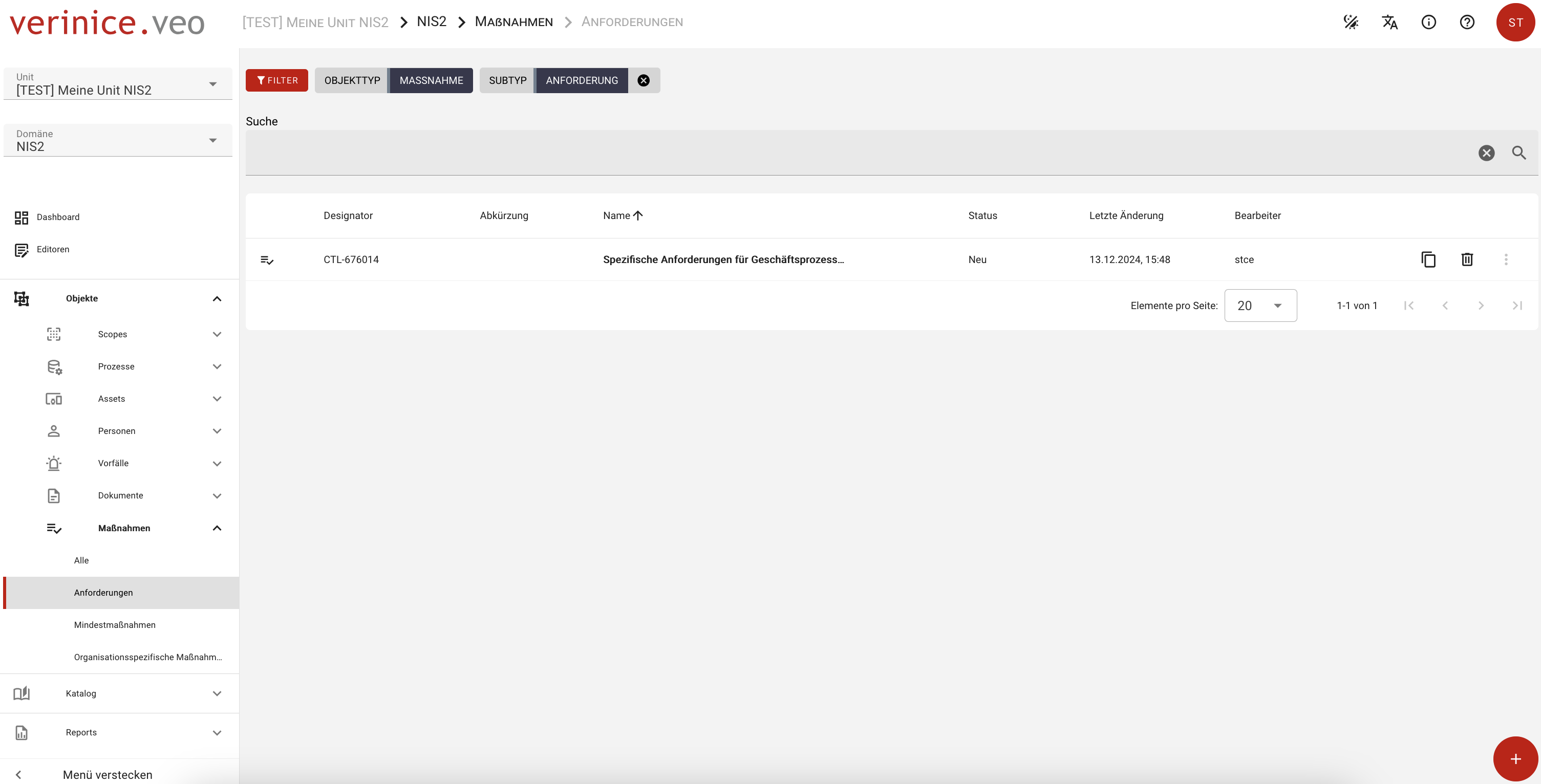
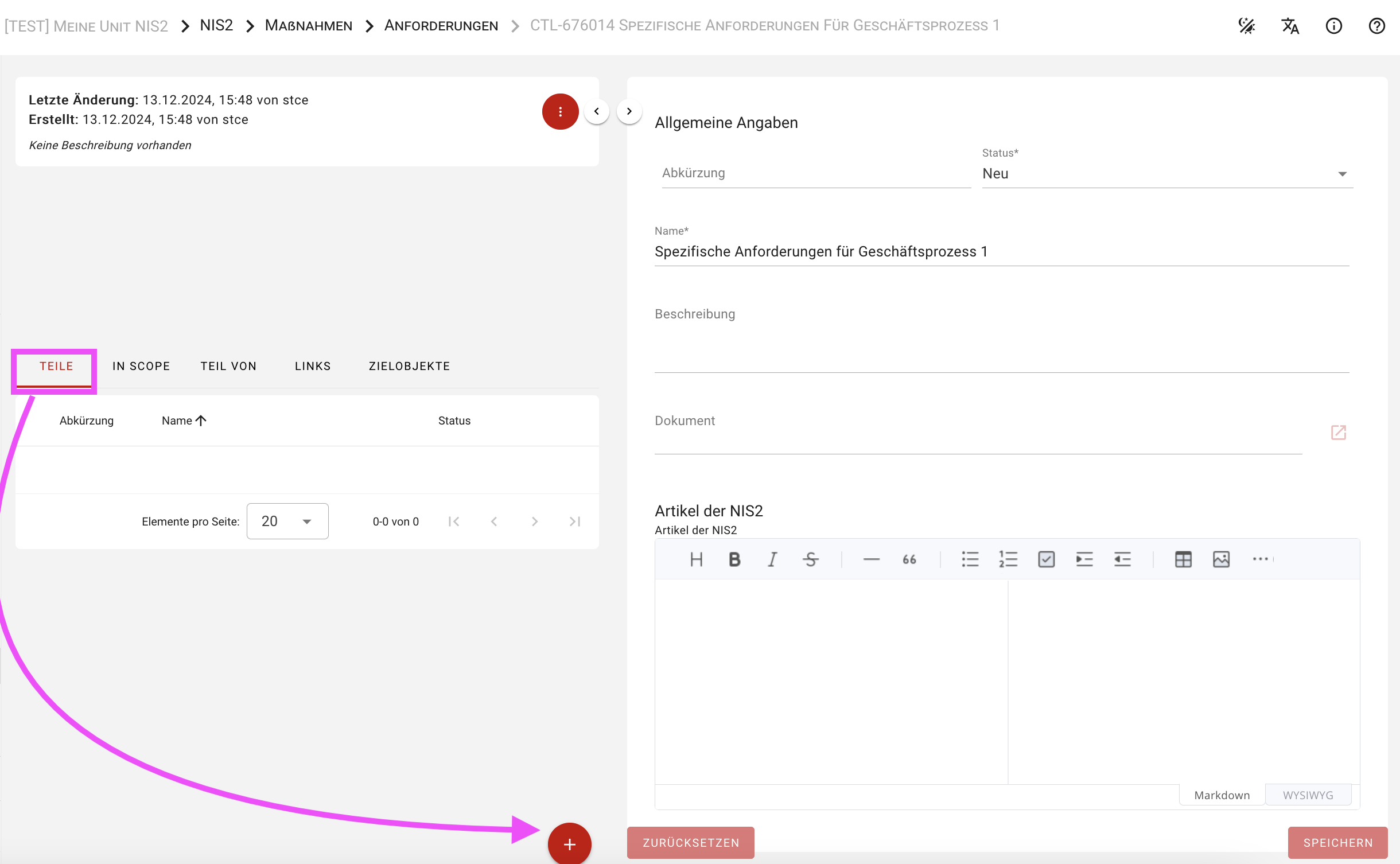
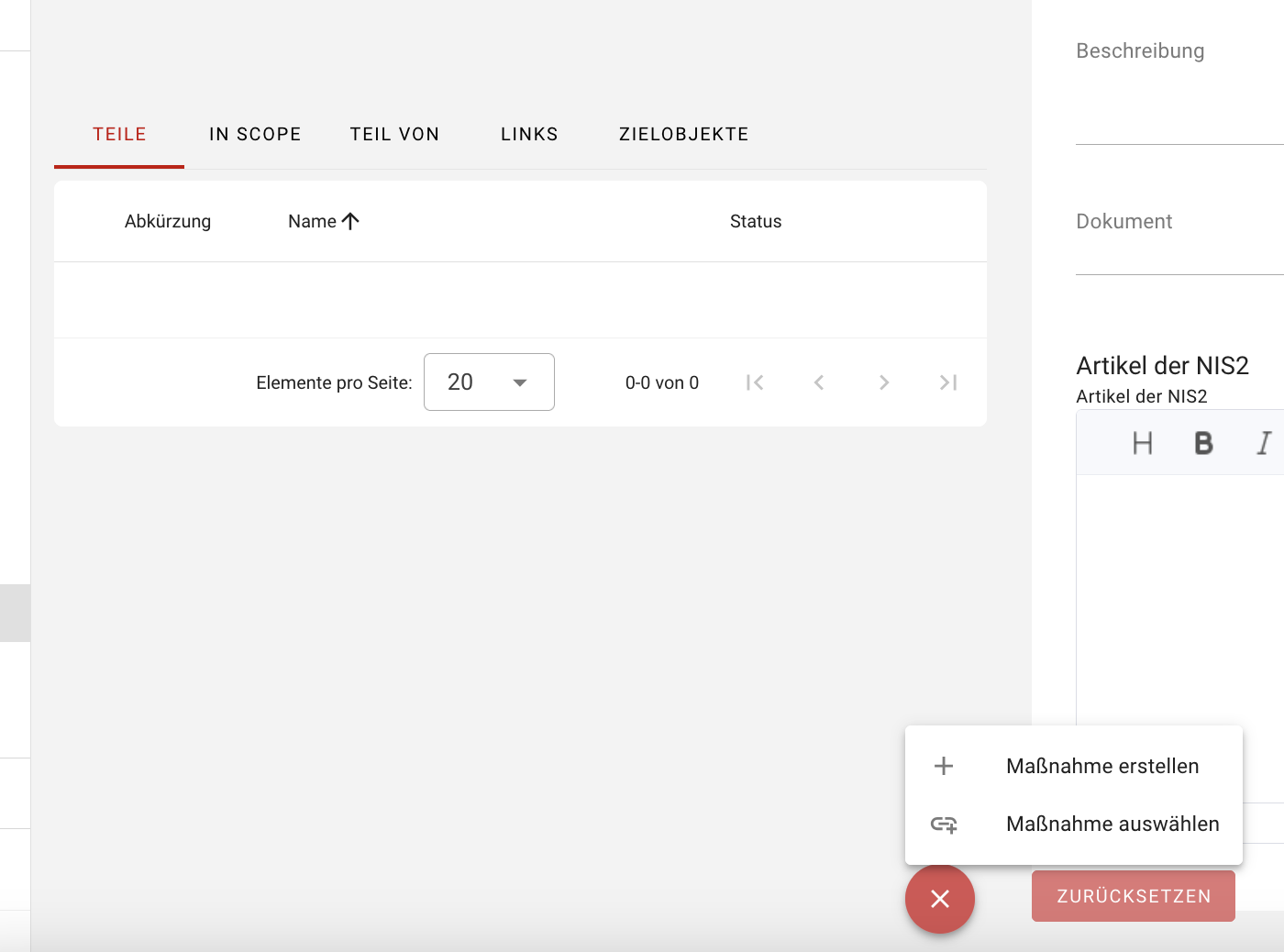
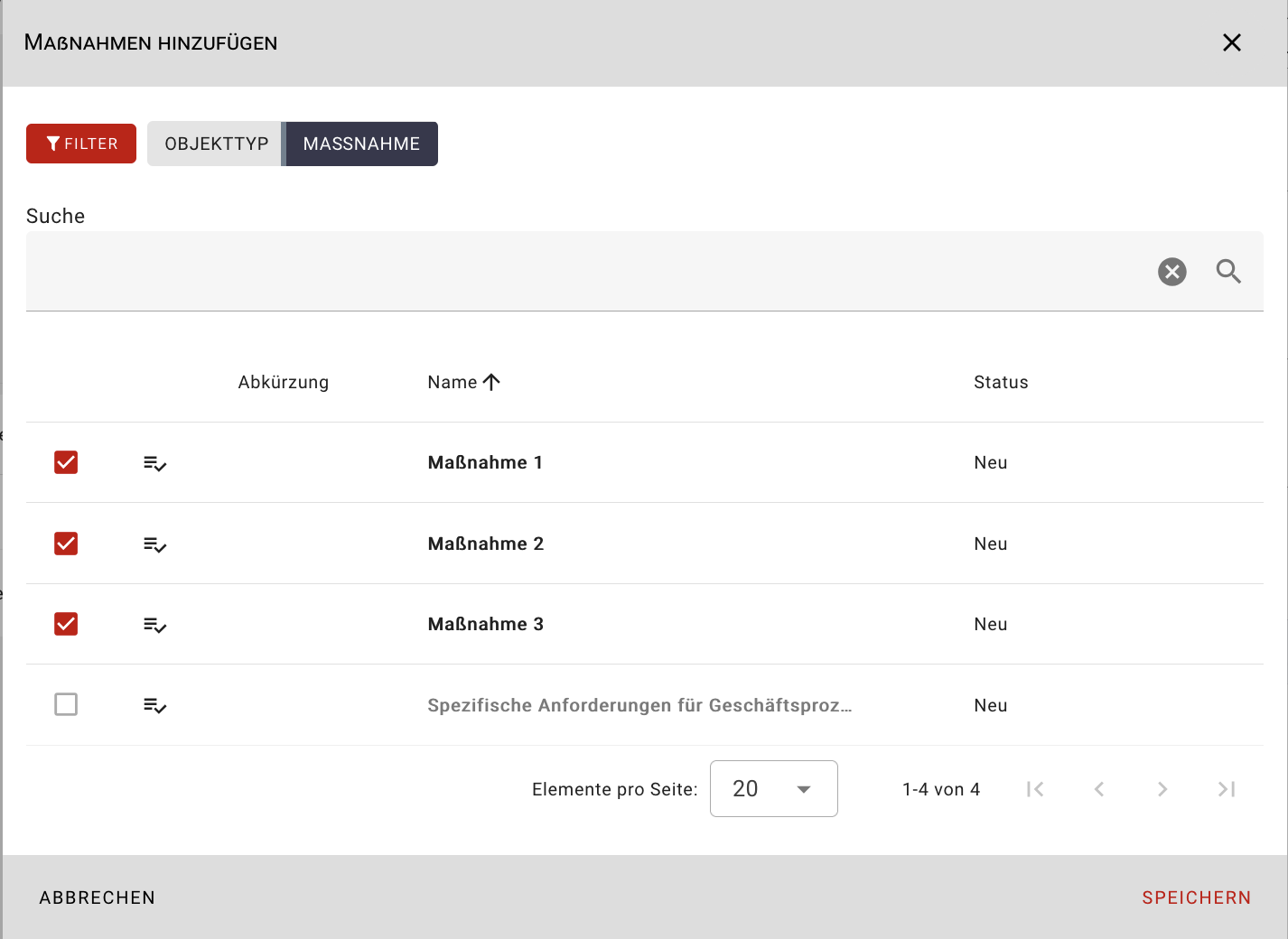
Open the new requirement and navigate to the Parts tab in the object environment. Use the red plus icon to add one or more new measures.
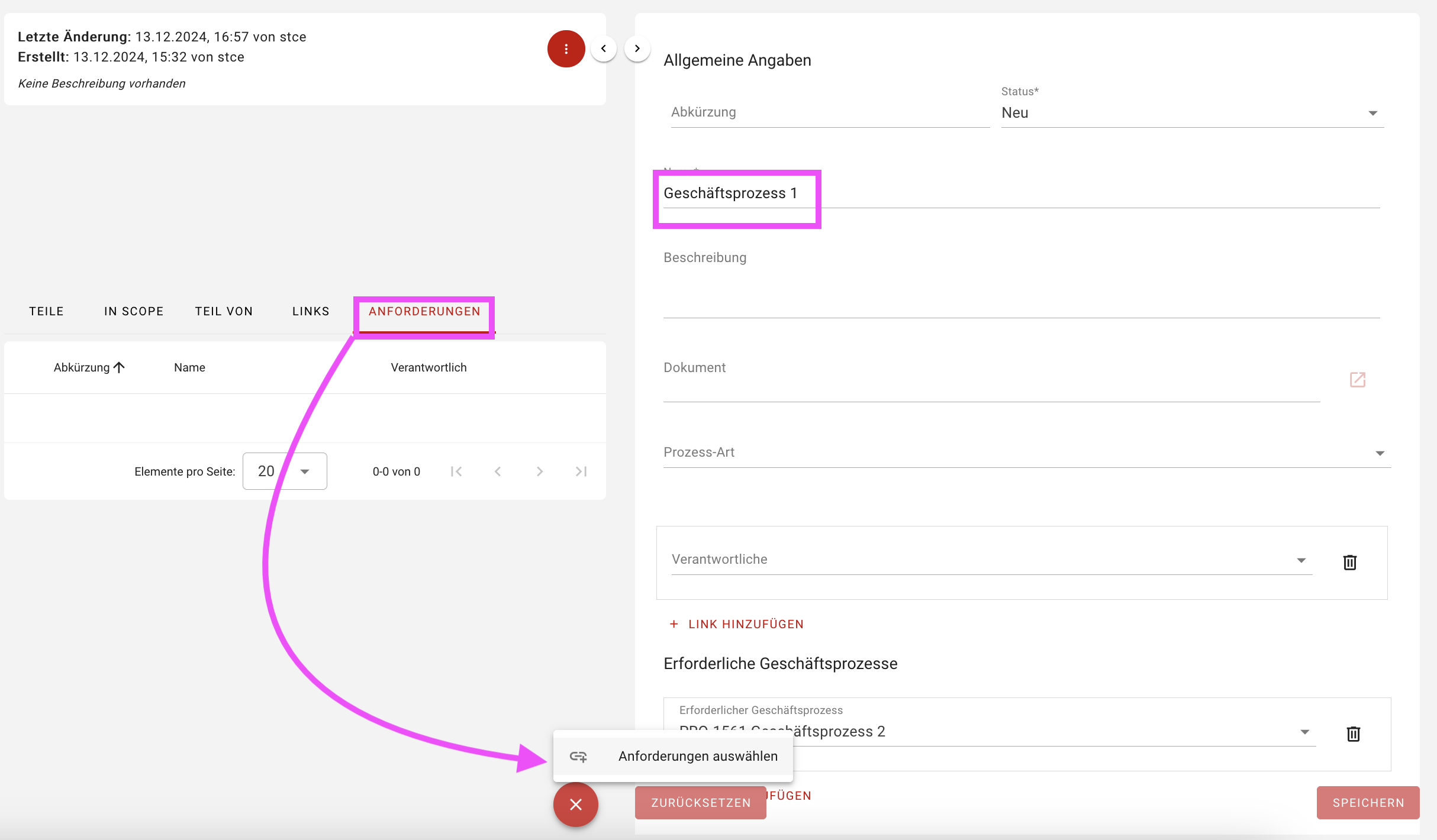
Now go to the affected object (e.g., Business Process 1) and in the Requirements tab, use the red plus icon to select your custom requirement.
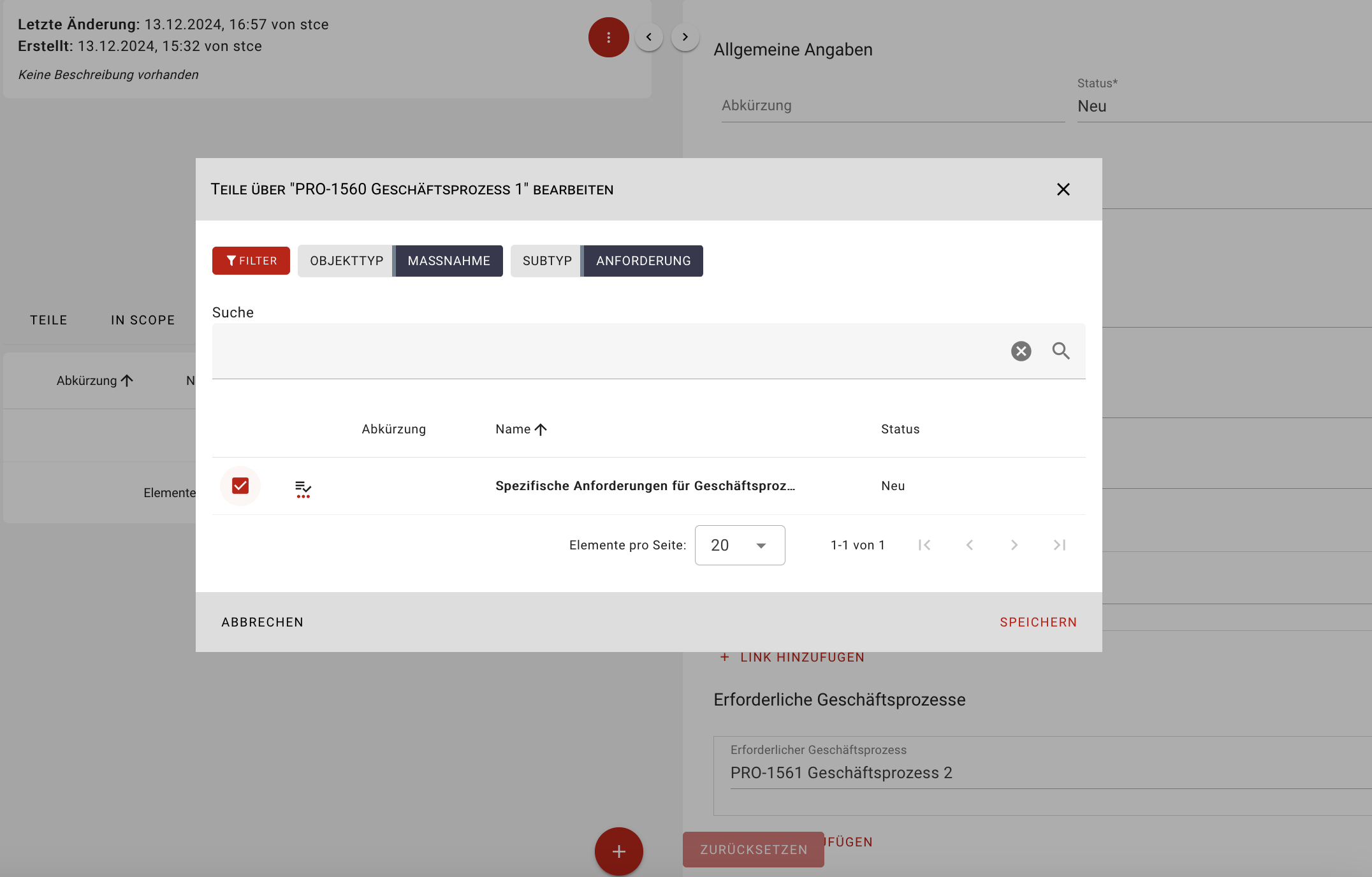
To edit the Organization-Specific Measures, click Show Implementation.
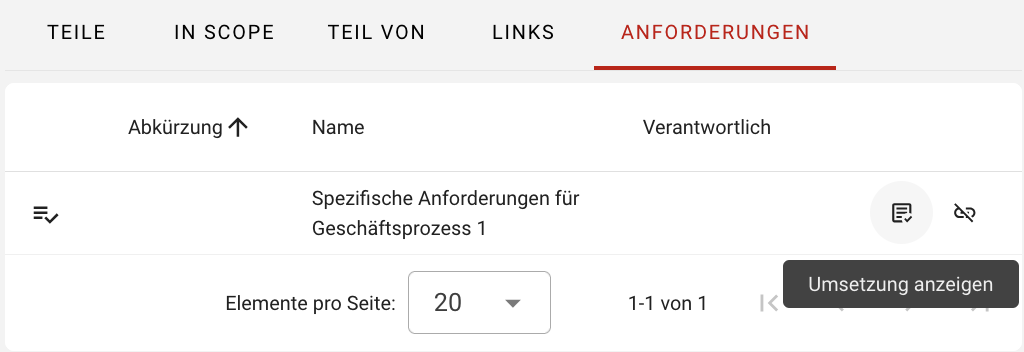
All associated measures will be listed.
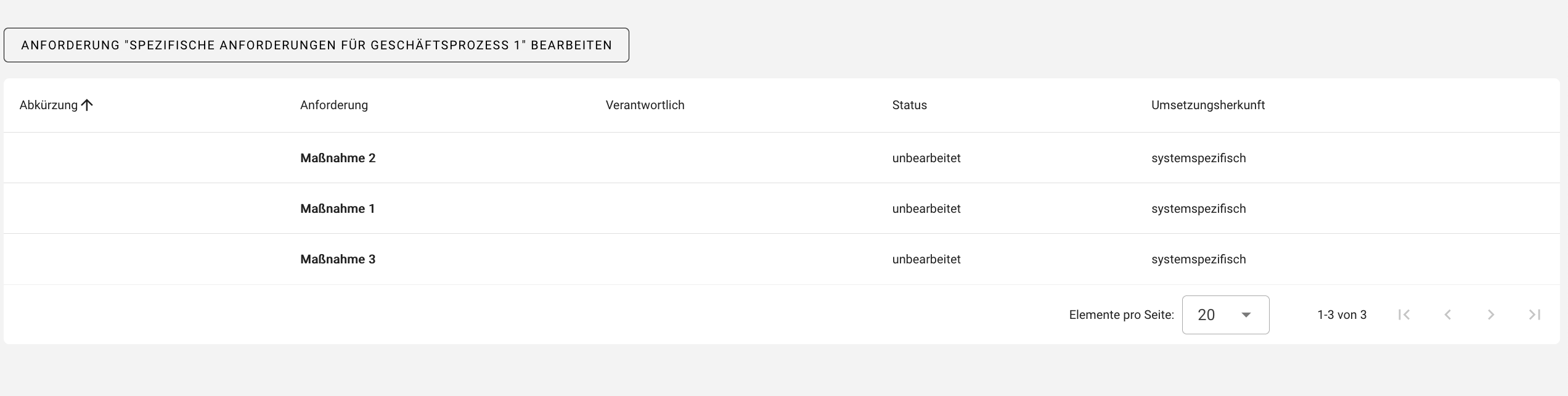
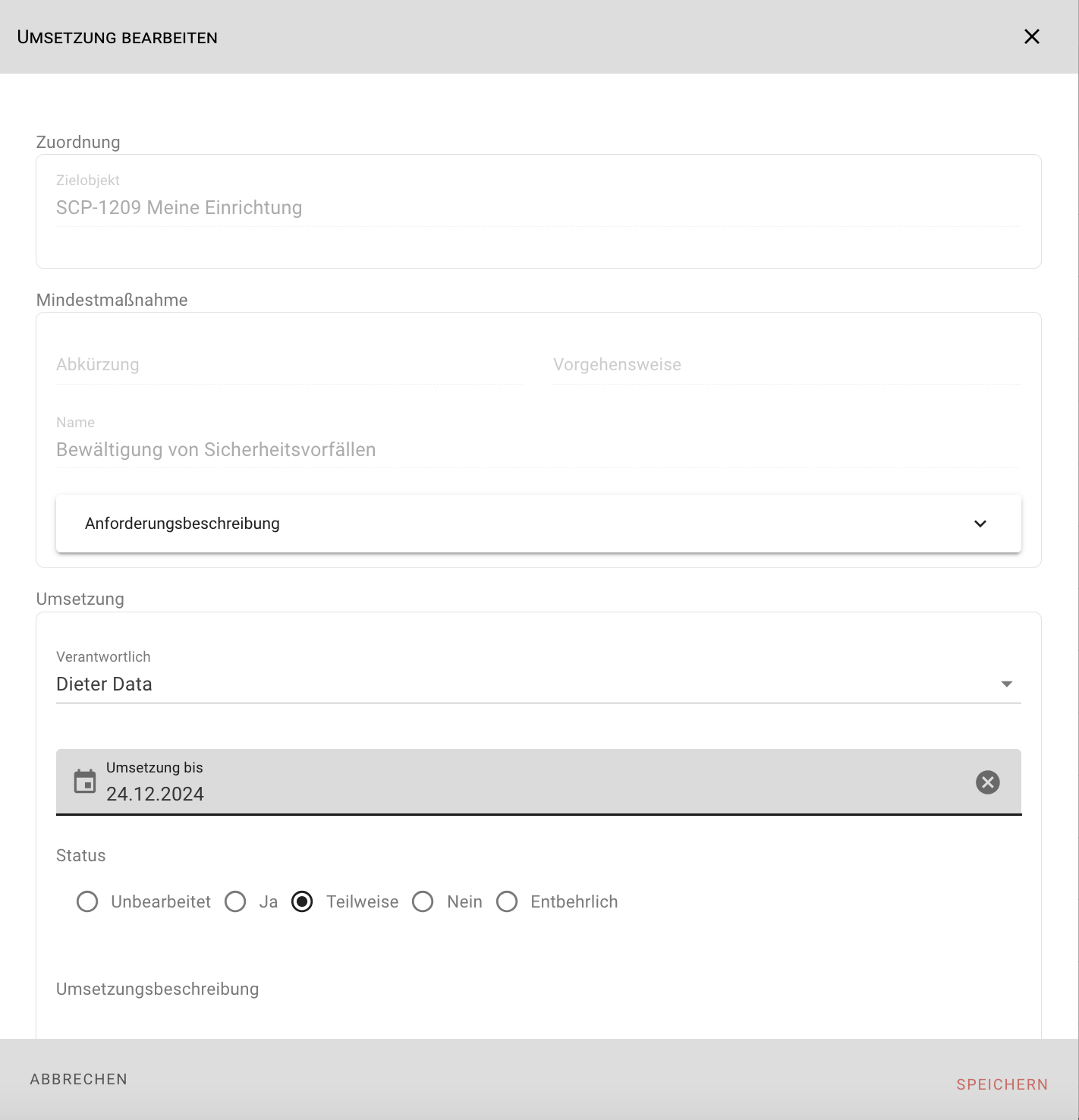
Click each measure to begin implementation editing.
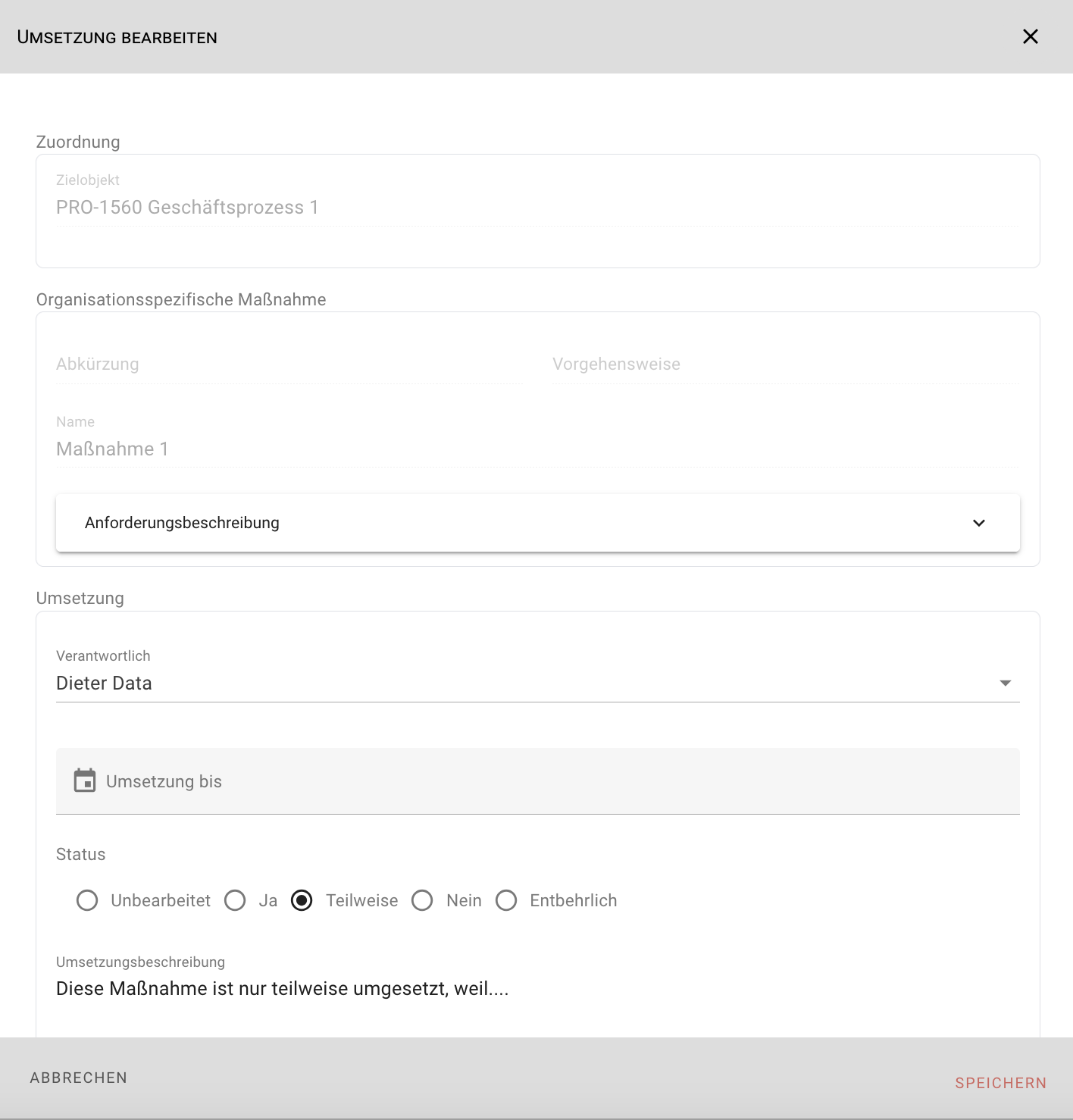
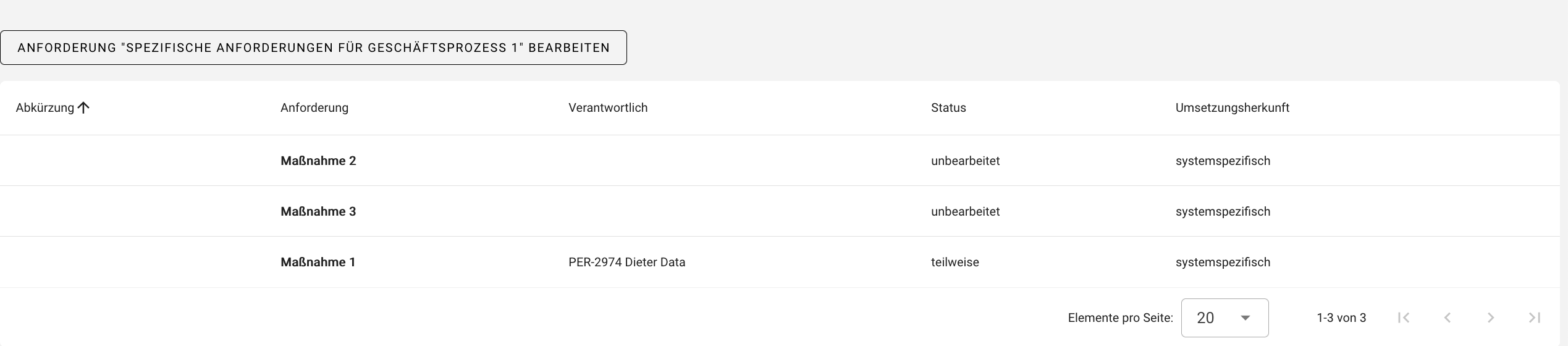
Minimum Measures
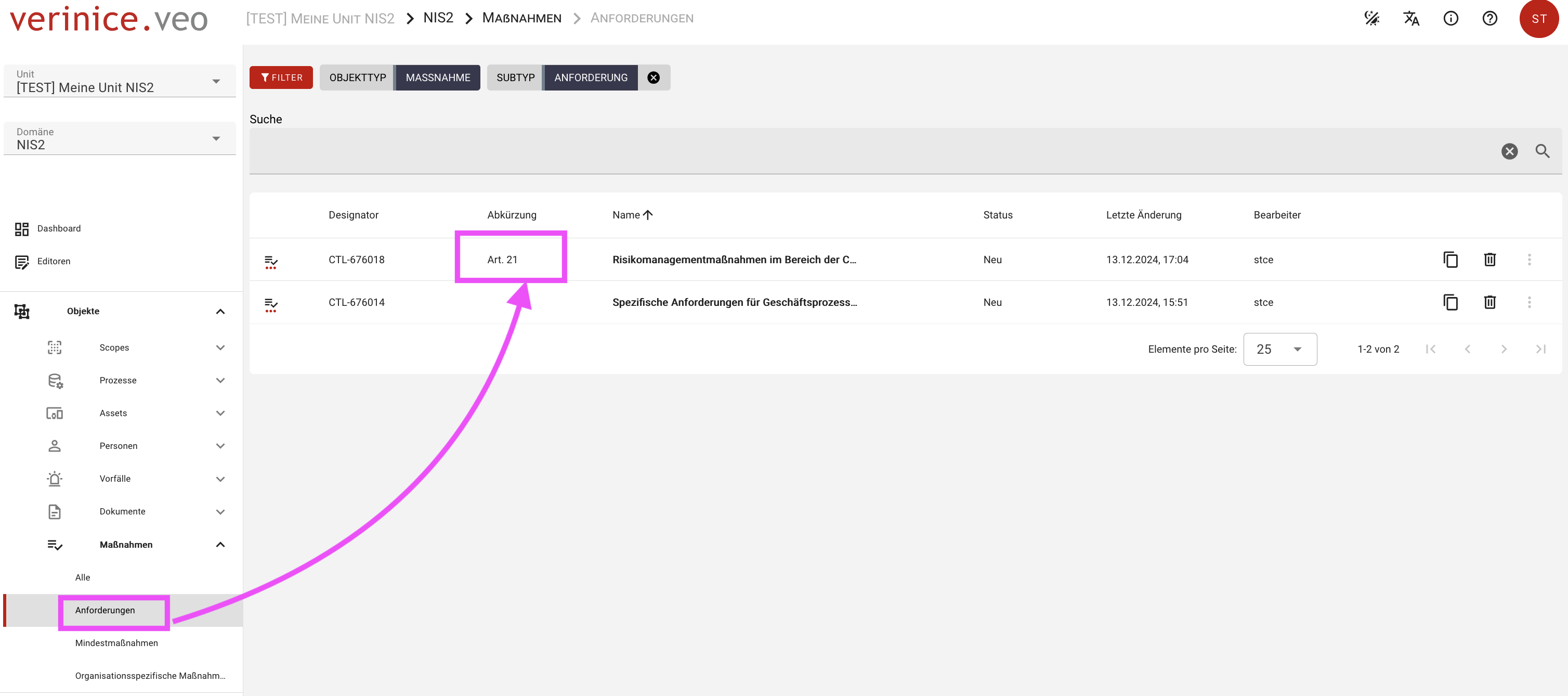
Applying the catalogue element Art. 21 NIS2 transfers the minimum measures into your unit.
The NIS2 domain catalogue includes all articles and recitals of the directive. These elements can be applied individually and edited within your unit.
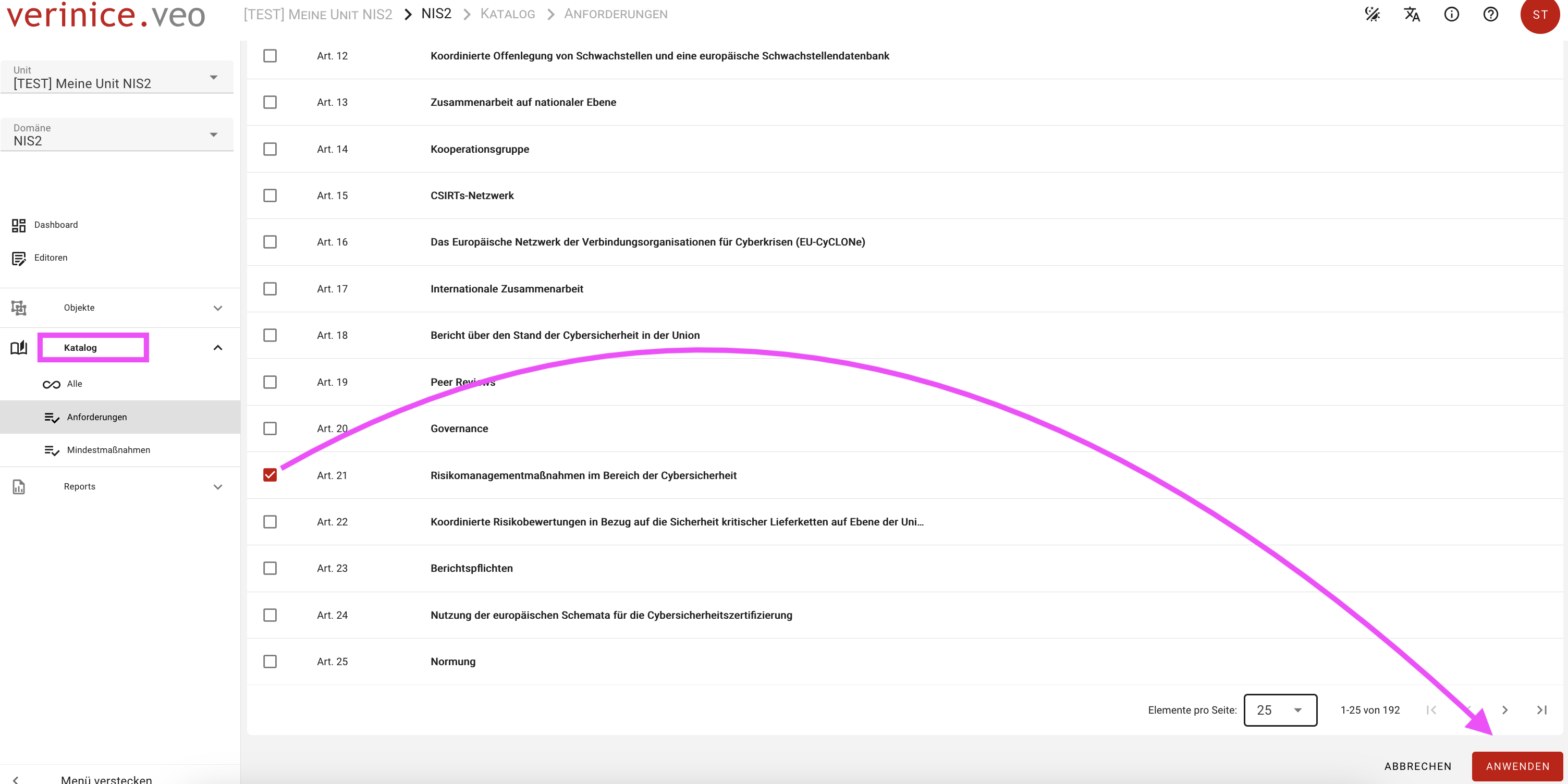
When applying Article 21, the element and all associated minimum measures are transferred.
You can expand the composite object by adding measures via the Parts tab and the red plus icon.
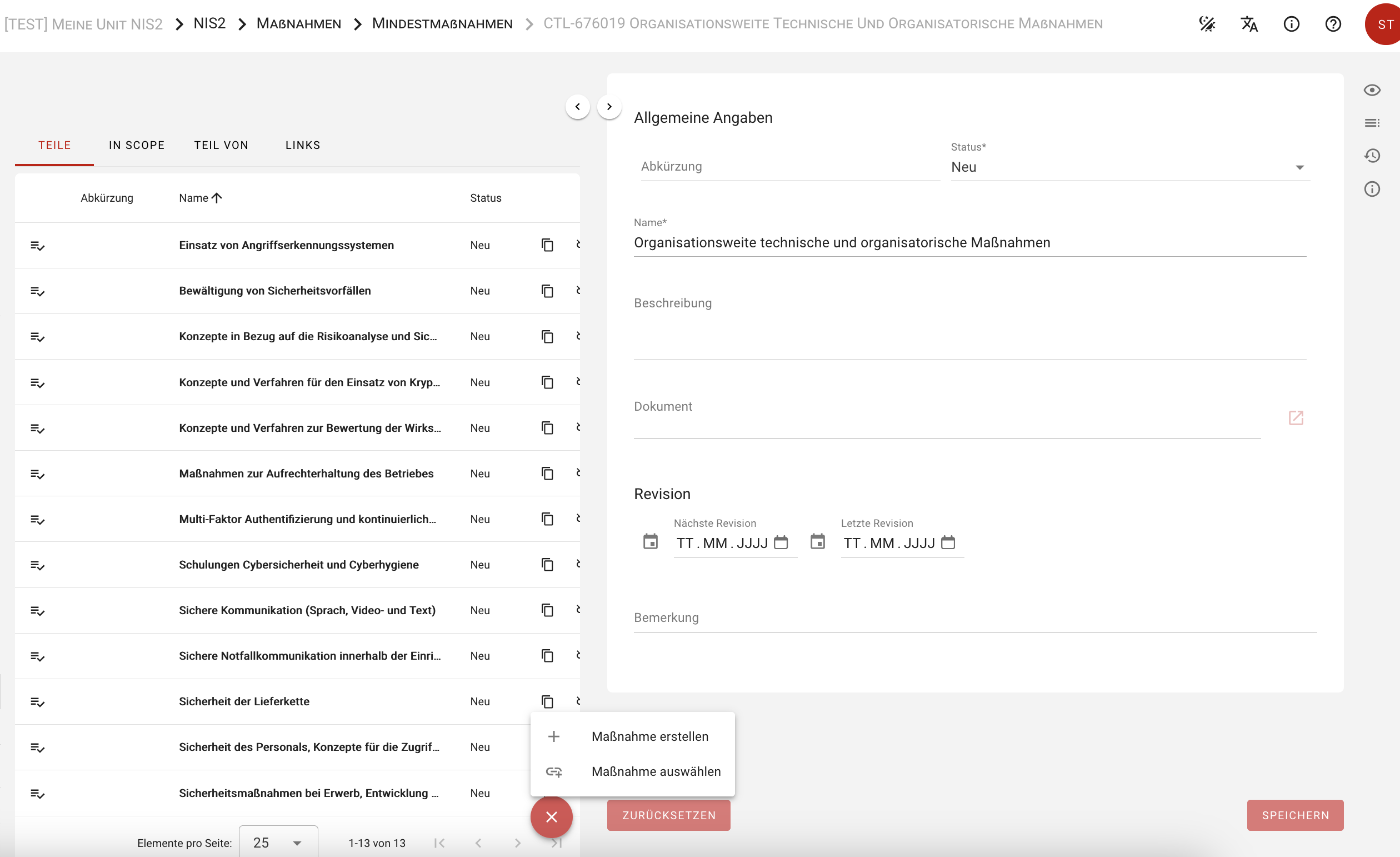
Catalogue elements can be modified within the unit as needed.
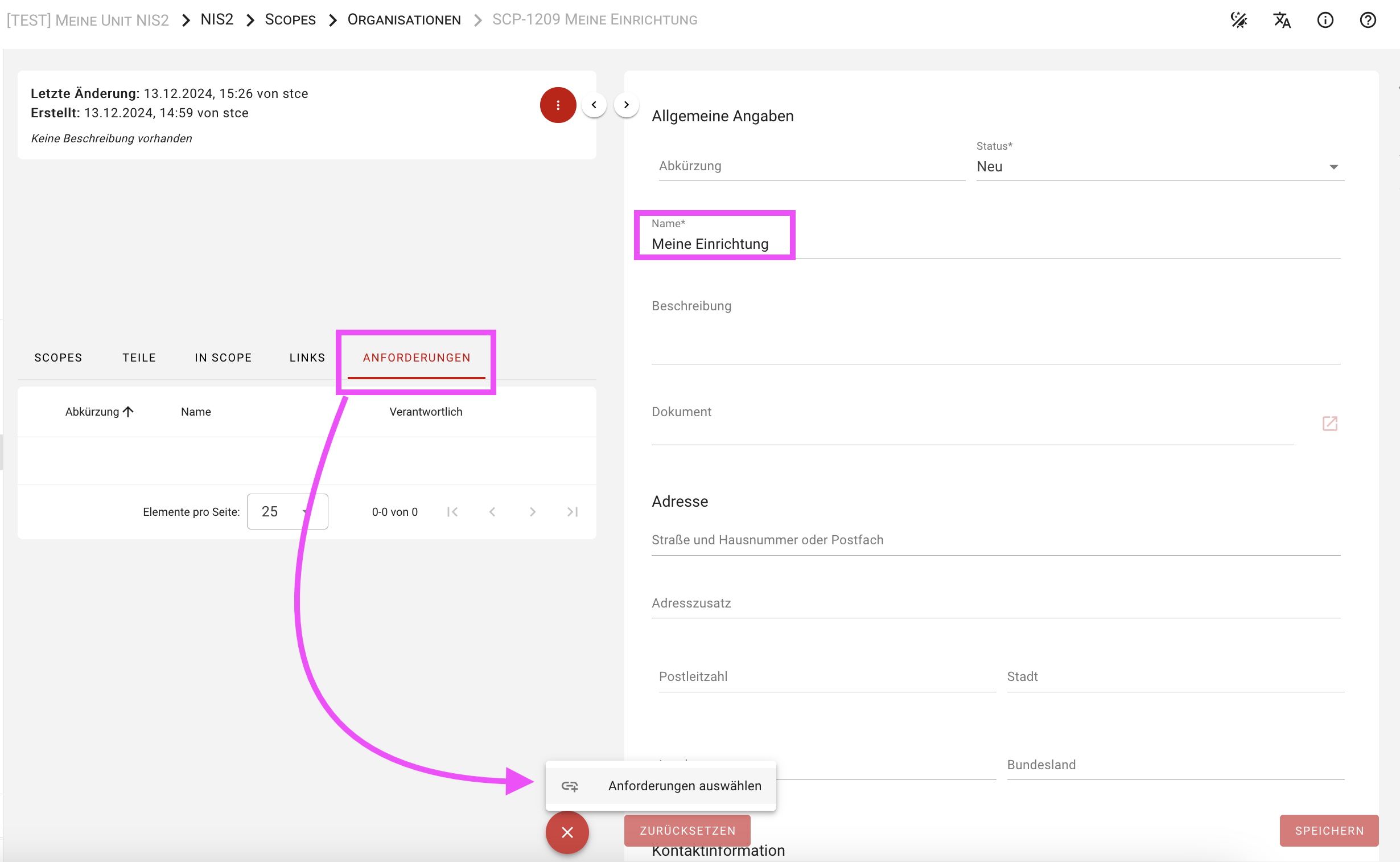
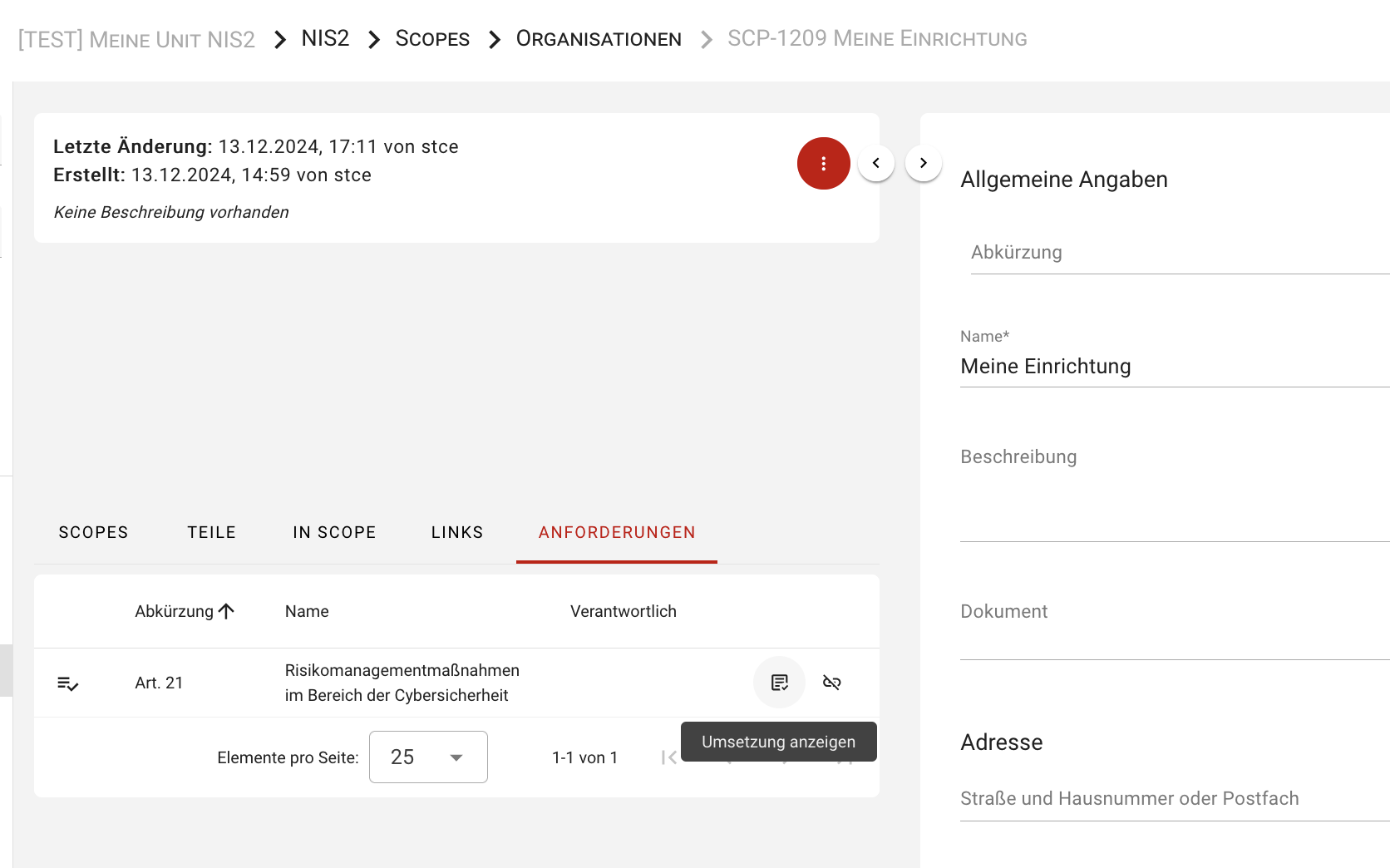
Now go to the Organization object and in the Requirements tab, use the red plus icon to select the requirement Art. 21 Risk Management Measures in Cybersecurity.
INFO
The requirement Art. 21 Risk Management Measures in Cybersecurity is not limited to Organizations.
You can apply it to any protection object if needed.
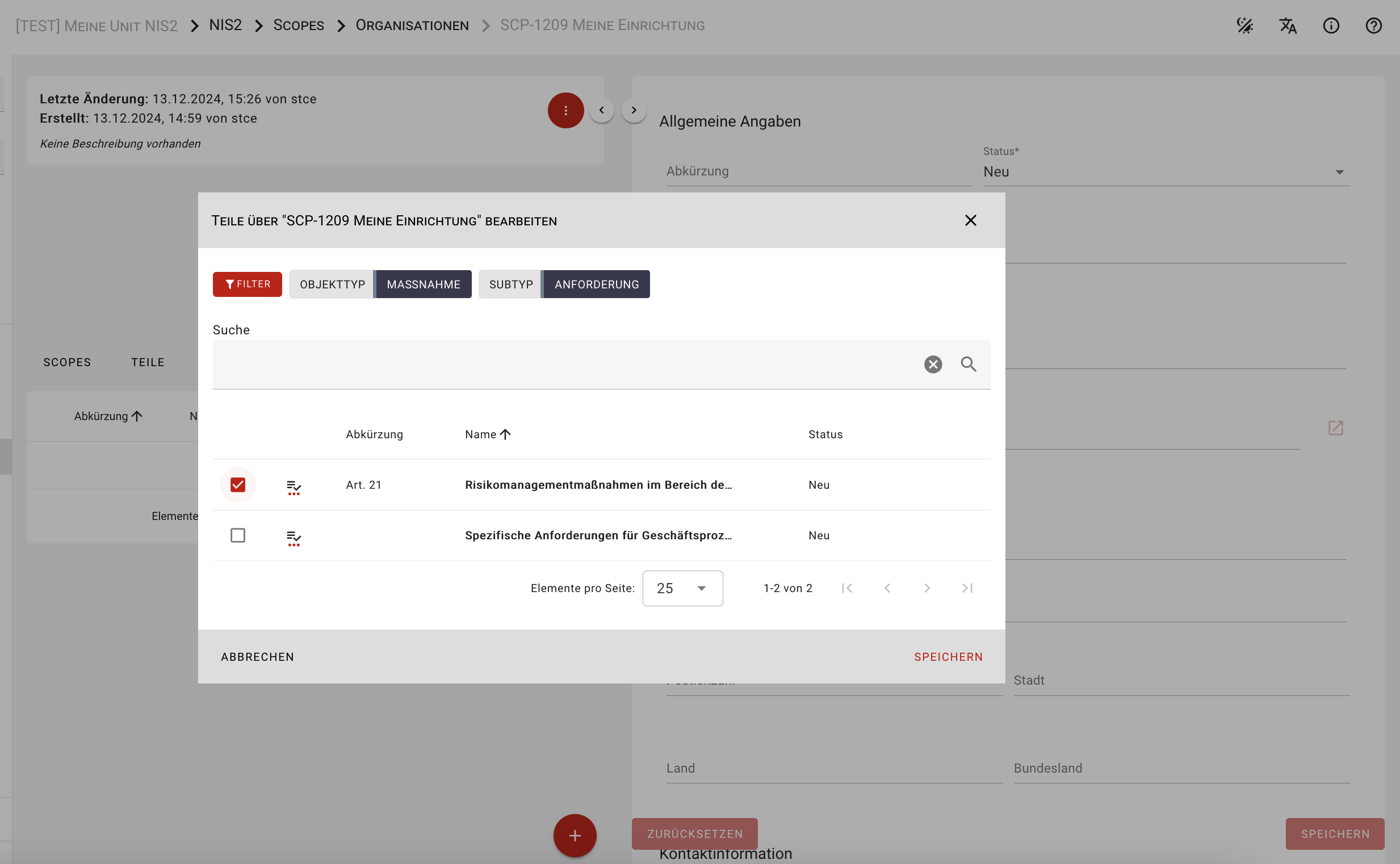
To edit the Risk Management Measures, click Show Implementation.
All associated Risk Management Measures will be listed.
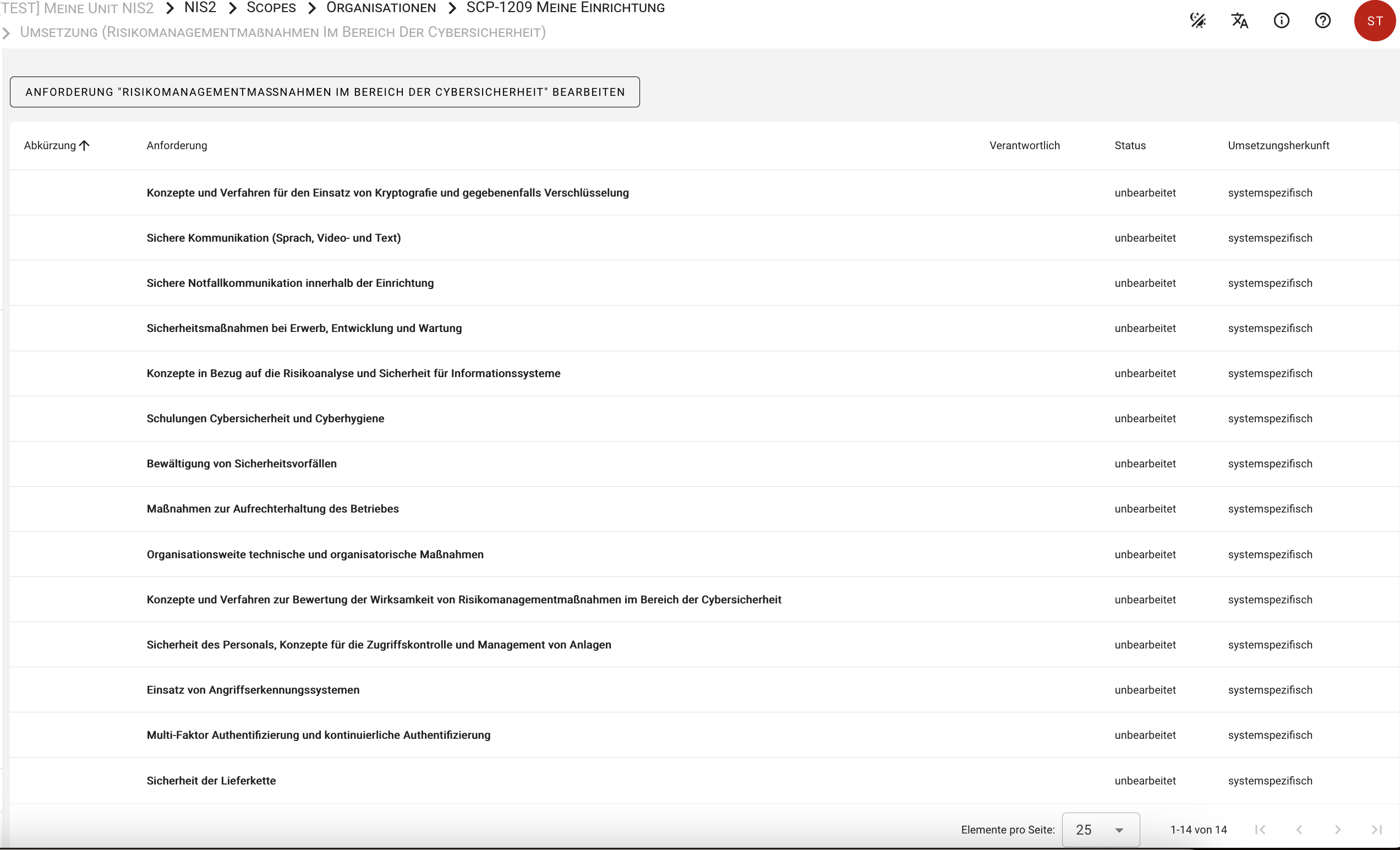
Click each measure to begin editing.