
Inventory Register
The Inventory Register is a central element for the structured recording of all relevant assets, business processes, and other company components. It is used to provide a transparent overview of all operational structures and dependencies, thus forming the basis for well-founded risk analysis and action planning.
Structuring the Organization
To accurately map the company structure, the Inventory Register includes not only business processes and assets but also the following object types:
- Organizations
- ISMS Application Areas
- Scopes
- External Service Providers
These subtypes enable detailed modeling of internal and external conditions.
Working with Scopes
Scopes are central structuring elements within the ISMS application area. They can be organized hierarchically and may contain other scope objects or themselves be part of another scope: 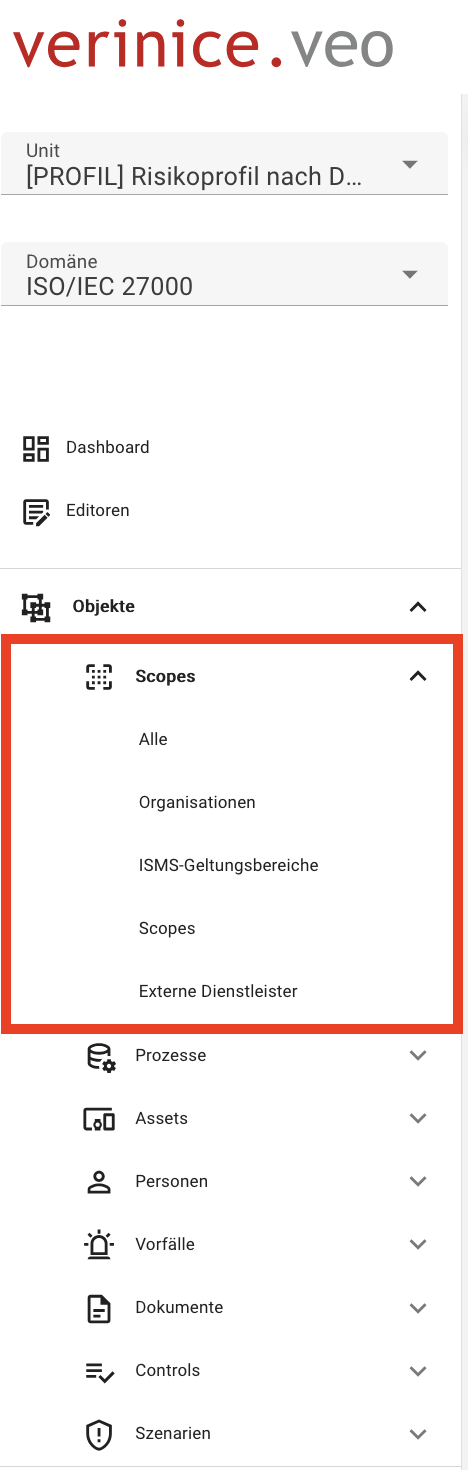
Managing Scope Relationships
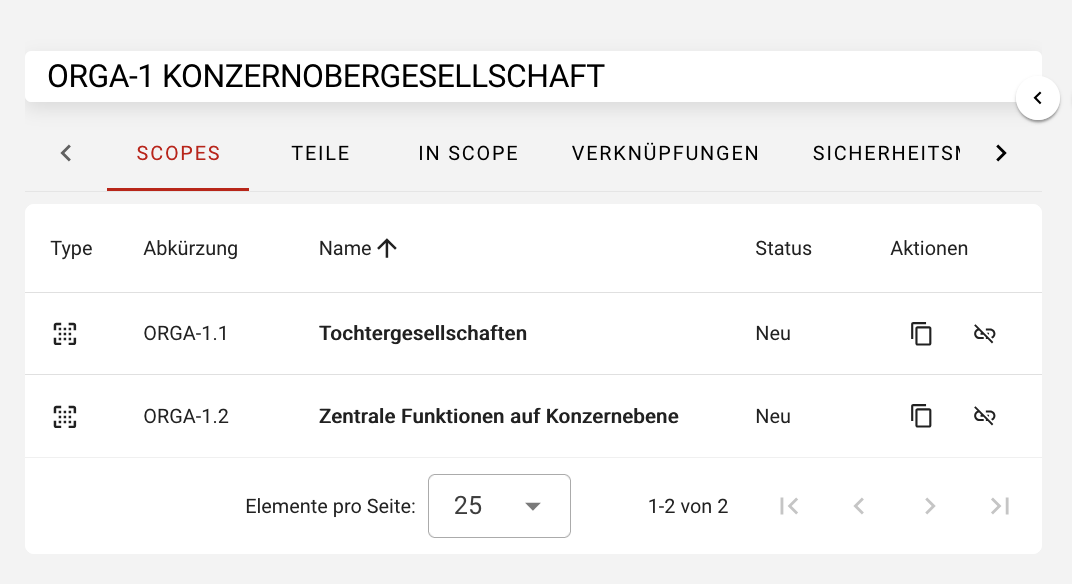
Open any Scope Object.
In the Scopes tab, you can add subordinate scopes, for example:
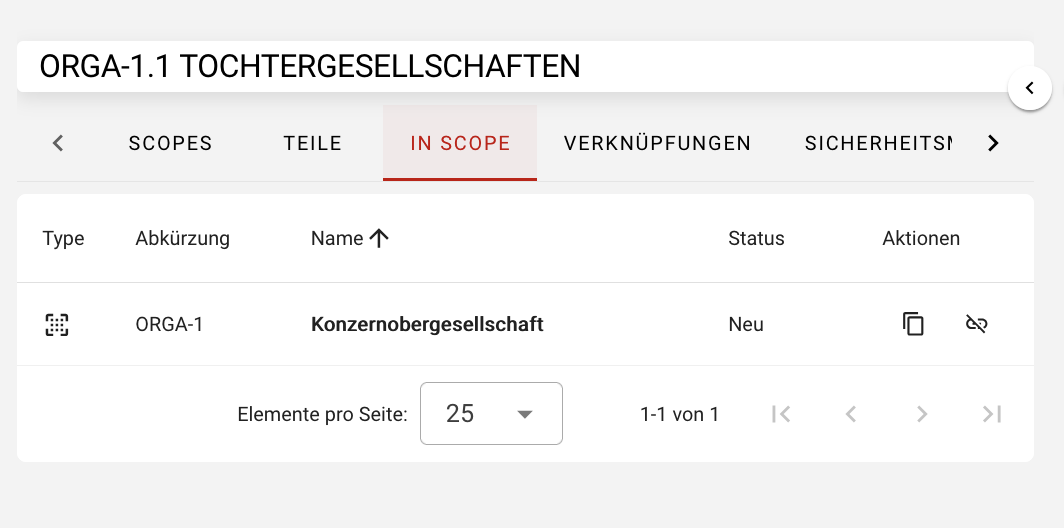
In the In Scope tab, you define which parent scope the current object belongs to:
Components of a Scope Object
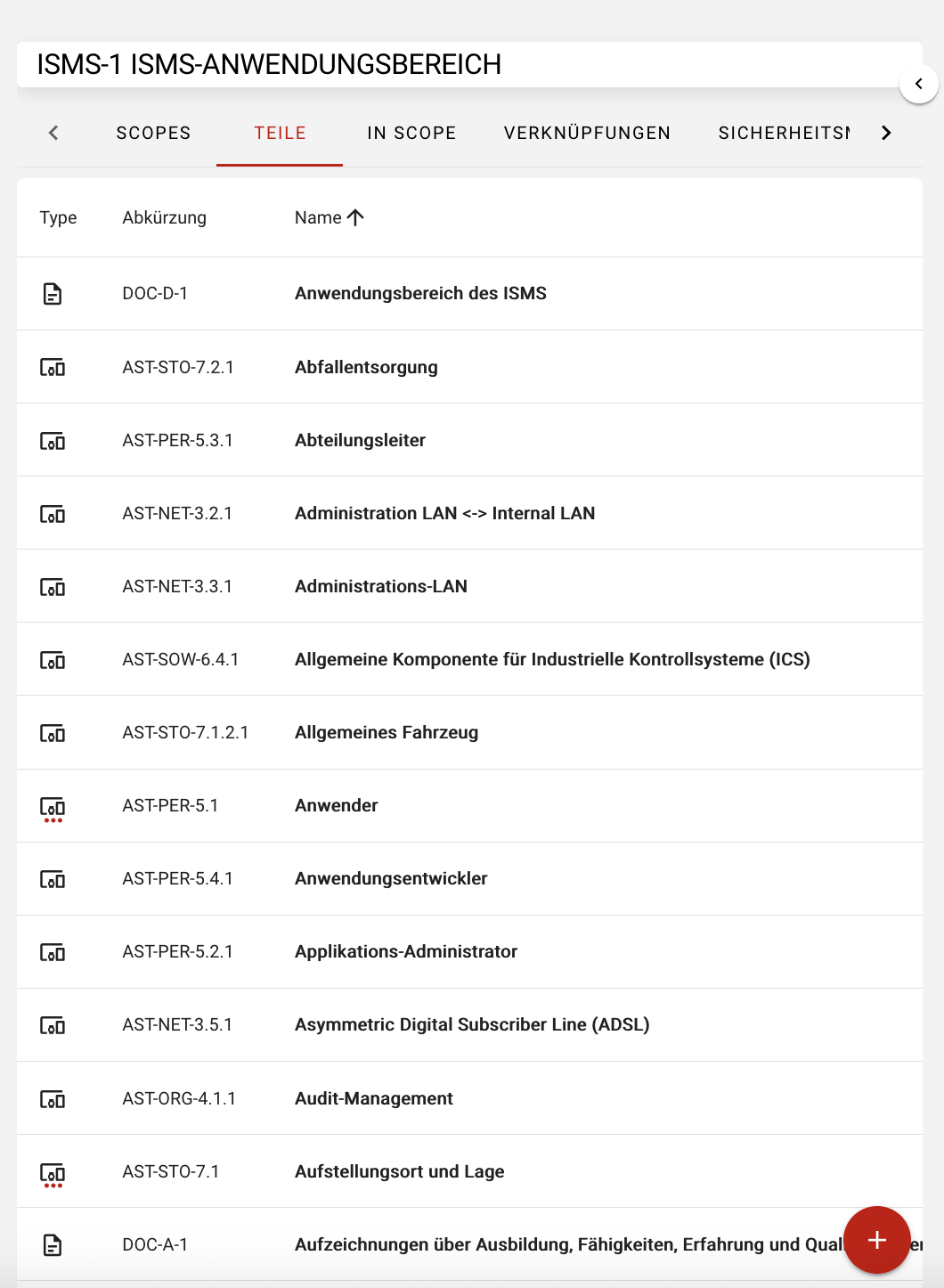
In the Parts tab within a scope object, you can add additional components. This is especially relevant for documenting the ISMS application area – for example, to provide a precise description and delimitation of the scope as required for ISO/IEC 27001 certification.
Components primarily include Business Processes and Assets that are to be considered within this scope:
Creating and Managing Business Processes
To create a new Business Process, proceed as follows:
- Navigate to Business Processes via the left menu or the dashboard.
- In the object overview, click the plus button (+) at the bottom right to create a new object.
- In the business process form, you can enter the required information and link it to the necessary assets in the lower section. These same links are also visible in the Object Details under the Links tab:
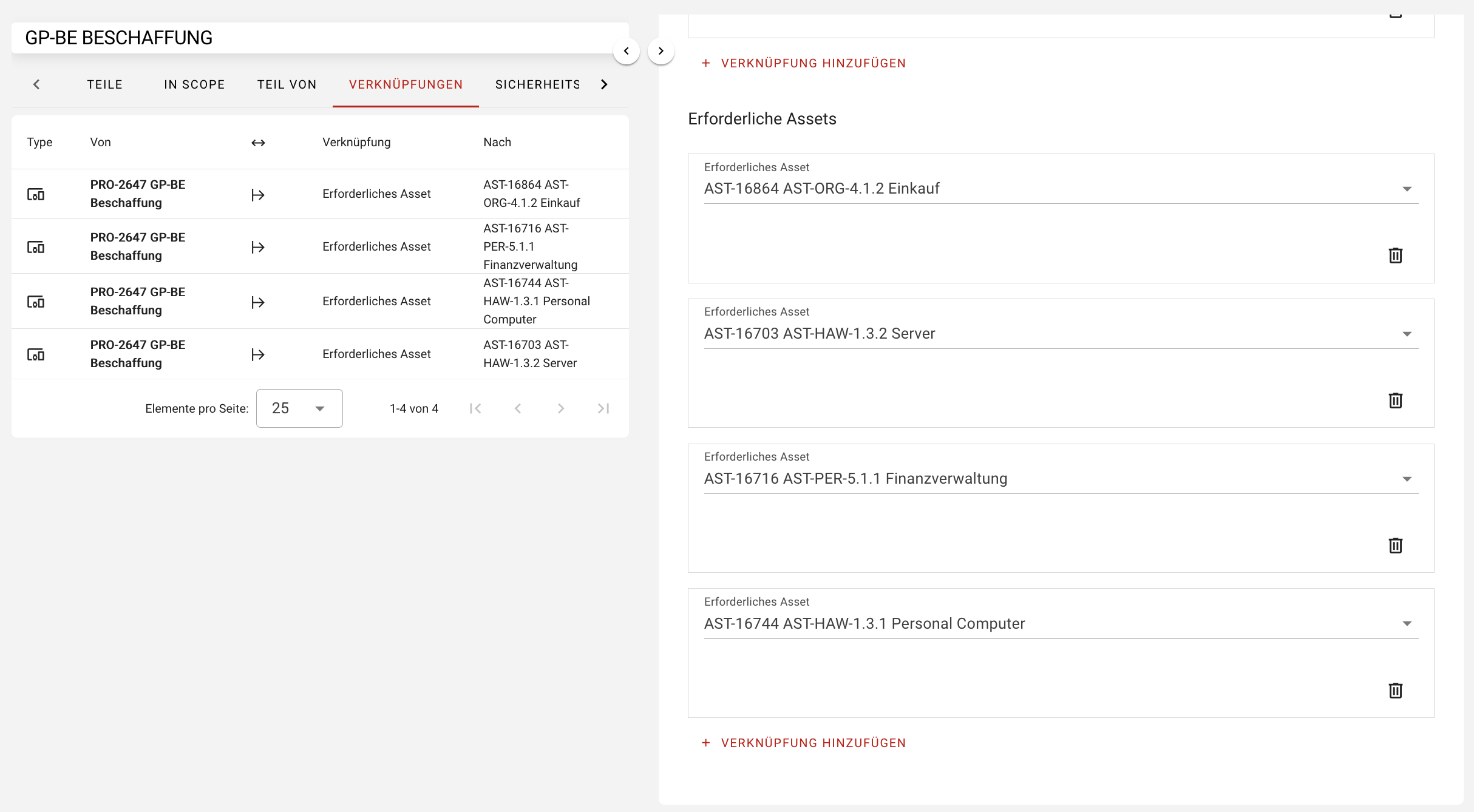
You always create context-sensitive objects using the plus button, based on the currently active object and subtype!
Save the process once you have entered all data as desired. Please note that the fields Name and Status (in all objects) are mandatory! Your process will then be listed in the object overview.
Additional Components for Business Processes
Using the Parts tab, you can add additional Business Processes to document dependencies or further business processes as subprocesses.
Creating and Structuring Assets
The procedure for creating a new Asset is the same as for business processes:
- Navigate to the Assets section via the menu.
- In the overview, click the plus button (+).
- In the asset form, you can enter the necessary information and set links to other required assets in the lower area.
Additional Components for Assets
As with business processes, you can also add additional Assets via the Parts tab. This allows you to document additional structural or functional relationships.
Inventory Report
To create the inventory register as a PDF report of all Assets that are assigned as components to an ISMS scope, go to the Reports menu and then select Inventory Register:
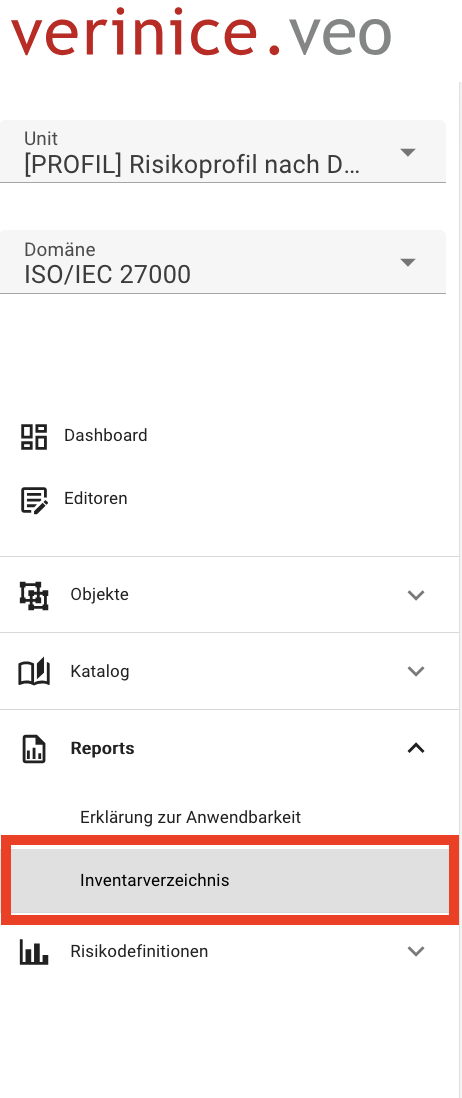
Then select a scope object from those created under ISMS Scope and click the Generate Report button to create the inventory register.
The report outputs all Assets that have been assigned as Parts to an object of the subtype ISMS Scope.
In the first section of the report, you get an overview of all assets with the entered values for confidentiality, availability, and integrity, so that particularly sensitive assets are easily identifiable. In the second section, all documented information from the respective forms is displayed in detail for each asset.