
Module Modeling
Once the structural analysis has been carried out and the protection requirements have been determined, the next step is module modeling.
verinice provides two options for modeling modules based on the IT-Grundschutz approach. In addition to modeling individual modules by applying catalog elements, the entire IT-Grundschutz Compendium can be applied as an information network using a profile with pre-modeled sample objects.
Modeling from Catalog
Modeling from the catalog consists of two steps: applying catalog elements and modeling the modules themselves.
Apply Modules from Catalog
Before you can model the modules in your information network, you should first apply them from the catalog, which you can access via the menu.
Navigate to Modules, select all (or only the ones you need), and click Apply.
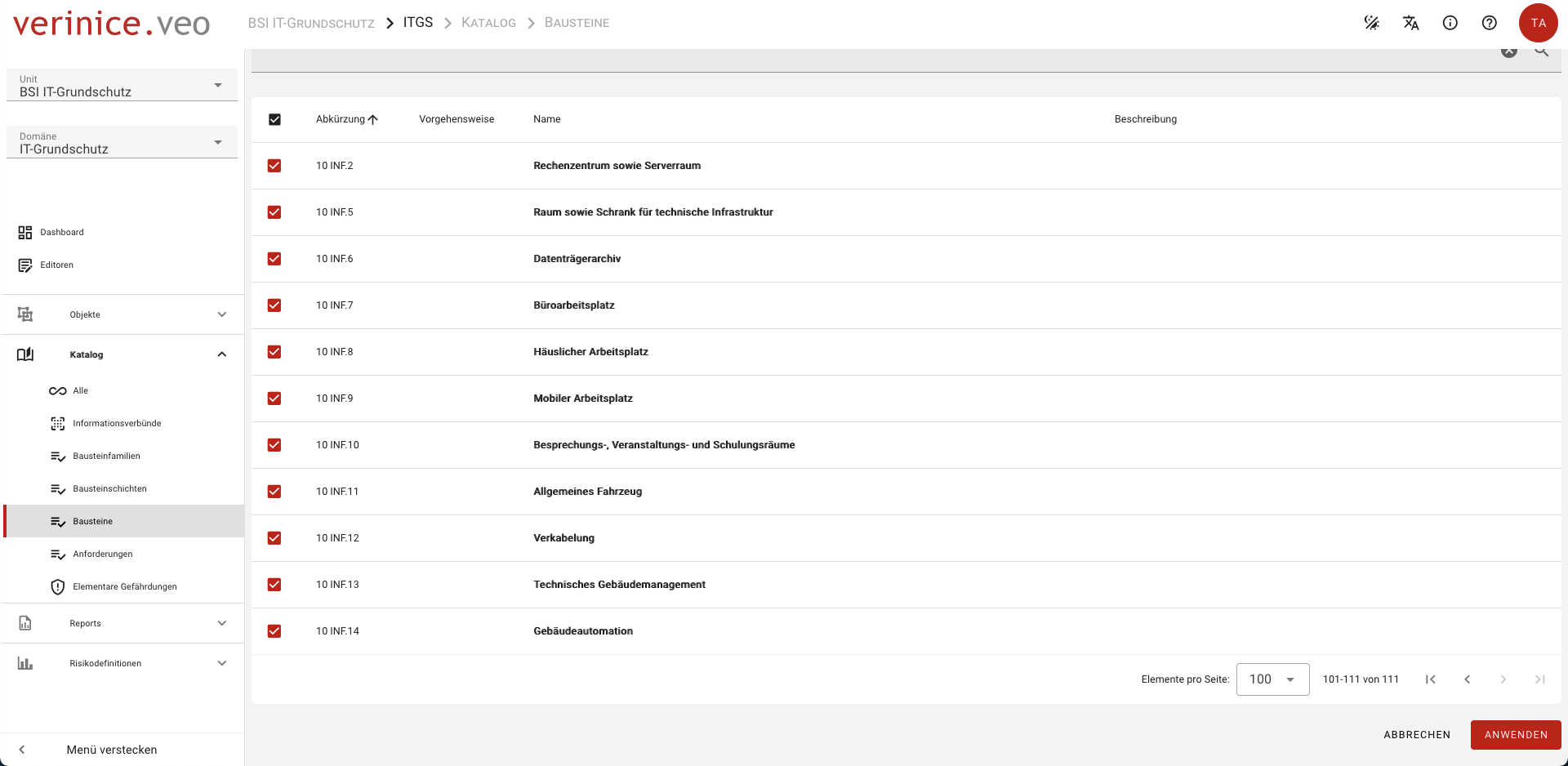
Once the modules are available in your unit, you can assign them to target objects. You can proceed in two different ways:
Module Modeling
From the Target Object's Perspective
Assign the desired modules to a target object:
- Open a target object where module modeling should be performed.
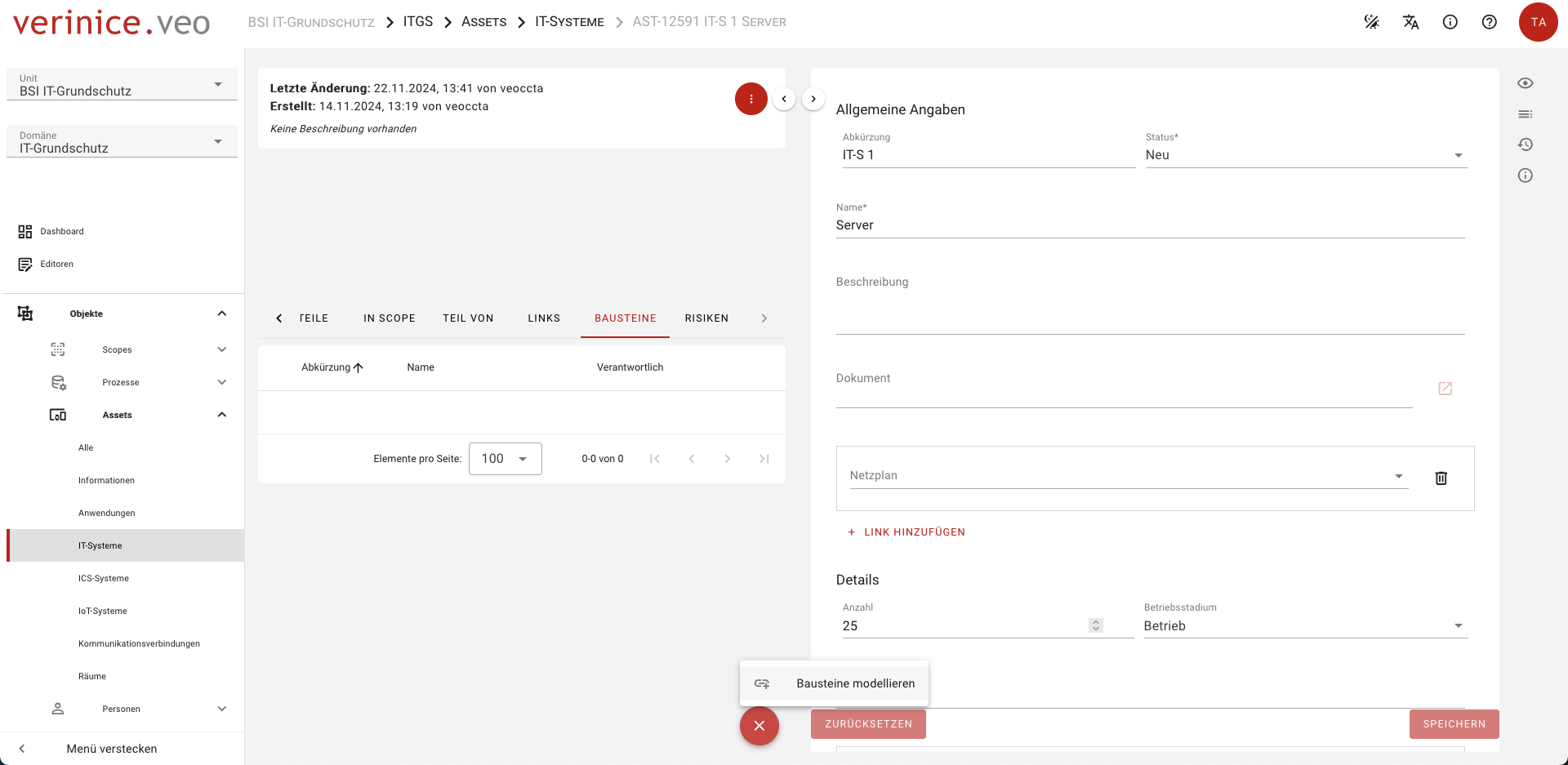
- In the object view, select the Modules tab and click +, then Model modules.
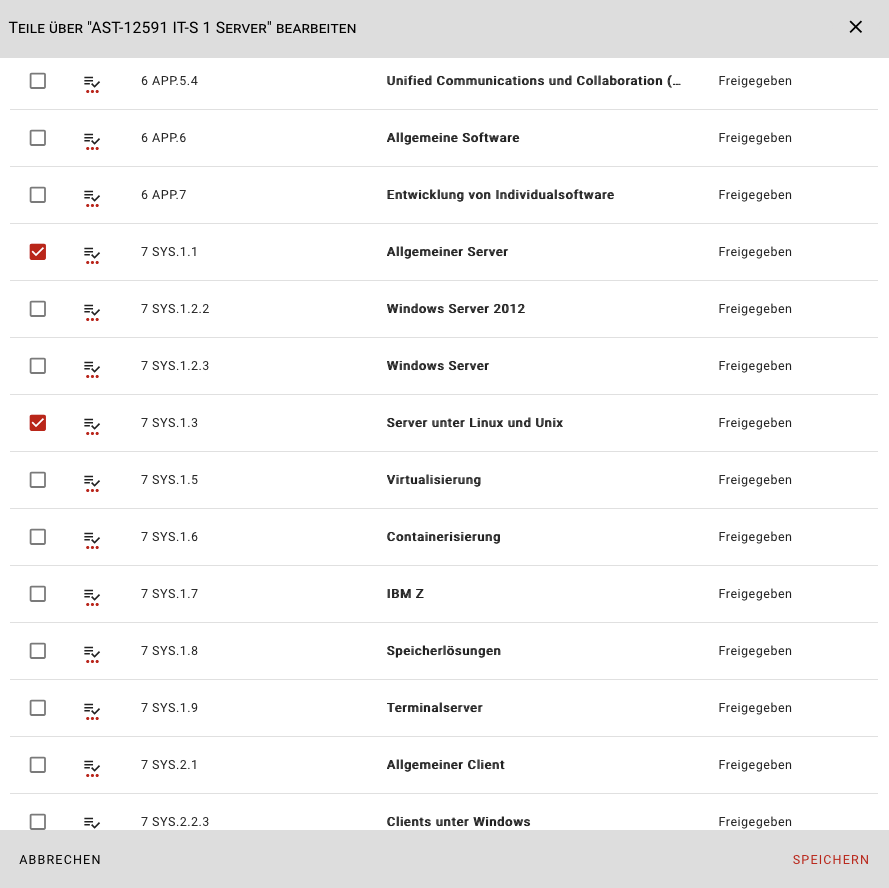
- A dialog opens showing all modules you previously applied from the catalog. In this dialog, select the modules you want to model. Use the search function to find modules by name and/or abbreviation. Sorting (ascending/descending) is also possible in this dialog.
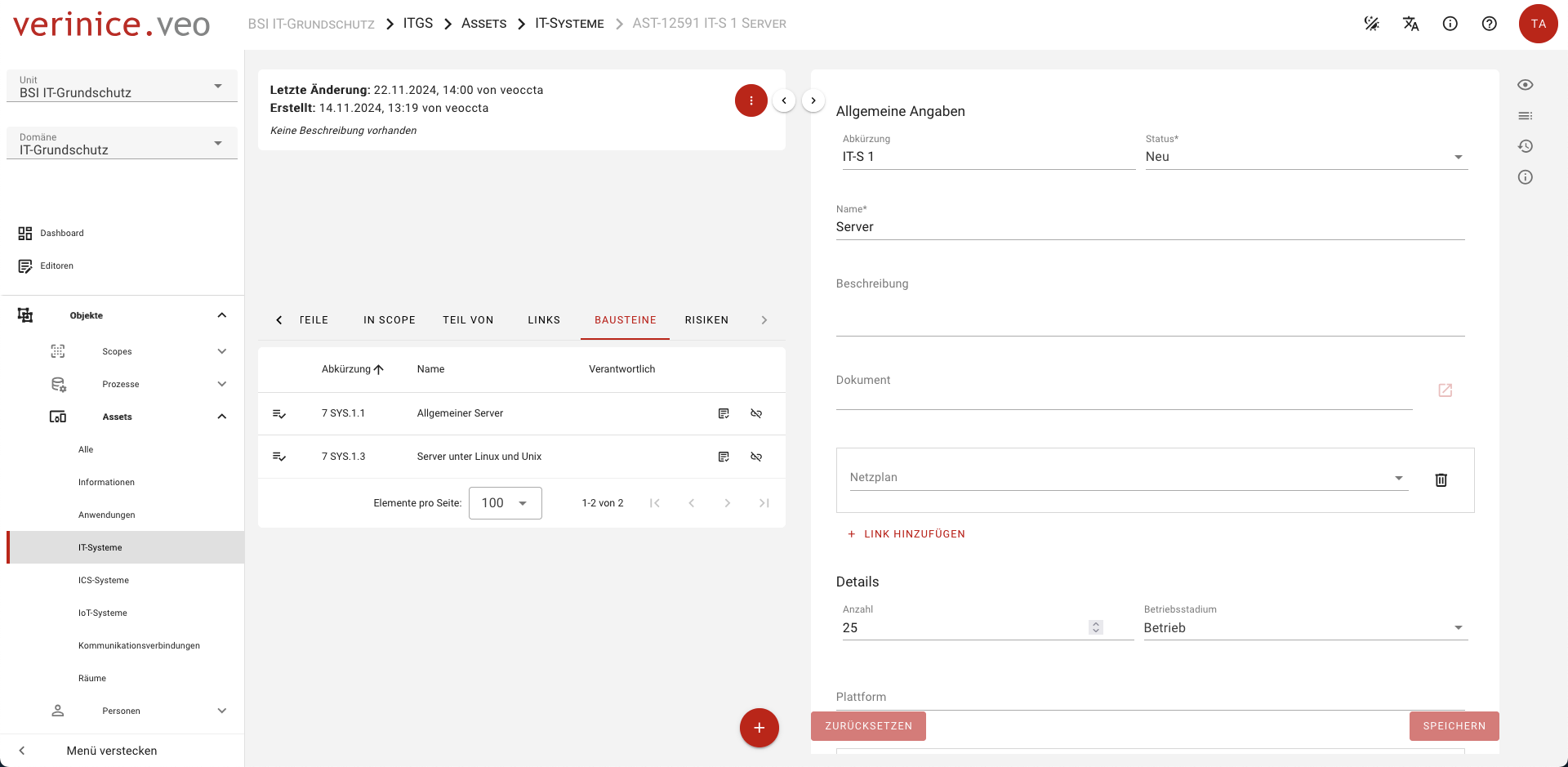
- Once you save the dialog, the modeled modules will appear under Modules in the target object.
From the Module's Perspective
Assign desired target objects to a module:
- Open a module to which one or more target objects should be assigned.
- In the object view, select the Target Objects tab, click +, and then choose the required target object type (Scope, Process, or Asset).
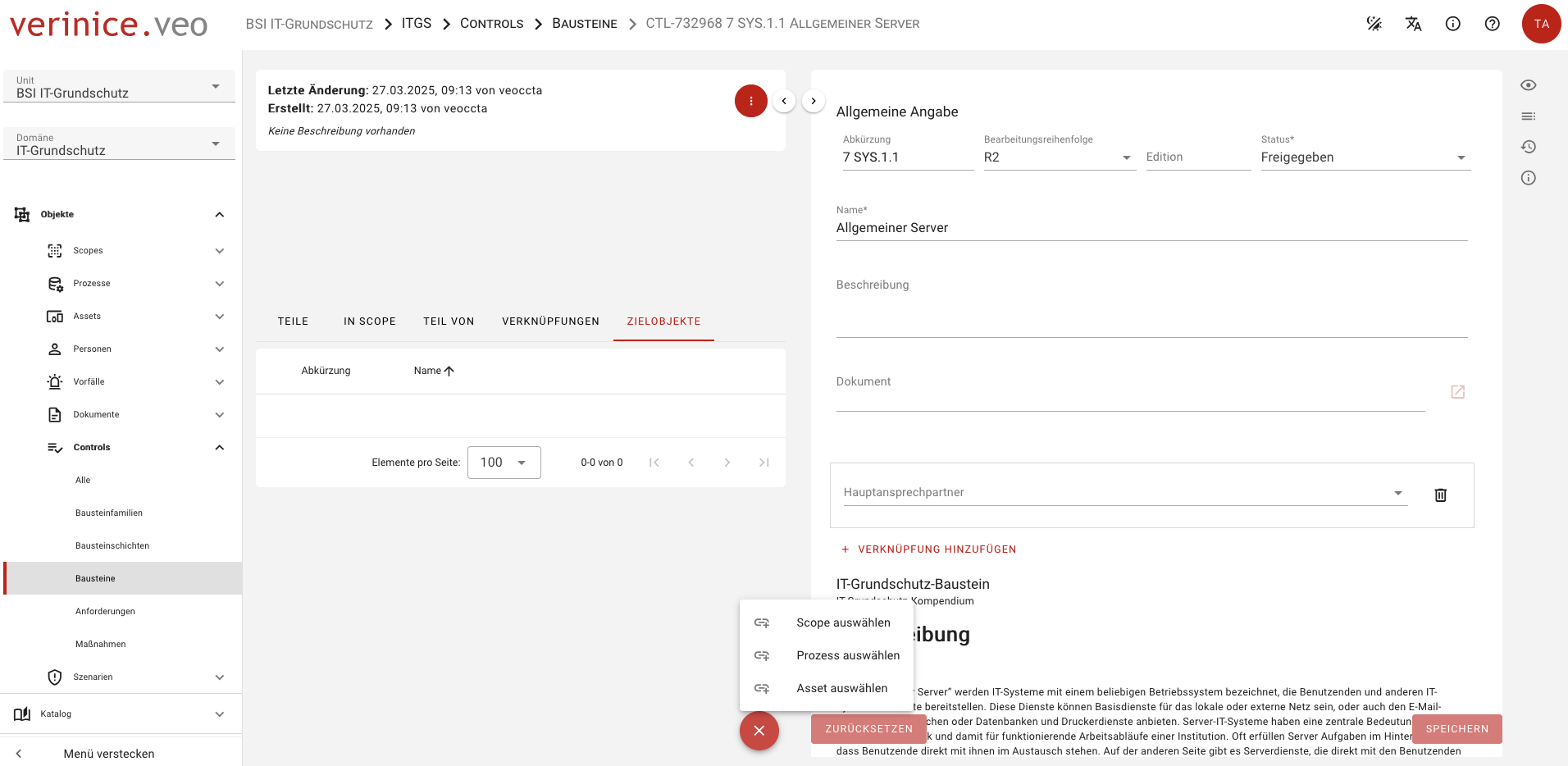
- A dialog opens showing all target objects of the previously selected type. In this dialog, select the target objects you want to model with the module. Use the search function to find target objects by name and/or abbreviation. Sorting is also available.
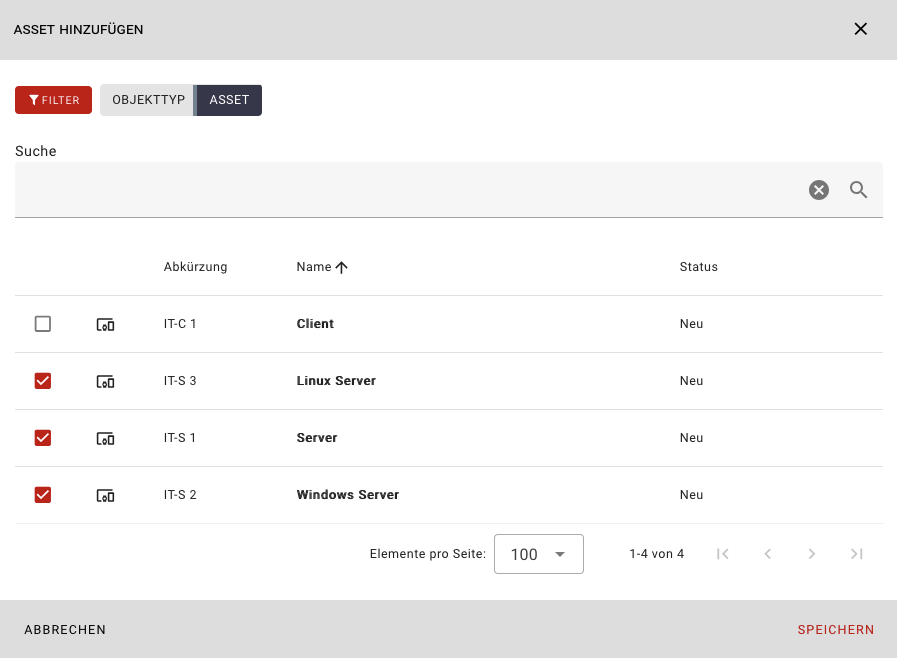
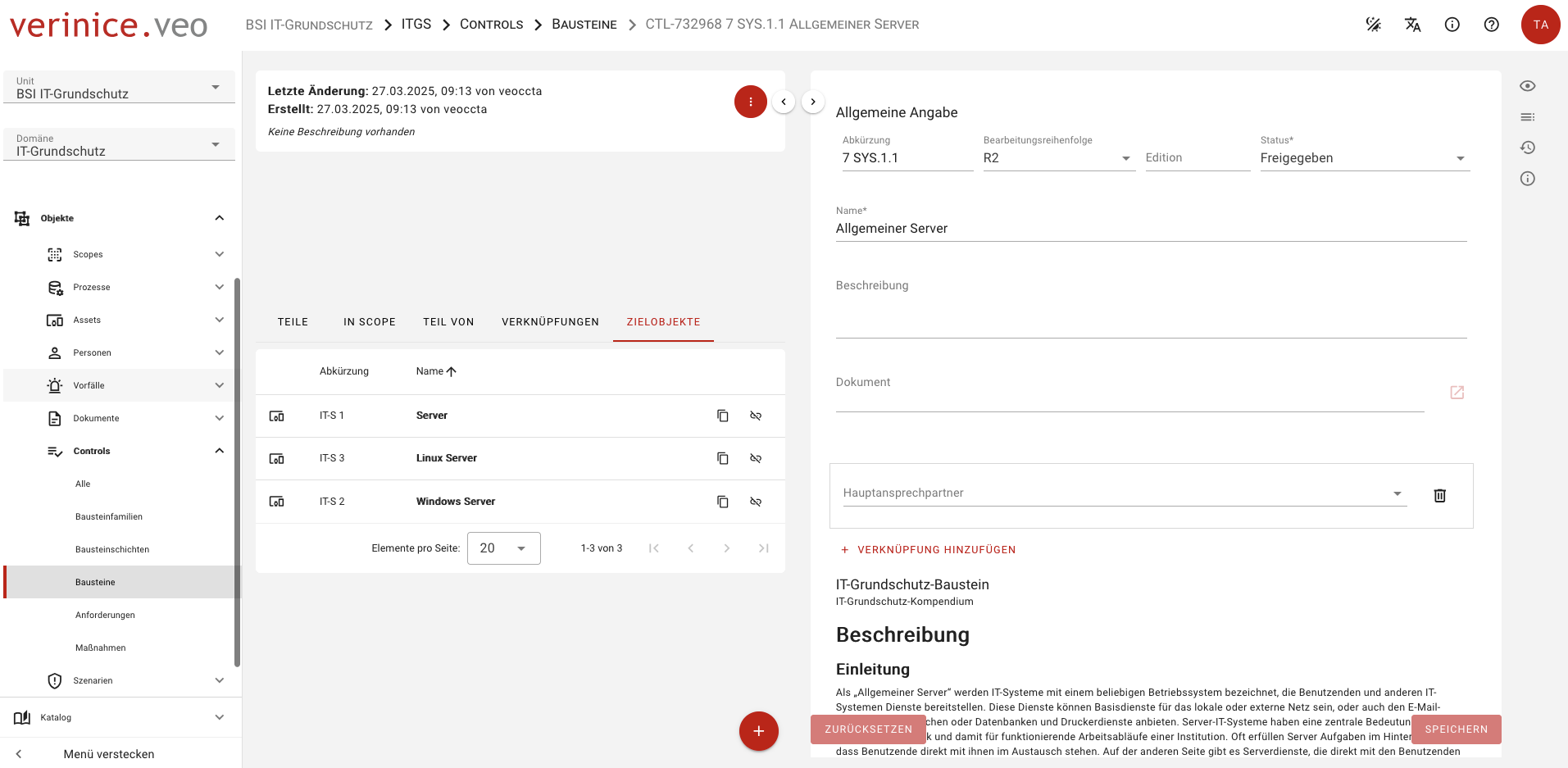
- After saving, the module will list the target objects it is modeled for under Target Objects.
Editing Modules
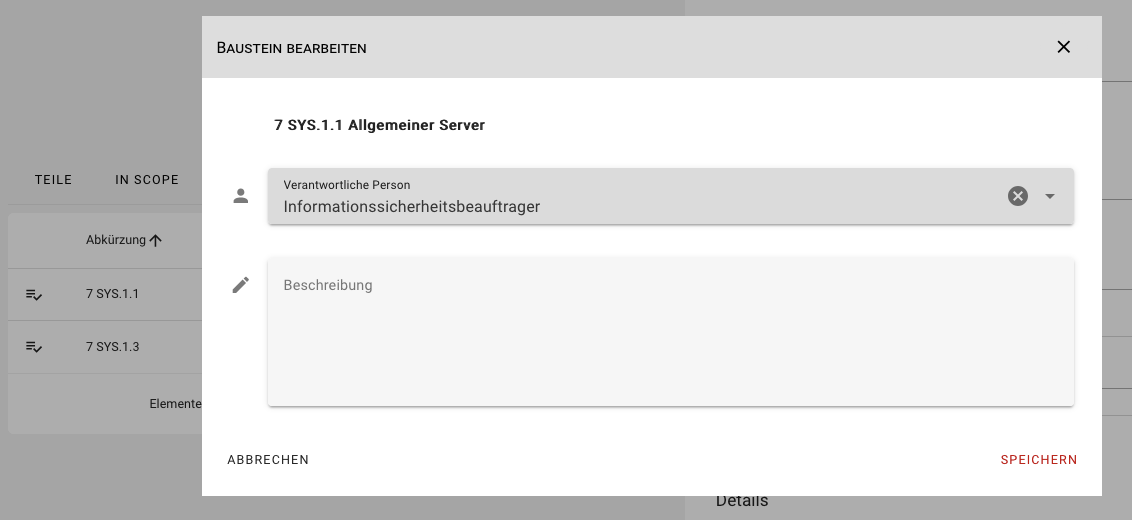
To edit a module, click on the corresponding Module. A dialog opens where you can assign a responsible person and enter a description.
Custom Modules
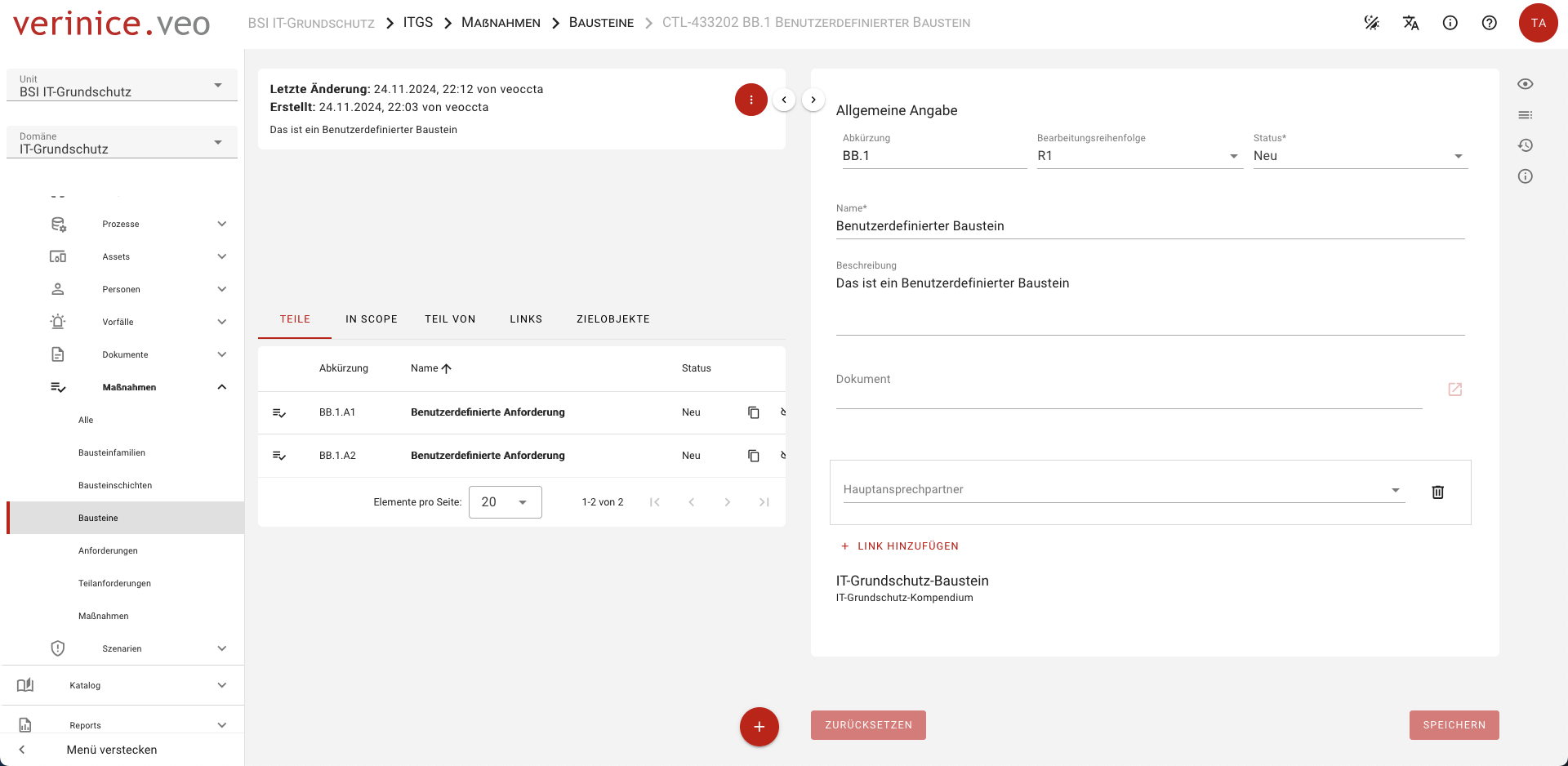
Of course, it is also possible to create custom modules and requirements in verinice. To do this, navigate to Controls > Modules/Requirements in the menu and use + to create the desired objects. You can then combine the created objects as Parts of a module in the object view.
Modeling from Profile
Modeling from a profile significantly simplifies the modeling of a complete information network. All modules from the IT-Grundschutz Compendium, including modeled sample target objects, are copied into the active unit. You can modify, copy, or delete the sample target objects and modules to represent your organization.
You can apply the profile either during the creation of a new unit from the unit management or to an existing unit.
WARNING
Applying a profile will add a large number of additional objects to an existing unit!
We recommend testing the application in a new unit.